Manual · Intermec
Trakker Antares 2400 Family System Manual
Manual362 pagesPDF 2.1 MB
System manual for the Intermec Trakker Antares 2400 family of handheld, vehicle-mount and stationary terminals, firmware 8.01.
Covers · 4 models
The models it covers
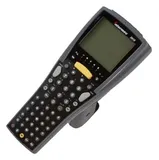 Intermec 2410Portable batch data collection terminal from$950.0044 in stock Intermec 24152.4 GHz wireless portable data collection terminal from$995.0026 in stock
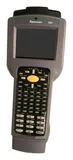 Intermec 24352.4 GHz wireless portable data collection terminal Call for availability
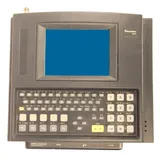 Intermec 2475Vehicle-mounted data collection terminal Call for availability
Summary
What is in it
Intermec system manual for the Trakker Antares 2400 family: the 241X, 242X and 243X handheld terminals, the 2455 and 2475 vehicle-mount terminals, and the 246X and 248X stationary terminals. It covers configuring the terminals by bar code, serial port or network, upgrading firmware, developing and downloading applications, running diagnostics, the full reader and configuration command references, default configurations, ASCII bar code charts and using DOS on the terminal.
Its parts
- Introducing the Trakker Antares 2400 Family
- Configuring and Managing the Terminals
- Developing and Using Applications
- Running Diagnostics
- Reader Command Reference
- Configuration Command Reference
From the manual
Key facts from this manual
Each line names its page in the PDF.
The Intermec Trakker Antares 2400 Family System Manual for firmware version 8.01. It covers the whole family: the 2410, 2415, 2420, 2425, 2425CS, 2430 and 2435 handhelds, the 2455 and 2475 vehicle-mount terminals and the 2460, 2461, 2480, 2481, 2485 and 2486 stationary terminals. It explains configuration, cloning, firmware upgrades, application development, diagnostics and error numbers, and reader and configuration commands.
- Device family
- Trakker Antares 2400 Family programmable data collection terminals sharing the same programming tools, configuration and connectivity p. 22
- Flash drive C
- About 750K flash for the user, up to 128 files, on all terminals p. 67
- Other drives
- Optional 2MB configurable flash drive D and a RAM disk drive E of up to 256K, each up to 128 files, on all terminals p. 67
- Applications
- Written in Microsoft C with the Trakker Antares PSK or EZBuilder; a single application can be up to 512K, less any RAM drive p. 67
- Firmware
- Version 8.01, supported on all terminals in the family except the 246X p. 26
- Error numbers
- Shown on the Error Logger screen, for example 0x7E could not connect to controller, 0x7F DHCP failed to obtain an IP address, 0x196 disk full p. 107, 108, 109
- Serial port
- 2410, 2415, 2430 and 2435: integrated I/O port for RS-232 serial communications with a host or PC p. 22, 23, 24
- Radio
- 2415, 2435 and 2475: RF terminals; with an IEEE 802.11b radio installed they are Wi-Fi certified p. 22
- RF software
- 2415, 2435 and 2475: client/server applications, TE 2000 terminal emulation and dcBrowser web applications p. 23, 24, 25
- Network protocols
- 2415, 2435 and 2475: UDP Plus, TCP/IP or WTP through an access point p. 67
- Extended SRAM
- 2410 and 2475: optional 2MB or 4MB extended SRAM drive G p. 67
- Display
- 2430 and 2435: screen can be resized up to 21 lines by 31 characters p. 24
- Cloning cable
- RS-232 null modem cable from COM1 to COM1; 243X: cloning cable accessory P/N 216-909-001 also works p. 44
- User's manuals
- 241X: P/N 069538; 243X: P/N 071791; 2475: P/N 072383 p. 1
What this manual walks you through
- Network protocols the terminals use p. 26, 27
- Cloning configuration and applications to another terminal p. 44
- Transferring files in a TCP/IP direct connect network p. 44
- Restoring the default configuration p. 50, 51
- Upgrading the firmware p. 51
- Creating and downloading applications p. 66, 67, 68
- Reading error numbers in the Error Logger p. 107, 108, 109
Good to know
- A firmware upgrade removes applications and files and restores the default configuration, so back up custom files first. p. 51
- After restoring defaults, RF terminals need their network settings entered again. p. 50
- DOS applications need the DOS option and firmware 6.12 or later, and cannot run alongside native .BIN applications. p. 68
- On RF terminals, disable the radio on both units before cloning. p. 44
- Error 0x7D can point to a duplicate IP address on the network. p. 108
Questions this manual answers
How do I reset an Intermec 2410 to its default configuration?
Scan the Default Configuration bar code, send .+0 from the host or DCS 300, or choose System Menu > Load Default Values. p. 50
What is the difference between the Intermec 2410 and 2415?
The 2415 does everything the 2410 does and can also communicate in an RF network. p. 23
What does error 0x7F mean on a Trakker Antares terminal?
DHCP failed to obtain an IP address. p. 108
Does a firmware upgrade erase my applications on the 2435?
Yes, it removes applications and files and restores the default configuration; back up custom files first. p. 51
How much storage does a Trakker Antares 2400 terminal have?
Drive C has about 750K of user flash; an optional 2MB flash drive D and a RAM disk of up to 256K are available on all terminals. p. 67
Contents
Chapters and sections
Each line opens the PDF at its page.
- Chapter 1 - Introducing the Trakker Antares 2400 Family21
- What Is the Trakker Antares 2400 Family?22
- Trakker Antares 241X Terminals22
- Trakker Antares 242X Terminals23
- Trakker Antares 243X Terminals23
- Trakker Antares 2455 Terminal24
- Trakker Antares 246X Terminals24
- Trakker Antares 2475 Terminal25
- Trakker Antares 248X Terminals25
- What’s New in Firmware Version 8.01?26
- About Network Connectivity and Protocols26
- Chapter 2 - Configuring and Managing the Terminals31
- How to Configure the Terminals32
- Configuring the Terminal by Scanning Bar Code Labels33
- Configuring the Terminal Through the Serial Port35
- Configuring the Terminal Through the Network37
- Configuring the Terminal With the Clone Application43
- Transferring Files and Data in a TCP/IP Direct Connect Network44
- Saving Configuration Changes in Flash Memory49
- Restoring the Terminal’s Default Configuration50
- Upgrading the Terminal51
- Managing Your Terminals with Wavelink Avalanche58
- Chapter 3 - Developing and Using Applications65
- Chapter 4 - Running Diagnostics87
- Chapter 5 - Reader Command Reference115
- Chapter 6 - Configuration Command Reference143
135 more lines, from page 144 on
- Using Configuration Commands144
- Configuration Commands Listed by Category145
- Entering Variable Data in a Configuration Command148
- Entering ASCII Characters149
- Acknowledgement Delay Lower Limit151
- Acknowledgement Delay Upper Limit152
- AP Density153
- AP MAC Address154
- Append Time154
- Automatic Shutoff155
- Baud Rate156
- Beep Duration158
- Beep Frequency159
- Beep Volume160
- Character Set161
- Codabar163
- Code 11164
- Code 2 of 5165
- Code 39166
- Code 93169
- Code 128170
- Command Processing178
- Configuration Commands Via Serial Port181
- Controller Connect Check Receive Timer183
- Controller Connect Check Send Timer184
- Controller IP Address186
- Data Bits187
- Decode Security188
- Default Router189
- Device Management190
- Device Manager IP Address191
- DHCP (Controller)193
- DHCP (Terminal)194
- Display Backlight Timeout195
- Display Contrast196
- Display Font Type198
- Display Row Spacing199
- Display Spacing200
- Display Video Mode202
- Domain203
- End of Message (EOM)204
- Flash Memory Configuration206
- Flow Control207
- GTIN Compliance209
- Handshake210
- Host IP Address212
- ICMP (Internet Control Message Protocol)213
- Inactivity Timeout213
- Interleaved 2 of 5215
- Keypad Caps Lock216
- Keypad Clicker217
- Keypad Control217
- Keypad Type218
- LRC (Longitudinal Redundancy Check)221
- Maximum Retries222
- Maximum Sleep Duration223
- Medium Reservation224
- Microwave Robustness225
- Modem Dial Sequence225
- Modem Initialization Sequence226
- MSI228
- Multi-Drop Address229
- Network Activate230
- Network Loopback231
- Network Name231
- Network Port233
- Parity234
- Password235
- PDF417236
- Plessey237
- Poll (Polling)238
- Postamble239
- Power Management240
- Preamble241
- Radio MAC Address242
- RAM Drive Size243
- Receive All Multicast244
- Reservation Threshold245
- Resume Execution246
- RS-232 or RS-422/485 COM2 Interface246
- Roaming Flag247
- Scan Ahead248
- Scanner Mode248
- Scanner Port (COM4)249
- Scanner Redundancy250
- Scanner Selection251
- Scanner Timeout253
- Scanner Trigger255
- Security Identification (ID)256
- Serial Port Protocol257
- Server Certificate Common Name (Server Cert CN)259
- Start of Message (SOM)260
- Station Name262
- Stop Bits262
- Subnet Mask263
- Suspend/Resume Control265
- Symbology Identifiers265
- TCP Maximum Retries270
- TCP/IP Maximum Transmit Timeout271
- Terminal IP Address272
- Terminal Port274
- Time and Date275
- Time in Seconds276
- Time Zone276
- Timeout Delay277
- Transmit Mode279
- Transmit Rate280
- Transmit Rate Fallback281
- UPC/EAN281
- User Name285
- Wakeup On Broadcast286
- WEP Encryption286
- WEP Key287
- WEP Transmit Key289
- Appendix A - Default Configurations and Command Syntax291
- Appendix B - Full ASCII Charts301
- Appendix C - International Character Support309
- Appendix D - Using Default and Optional Applications321
- Index349
The whole text · 38 parts
Read the manual here as text
Its text as extracted from the PDF, unedited, in parts; each page opens the PDF at that page.
- Pages 1 to 101-10
- Pages 11 to 2011-20
- Chapter 1 - Introducing the Trakker Antares 2400 Family21-30
- Chapter 2 - Configuring and Managing the Terminals, pages 31 to 3931-39
- Chapter 2 - Configuring and Managing the Terminals, pages 40 to 4840-48
- Chapter 2 - Configuring and Managing the Terminals, pages 49 to 5749-57
- Chapter 2 - Configuring and Managing the Terminals, pages 58 to 6458-64
- Chapter 3 - Developing and Using Applications, pages 65 to 7265-72
- Chapter 3 - Developing and Using Applications, pages 73 to 8073-80
- Chapter 3 - Developing and Using Applications, pages 81 to 8681-86
- Chapter 4 - Running Diagnostics, pages 87 to 9687-96
- Chapter 4 - Running Diagnostics, pages 97 to 10697-106
- Chapter 4 - Running Diagnostics, pages 107 to 114107-114
- Chapter 5 - Reader Command Reference, pages 115 to 124115-124
- Chapter 5 - Reader Command Reference, pages 125 to 134125-134
- Chapter 5 - Reader Command Reference, pages 135 to 142135-142
- Chapter 6 - Configuration Command Reference, pages 143 to 152143-152
- Chapter 6 - Configuration Command Reference, pages 153 to 162153-162
- Chapter 6 - Configuration Command Reference, pages 163 to 172163-172
- Chapter 6 - Configuration Command Reference, pages 173 to 182173-182
- Chapter 6 - Configuration Command Reference, pages 183 to 192183-192
- Chapter 6 - Configuration Command Reference, pages 193 to 202193-202
- Chapter 6 - Configuration Command Reference, pages 203 to 212203-212
- Chapter 6 - Configuration Command Reference, pages 213 to 222213-222
- Chapter 6 - Configuration Command Reference, pages 223 to 232223-232
- Chapter 6 - Configuration Command Reference, pages 233 to 242233-242
- Chapter 6 - Configuration Command Reference, pages 243 to 252243-252
- Chapter 6 - Configuration Command Reference, pages 253 to 262253-262
- Chapter 6 - Configuration Command Reference, pages 263 to 272263-272
- Chapter 6 - Configuration Command Reference, pages 273 to 282273-282
- Chapter 6 - Configuration Command Reference, pages 283 to 290283-290
- Appendix A - Default Configurations and Command Syntax291-300
- Appendix B - Full ASCII Charts301-308
- Appendix C - International Character Support309-320
- Appendix D - Using Default and Optional Applications, pages 321 to 330321-330
- Appendix D - Using Default and Optional Applications, pages 331 to 340331-340
- Appendix D - Using Default and Optional Applications, pages 341 to 348341-348
- Index349-362
The file