Manual · Intermec
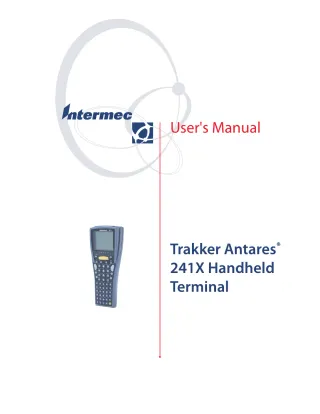
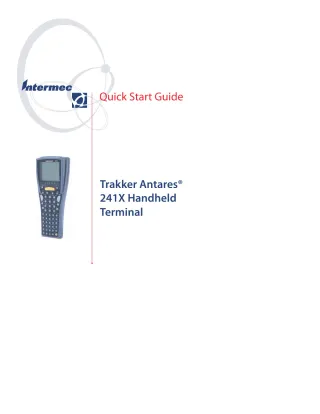
Trakker Antares 241X Handheld Terminal User's Manual
Manual106 pagesPDF 2.3 MB
User's manual for the Intermec Trakker Antares 2410 batch and 2415 RF handheld terminals: features, setup, networking and troubleshooting.
Covers · 2 models
The models it covers
Summary
What is in it
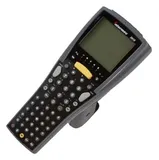
Intermec's user's manual for the Trakker Antares 241X handheld terminals: the 2410, a programmable batch terminal with an RS-232 I/O port, and the 2415, which adds RF networking. It covers the terminals' features and options, battery pack, keypads, screen, status LEDs, scanner and drives, configuring through the menu system, serial protocols and RF setup including 802.1x security, troubleshooting, booting and resetting, and specifications with pin assignments and cables.
Its parts
- Learning About the Terminals
- Configuring the Terminals
- Operating the Terminals in a Network
- Troubleshooting and Maintenance
- Specifications
From the manual
Key facts from this manual
Each line names its page in the PDF.
User's manual for the Intermec Trakker Antares 2410 and 2415 handheld data collection terminals, in the revision for firmware version 8.01. It explains the terminal's battery, keypad, screen, serial port and scanner, how to configure it and use it in a network, how to solve common problems, and gives the full specifications.
- Device
- Small handheld data collection terminal; the 2415 adds radio (RF) network communications p. 16
- Screen
- CGA compatible backlit LCD, 16 lines x 20 columns (128 x 160 dot matrix) p. 90
- Serial port
- 16-pin AMP pocket phone connector, RS-232C up to 38400 baud p. 92
- Battery
- Rechargeable lithium-ion pack: standard 1350 mAh or 2400 mAh, high performance 2700 mAh or 4800 mAh p. 90
- Battery part numbers
- P/N 069428, 069429, 073929 and 073930 (standard single-cell or high performance dual-cell packs) p. 19
- Memory
- 2MB programmable flash (750K available) and 1MB battery-backed RAM (512K available) p. 91
- Operating temperature
- -20°C to 50°C (-4°F to 122°F); battery charging 0°C to 40°C p. 90
- Dimensions
- 19.3 cm (7.6 in) long; 8.4 cm (3.3 in) wide and 5.6 cm (2.2 in) high at the scanner p. 90
- Weight
- 2410: 374 g (13.2 oz); 2415: 422 g (14.9 oz), with standard battery p. 90
- Radio
- 2415 only: IEEE 802.11b (direct sequence, up to 11 Mbps) or OpenAir (frequency hopping, 1.6 Mbps), 2.4 to 2.5 GHz p. 91
- Keypads
- 55-key alphanumeric, 37-key alphanumeric with large numeric, or 37-key function key with large numeric p. 18
- Scanner options
- Laser scanner: standard, long range, high density, high visibility, advanced long-range, linear imager, or PDF417 capable p. 18
- Chargers and dock
- 2-pack charger P/N 069582; 4-pack charger P/N TZ2410A; communications dock P/N TD2410A p. 19
- Cables
- 16-pin to 9-pin cable, 183 cm (6 ft), P/N 069589; 16-pin adapter cable P/N 069591; 1550C cable P/N 069813; 1551C cable P/N 068414-060 p. 95
What this manual walks you through
- Getting the terminal ready for first use p. 20, 21
- Charging and installing the battery pack p. 22
- Telling when the battery pack is low p. 22
- Understanding the terminal's beeps p. 33
- Connecting to a PC, modem or printer through COM1 or the dock p. 34
- Fixing a terminal that will not turn on or appears locked up p. 72, 73
- Scanning ranges for each scanner type p. 92, 93, 94
- COM1 pin assignments on the TD2410 dock p. 95
Good to know
- The lithium-ion battery pack must not be taken apart, heated above 100ºC (212ºF) or burned. p. 21
- Do not look into the scanner window or at a reflection of the laser beam while it is scanning. p. 34
- A backup source keeps status, memory and clock for at least 15 minutes while the battery pack is changed; after longer, the Boot Menu appears. p. 21, 73
- Code 11 works only on terminals set for non-decoded scanning, and PDF417 only on terminals set for decoded scanning. p. 92
- With the advanced long-range scanner you may not be able to scan the bar codes printed in the manual. p. 93
Questions this manual answers
What is the difference between the Intermec 2410 and 2415?
The 2410 is a batch terminal that talks to a host over RS-232. The 2415 does everything the 2410 does and also communicates over a radio (RF) network. p. 16
How long does the 241X battery take to charge?
In a battery charger, about 2 hours for the standard pack and about 4 hours for the high performance pack. In a powered communications dock, about 1.25 and 2.5 hours. p. 22
How do I reset a locked-up Intermec 2410 or 2415?
If it will not turn off, press and hold the key that turns it on for about 12 seconds; the Good Read LED blinks once and the terminal turns off. Turning it back on clears RAM and starts the application. p. 73
Which cable connects the 241X to a PC?
The 16-pin, 5-wire 183 cm (6 ft) cable with a 9-pin RS-232 connector, P/N 069589, or the 16-pin adapter cable P/N 069591. p. 95
Which AC power supply does the 2410 use?
P/N 065236, which comes with a North American power cord; outside North America order P/N 073941 and buy the right power cord. p. 19
Contents
Chapters and sections
Each line opens the PDF at its page.
- Chapter 1 - Learning About the Terminals15
- What Are the Trakker Antares 241X Terminals?16
- What’s New?20
- Using the Terminal for the First Time20
- Unpacking the Terminal21
- Using the Terminal’s Battery Pack21
- Using the Keypad25
- Using the Screen30
- Learning About the Status LEDs31
- Learning About the Audio Signals32
- Using the Terminal’s Serial Port33
- Using the Terminal’s Scanner34
- Defining the Terminal’s Drives37
- Chapter 2 - Configuring the Terminals39
- Chapter 3 - Operating the Terminals in a Network51
- Chapter 4 - Troubleshooting and Maintenance71
- Appendix A - Specifications89
- Index97
The whole text · 11 parts
Read the manual here as text
Its text as extracted from the PDF, unedited, in parts; each page opens the PDF at that page.
- Pages 1 to 141-14
- Chapter 1 - Learning About the Terminals, pages 15 to 2215-22
- Chapter 1 - Learning About the Terminals, pages 23 to 3023-30
- Chapter 1 - Learning About the Terminals, pages 31 to 3831-38
- Chapter 2 - Configuring the Terminals39-50
- Chapter 3 - Operating the Terminals in a Network, pages 51 to 6051-60
- Chapter 3 - Operating the Terminals in a Network, pages 61 to 7061-70
- Chapter 4 - Troubleshooting and Maintenance, pages 71 to 7971-79
- Chapter 4 - Troubleshooting and Maintenance, pages 80 to 8880-88
- Appendix A - Specifications89-96
- Index97-106
The file