Manual · Datalogic
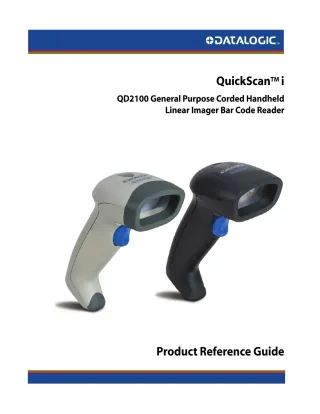
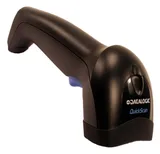
QuickScan QD2100 General Purpose Corded Handheld Linear Imager Bar Code Reader Product Reference Guide
Manual388 pagesPDF 11 MB
Product reference guide for the Datalogic QuickScan QD2100 corded handheld linear imager: setup, interfaces and programming barcodes.
Covers · 2 models
The models it covers
Summary
What is in it
The full Product Reference Guide for the Datalogic QuickScan QD2100 general purpose corded handheld linear imager. It covers unpacking and setting up the imager, choosing and configuring the interface (RS-232, keyboard wedge, USB-OEM, IBM 46XX, wand emulation), general features such as beeper, LED and scan modes, data editing with prefixes, suffixes and label IDs, and the options for every symbology, all set by scanning the programming barcodes in the guide. Appendices give technical specifications, standard defaults and sample barcodes.
Its parts
- Introduction
- Getting Started
- Interfaces
- General Features
- RS-232 ONLY Interface
- RS-232/USB-Com Interfaces
- Keyboard Interface
- USB-OEM Interface
- IBM 46XX Interface
- Wand Emulation Interface
- Data Editing
- Symbologies
From the manual
Key facts from this manual
Each line names its page in the PDF.
This is the Product Reference Guide for the Datalogic QuickScan QD2100 handheld imager; its specifications name the QD2110 and QD2130 versions. It explains connecting the cable, choosing the host interface, programming features with barcodes, and reading the LED, beeper and error signals, and it lists the technical specifications.
- Device
- QuickScan QD2100 handheld bar code imager with 617nm LED light source p. 15, 343
- Interfaces
- 5 volt general purpose models: RS-232, RS-232 OPOS, USB, Keyboard Wedge, Wand Emulation; 4 to 14 volt retail POS models: RS-232, RS-232 OPOS, USB, IBM 46XX p. 21
- Power
- QD2110: 4-14 VDC; QD2130: 5.0 VDC +/-10%; 180mA @ 5V idle and 345mA @ 5V scanning, typical p. 343
- Depth of field
- 4.0 mil: 3.0 - 9.5 cm; 10 mil: 1.3 - 37.5 cm; 13 mil: 2.5 - 46.5 cm; 20 mil: to 59 cm p. 343
- Scan angle
- 43° ± 3°; roll ± 45°, pitch ± 65°, skew ± 65° p. 343
- Resolution
- 4 mil minimum element width; 15% minimum reflectance print contrast p. 343
- Symbologies
- UPC/EAN/JAN with add-ons, Code 39, Code 32, Code 128, ISBT 128, I 2 of 5, Codabar, GS1-128, Code 93, MSI, GS1 DataBar, Code 11 and more p. 344
- Size and weight
- 2.8 in. H x 6.7 in. L x 2.6 in. W (7.1 x 17.1 x 6.6 cm); about 4.2 oz. (119 g) without cable p. 343
- Temperature
- Operating 32° to 122° F (0° to 50° C); storage -40° to 158° F (-40° to 70° C) p. 344
- Drops and sealing
- Multiple 5 ft./1.524 m drops to concrete; IEC 529-IPX2 and IEC 529-IP5X p. 344
- Error codes
- LED flashes/beeps at startup: 1 Configuration, 2 Interface PCB, 4 Imager Module, 6 Digital PCB, 14 CPLD/Code Mismatch p. 363
- Configuration
- Programming barcodes in the guide, or the Datalogic Aladdin application over a serial or USB cable p. 11
- RS-232 power
- Power from the terminal (POT), or the approved AC adapter plugged into the RS-232 cable connector p. 16
- Beeper
- User-selectable volume (three levels) and tone (three tones) p. 344
What this manual walks you through
- Installing the interface cable and connecting to RS-232, USB, IBM or keyboard wedge hosts p. 16, 17
- Selecting the host interface with a single barcode p. 21
- Entering and leaving Programming Mode p. 18
- Restoring the custom, USA or EU factory configuration p. 19, 20
- Transmitting the software version p. 19
- Setting up RS-232, keyboard wedge, USB-OEM and IBM 46XX interfaces p. 11
- Data editing and symbology options p. 11, 12
- Reading LED and beeper indications p. 361, 362
- Startup error codes p. 363
- Standard cable pinouts p. 345
Good to know
- Do not scan the ENTER/EXIT barcode before an interface selection barcode. p. 21
- Some interfaces start the scanner disabled; pull and hold the trigger five seconds to allow programming. p. 21
- Custom defaults depend on the interface, so set the correct interface before restoring them. p. 19
- A long tone at startup means the self test failed; the guide says to contact the helpdesk. p. 363
- Keep the packaging; a unit sent for service should go back in its original container. p. 15
Questions this manual answers
What voltage do the QD2110 and QD2130 use?
The QD2110 takes 4-14 VDC and the QD2130 takes 5.0 VDC +/-10%. p. 343
How do I reset a QuickScan QD2100 to factory settings?
Scan the Restore USA Factory Configuration or Restore EU Factory Configuration barcode; both restore factory settings including the interface type. p. 20
QD2100 sounds a long tone at power up, what does it mean?
The imager failed its automatic self test; its LED flashes or beeps then give an error code, and the guide says to contact the helpdesk. p. 363
Why does my QD2100 chirp six times?
It means a host connection is not established while the IBM or USB interface is enabled. p. 362
What software configures the QuickScan QD2100?
The Datalogic Aladdin configuration application, which talks to the imager over a serial or USB cable. p. 11
Contents
Chapters and sections
Each line opens the PDF at its page.
- Introduction11
- Getting Started15
- Interfaces21
- General Features27
- RS-232 ONLY Interface51
- RS-232/USB-Com Interfaces57
102 more lines, from page 72 on
- Disable Character72
- Keyboard Interface77
- USB-OEM Interface91
- IBM 46XX Interface95
- Wand Emulation Interface101
- Data Editing107
- Symbologies131
- Introduction131
- Standard Factory Settings for Symbologies132
- Disable All Symbologies132
- Coupon Control133
- UPC-A134
- UPC-E137
- GTIN Formatting141
- EAN 13142
- EAN 8146
- UPC/EAN Global Settings149
- Add-Ons154
- GS1 DataBarTM Omnidirectional165
- GS1 DataBarTM Expanded167
- GS1 DataBarTM Limited174
- Code 39176
- Code 32 (Italian Pharmaceutical)193
- Code 39 CIP (French Pharmaceutical)195
- Code 128195
- GS1-128210
- Interleaved 2 of 5 (I 2 of 5)211
- Interleaved 2 of 5 CIP HR224
- Datalogic 2 of 5224
- Codabar236
- ABC Codabar254
- Code 11257
- Standard 2 of 5272
- Industrial 2 of 5282
- IATA291
- ISBT 128292
- MSI296
- Plessey306
- Code 93316
- Codablock F328
- Code 4335
- Code 5337
- Code 4 and Code 5 Common Configuration Items339
- Follett 2 of 5342
- Technical Specifications343
- Standard Defaults347
- LED and Beeper Indications361
- Sample Barcodes365
- Keypad369
- Scancode Tables373
The whole text · 48 parts
Read the manual here as text
Its text as extracted from the PDF, unedited, in parts; each page opens the PDF at that page.
- Pages 1 to 41-4
- Pages 5 to 65-6
- Pages 7 to 107-10
- Introduction11-14
- Getting Started15-20
- Interfaces21-26
- General Features, pages 27 to 3427-34
- General Features, pages 35 to 4235-42
- General Features, pages 43 to 5043-50
- RS-232 ONLY Interface51-56
- RS-232/USB-Com Interfaces, pages 57 to 6657-66
- RS-232/USB-Com Interfaces, pages 67 to 7667-76
- Keyboard Interface77-90
- USB-OEM Interface91-94
- IBM 46XX Interface95-100
- Wand Emulation Interface101-106
- Data Editing, pages 107 to 114107-114
- Data Editing, pages 115 to 122115-122
- Data Editing, pages 123 to 130123-130
- Symbologies, pages 131 to 140131-140
- Symbologies, pages 141 to 150141-150
- Symbologies, pages 151 to 160151-160
- Symbologies, pages 161 to 170161-170
- Symbologies, pages 171 to 180171-180
- Symbologies, pages 181 to 190181-190
- Symbologies, pages 191 to 200191-200
- Symbologies, pages 201 to 210201-210
- Symbologies, pages 211 to 220211-220
- Symbologies, pages 221 to 230221-230
- Symbologies, pages 231 to 240231-240
- Symbologies, pages 241 to 250241-250
- Symbologies, pages 251 to 260251-260
- Symbologies, pages 261 to 270261-270
- Symbologies, pages 271 to 280271-280
- Symbologies, pages 281 to 290281-290
- Symbologies, pages 291 to 300291-300
- Symbologies, pages 301 to 310301-310
- Symbologies, pages 311 to 320311-320
- Symbologies, pages 321 to 330321-330
- Symbologies, pages 331 to 340331-340
- Symbologies, pages 341 to 342341-342
- Technical Specifications343-346
- Standard Defaults347-360
- LED and Beeper Indications361-364
- Sample Barcodes365-368
- Keypad369-372
- Scancode Tables, pages 373 to 380373-380
- Scancode Tables, pages 381 to 388381-388
The file