Manual · Datalogic
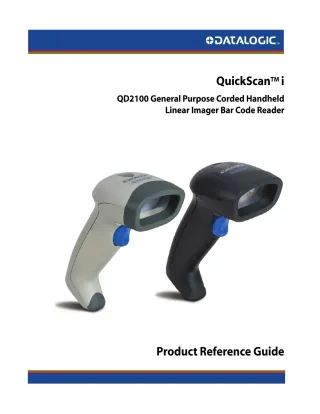
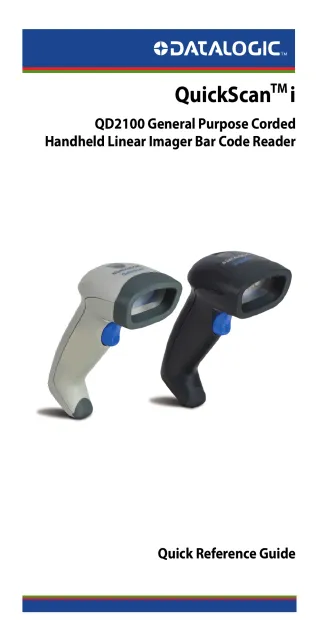
QuickScan i QD2100 General Purpose Corded Handheld Linear Imager Bar Code Reader Quick Reference Guide
Manual28 pagesPDF 3.0 MB
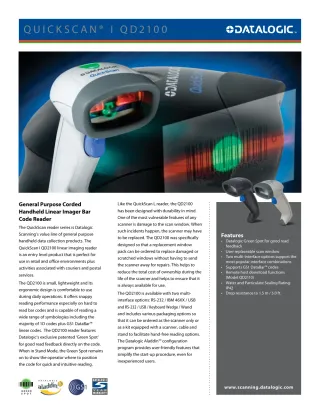
Quick reference guide for the Datalogic QuickScan i QD2100 corded handheld linear imager bar code reader.
Filed with · 2 models
Also filed with these models on the old site
Summary
What is in it
Datalogic's quick reference guide for the QuickScan i QD2100 general purpose corded handheld linear imager. After the end user license agreement, it shows how to connect the cable and host interface (keyboard wedge, RS-232, USB, IBM 46xx), aim and scan, the parts of the imager, scanning modes, troubleshooting, LED and beeper indications, programming bar codes for defaults and host interfaces, regulatory information and replacing the scan window.
Its parts
- Software Product Policy
- Connect/Disconnect Cable
- Connect Host Interface
- Aim and Scan
- Parts of the Imager
- Scanning Modes
- Troubleshooting
- LED and Beeper Indications
- Programming Barcodes
- Ergonomic Recommendations
- Regulatory Information
- Replacing the Scan Window
- Imager Labeling
From the manual
Key facts from this manual
Each line names its page in the PDF.
This is the Quick Reference Guide (R44-2983 Rev. C, July 2010) for the Datalogic QuickScan i QD2100 corded handheld linear imager. It names only the QD2100 model, not the QD2110 or QD2130. It shows how to connect the host cable, choose a scanning mode, read the LED and beeper signals, troubleshoot, and set the host interface with programming barcodes.
- Device
- QuickScan i QD2100 general purpose corded handheld linear imager bar code reader p. 1
- Host interfaces
- RS-232, USB, Keyboard Wedge, IBM p. 27
- RS-232 and IBM types
- RS-232 Standard, RS-232 Wincor Nixdorf, RS-232 OPOS; IBM Port 5B and Port 9B p. 17
- USB
- Powered by the USB host or a powered hub; defaults to HID keyboard; also USB-COM-STD, USB Alternate Keyboard, USB OEM, USB-KBD-APPLE p. 18
- Keyboard wedge types
- KBD-AT, KBD-AT-NK, KBD-AT-ALT, KBD-AT-ALT-NK, KBD-XT, KBD-IBM-3153, KBD-IBM-M, KBD-IBM-MB, KBD-DIG-VT p. 19, 20
- Power supply
- Input 100 - 240 VAC; output 5.2 VDC; max current 0.4 Amps; 15 Watts p. 21
- Scanning modes
- Trigger Single, Trigger Hold Multiple, Trigger Pulse Multiple, Flashing, Always On, Stand Mode, Trigger Object Sense p. 11, 12
- Indicators
- LED, beeper and a Green Spot for good read p. 15
- Parts
- LED, scan window, trigger, nose boot p. 11
- Scan window
- Replaceable; a replacement window is an orderable accessory p. 23
- USB COM driver
- USB-COM-STD needs the USB Com driver from www.datalogic.com p. 18
What this manual walks you through
- Connecting the cable and host interface p. 9
- Choosing a scanning mode with programming barcodes p. 11, 12, 13
- Troubleshooting no power, no decode and no transmission to the host p. 14
- Reading the LED and beeper indications p. 15
- Resetting the factory default settings p. 16
- Selecting RS-232, IBM, USB or keyboard wedge host types p. 17, 18, 19, 20
- Replacing the scan window p. 23
- Ergonomic recommendations p. 21
Good to know
- Some interfaces power up with the imager disabled; pull and hold the trigger five seconds to allow programming with barcodes. p. 16
- Use only a Datalogic-approved power supply: a Listed class II, or class III with a Limited Power Source. p. 21
- For USB Power Off Terminal use, attach only to a USB 1.0, 1.1 or 2.0 host device. p. 21
- Remove power before replacing the scan window and do not leave the interior exposed. p. 23
Questions this manual answers
How do I reset a QuickScan i QD2100 to factory defaults?
Scan the Factory Default Settings barcode in the guide; it restores the factory configuration for the active interface. p. 16
Does the QD2100 need a power supply on USB?
No. On USB it is powered by the host or a powered USB hub. p. 18
QD2100 reads the barcode but nothing reaches the computer, why?
The imager is likely not programmed for the correct host type; scan the matching host type barcode. p. 14
What do four beeps at power-up mean on the QD2100?
That is the normal power-up signal; the imager beeps four times at highest frequency and volume. p. 15
Contents
Chapters and sections
Each line opens the PDF at its page.
The whole text · 3 parts
Read the manual here as text
Its text as extracted from the PDF, unedited, in parts; each page opens the PDF at that page.
The file