Manual · Symbol
P460/P360 Memory Scanners Product Reference Guide
Manual198 pagesPDF 1.9 MB
Product reference guide for the Symbol P460 and P360 Phaser memory (batch) scanners and their PL 460 and PL 360 cradles.
Covers · 1 model
The models it covers

Summary
What is in it
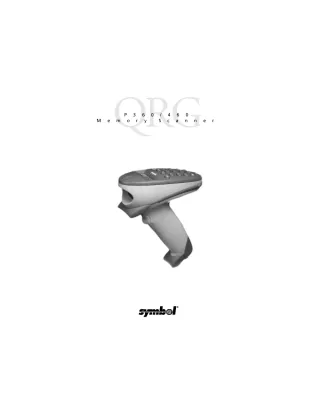
The product reference guide for the Symbol P460 (retail) and P360 (industrial) Phaser memory scanners, bar code scanners with an on-board keyboard and display that work corded or cordless. It covers setup and host connection through the cradle or a cable, operating the batch and scan-and-transmit applications, maintenance and specifications for scanner and cradle, the parameter bar code menus, automatic project download, and messages and error codes.
Its parts
- The Phaser Series Scanner
- Set Up
- Operation
- Maintenance And Specifications
- Parameter Menus
From the manual
Key facts from this manual
Each line names its page in the PDF.
Symbol's product reference guide (70-37690-04, Revision A, December 2003) for the P460/P360 Phaser memory scanners and their PL 460 and PL 360 cradles; the P460 is the batch retail version and the P360 the batch industrial version. It explains setup, charging, connecting to a host, the built-in applications, keypad entry, troubleshooting, specifications and pin-outs, plus a long chapter of programming bar codes.
- Device
- Batch memory scanner with on-board keypad and display, used corded or cordless; P460 is the batch retail version p. 17
- Battery
- Rechargeable lithium-ion in the handle; about 12 hours of typical use; full charge in about 3-1/2 hours p. 17
- Host interfaces
- RS-232 serial, or Synapse cables for keyboard wedge, USB and other hosts p. 19, 28
- Cradle
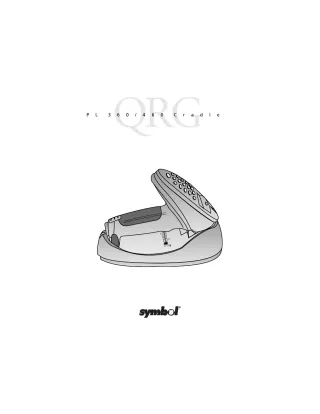
- PL 460 Cradle (retail version): stand, host interface and battery charger; desktop or wall mount p. 18
- Cradle ports
- COM1 to the host, COM2 for daisy-chaining cradles, and a power port p. 24
- Power
- +9V on the scanner connector: 250mA without charging, 1A when charging the battery p. 68
- Charging options
- In the cradle, on a cable with a power supply, or in the UBC 2000 charger with the P460/P360/P470/P370 adapter p. 25, 26
- Symbologies
- UPC/EAN, Bookland EAN, Code 11, Code 39, Code 39 Full ASCII, Trioptic Code 39, Code 93, Codabar, Interleaved 2 of 5, Code 128, EAN 128, Discrete 2 of 5, MSI Plessey, Coupon Code p. 66
- Software
- Ships with Scan and Transmit and Batch/Inventory applications; programmable with 123Scan data formatting rules or MCL-Designer applications p. 19, 20, 33
- Scan rate
- 35 (± 5) scans/sec (bidirectional) p. 66
- Tilt tolerance
- Roll ± 30°, pitch ± 65°, yaw ± 60° from normal p. 66
- Temperature
- P460: operating 32° to 104°F (0° to 40°C); storage -40° to 158°F (-40° to 70°C); 5% to 95% humidity, non-condensing p. 66
- Drop rating
- P460: 5-ft. (1.5 m) drops to concrete over the entire temperature range p. 66
- Hands-free stand
- IntelliStand for presentation scanning; needs a cable with an external power supply p. 65
What this manual walks you through
- Connecting and locking the scanner cable p. 22, 23
- Setting up the cradle p. 24
- Charging the battery and reading the cradle LED p. 25, 26
- Removing and inserting the battery p. 27, 28
- Connecting to a host by RS-232 or a Synapse cable p. 28, 29, 30
- Using the Batch/Inventory and Scan and Transmit applications p. 33, 34
- Scanning technique and the decode zone p. 54, 55, 56, 57
- Entering data from the keypad p. 58
- Troubleshooting table p. 62, 63, 64, 65
- Beeper codes and scanner messages p. 69, 187
Good to know
- With a Synapse cable, connect the cable and its flying power lead before powering the cradle or scanner, or the adapter will not work properly. p. 29
- Applications can be downloaded only over an RS-232 cable, not a Synapse cable. p. 64
- The IntelliStand cannot run the scanner on battery power. p. 65
- Clean the window with a damp cloth and, if needed, a non-ammonia detergent; never spray liquid into it. p. 61
- After choosing to send batch data, the scanner must be cradled or cabled within 30 seconds or the upload fails. p. 187
Questions this manual answers
What battery does the Symbol P460 use and how long does it last?
A rechargeable lithium-ion battery in the handle, good for about 12 hours of typical use and recharged fully in about 3-1/2 hours. p. 17
How do I connect the P460 to a computer?
Plug an RS-232 cable into the cradle's COM1 port or straight into the scanner, or use a Synapse cable for keyboard wedge, USB and other hosts. p. 19, 24, 28
What do 4 short high beeps mean on the P460?
The battery needs recharging. p. 69
What do the P460 cradle lights mean?
Off: scanner not seated. Blinking slowly: seated, charging will begin shortly. Blinking rapidly: charging. On: charging complete. p. 26
Why can't my PC download an application to the P460?
Applications download only over an RS-232 cable, not a Synapse cable; also check that the power supply is connected to the base. p. 64
Contents
Chapters and sections
Each line opens the PDF at its page.
- About This Manual11
- Chapter 1 The Phaser Series Scanner17
- Chapter 2 Set Up21
- Chapter 3 Operation33
- Chapter 4 Maintenance And Specifications61
- Chapter 5 Parameter Menus71
75 more lines, from page 71 on
- Introduction71
- Operational Parameters71
- Set Default Parameter77
- Communication Protocol78
- Host Type80
- Sleep Time83
- Date Separator84
- Hour Type85
- Decimal Separator86
- Date Format87
- Key Click88
- Laser On Time89
- Host Override90
- Beeper Options91
- Decode Options95
- Enable/Disable UPC-E96
- Enable/Disable UPC-A97
- Enable/Disable UPC-E198
- Enable/Disable EAN-899
- Enable/Disable EAN-13100
- Enable/Disable Bookland EAN101
- Decode UPC/EAN Supplementals102
- Decode UPC/EAN Supplemental Redundancy103
- Transmit UPC-A/UPC-E/UPC-E1 Check Digit104
- UPC-A Preamble105
- UPC-E Preamble106
- UPC-E1 Preamble107
- Convert UPC-E to UPC-A108
- Convert UPC-E1 to UPC-A109
- EAN Zero Extend110
- UPC/EAN Coupon Code111
- Enable/Disable Code 128112
- Enable/Disable UCC/EAN-128113
- Lengths for Code 128114
- Enable/Disable ISBT 128115
- Enable/Disable Code 39116
- Enable/Disable Trioptic Code 39117
- Set Lengths for Code 39118
- Code 39 Check Digit Verification120
- Transmit Code 39 Check Digit121
- Enable/Disable Code 39 Full ASCII122
- Convert Code 39 to Code 32123
- Code 32 Prefix124
- Enable/Disable Code 93125
- Set Lengths for Code 93126
- Enable/Disable Interleaved 2 of 5128
- Set Lengths for Interleaved 2 of 5129
- I 2 of 5 Check Digit Verification131
- Transmit I 2 of 5 Check Digit132
- Convert I 2 of 5 to EAN-13133
- Enable/Disable Discrete 2 of 5134
- Set Lengths for Discrete 2 of 5135
- Enable/Disable Codabar137
- Set Lengths for Codabar138
- CLSI Editing140
- NOTIS Editing141
- Enable/Disable MSI Plessey142
- Set Lengths for MSI Plessey143
- MSI Plessey Check Digits145
- Transmit MSI Plessey Check Digit146
- MSI Plessey Check Digit Algorithm147
- Security Options148
- RS-232 Parameters153
- MCL-Net Parameters165
- Numeric Bar Codes169
- Appendix A Bar Code Information173
- Appendix B Automatic Project Download185
- Appendix C Messages and Error Codes187
- Index189
The whole text · 23 parts
Read the manual here as text
Its text as extracted from the PDF, unedited, in parts; each page opens the PDF at that page.
- Pages 1 to 41-4
- Contents5-10
- About This Manual11-16
- Chapter 1 The Phaser Series Scanner17-20
- Chapter 2 Set Up21-32
- Chapter 3 Operation, pages 33 to 4233-42
- Chapter 3 Operation, pages 43 to 5243-52
- Chapter 3 Operation, pages 53 to 6053-60
- Chapter 4 Maintenance And Specifications61-70
- Chapter 5 Parameter Menus, pages 71 to 8071-80
- Chapter 5 Parameter Menus, pages 81 to 9081-90
- Chapter 5 Parameter Menus, pages 91 to 10091-100
- Chapter 5 Parameter Menus, pages 101 to 110101-110
- Chapter 5 Parameter Menus, pages 111 to 120111-120
- Chapter 5 Parameter Menus, pages 121 to 130121-130
- Chapter 5 Parameter Menus, pages 131 to 140131-140
- Chapter 5 Parameter Menus, pages 141 to 150141-150
- Chapter 5 Parameter Menus, pages 151 to 160151-160
- Chapter 5 Parameter Menus, pages 161 to 170161-170
- Chapter 5 Parameter Menus, pages 171 to 172171-172
- Appendix A Bar Code Information173-184
- Pages 185 to 188185-188
- Index189-198
The file