Manual · Symbol
P 360/460 Memory Scanner Quick Reference
Manual16 pagesPDF 263 KB
Quick reference guide for the Symbol Phaser P 360 and P 460 memory scanners with keypad and display: setup, charging and scanning.
Covers · 2 models
The models it covers
Summary
What is in it
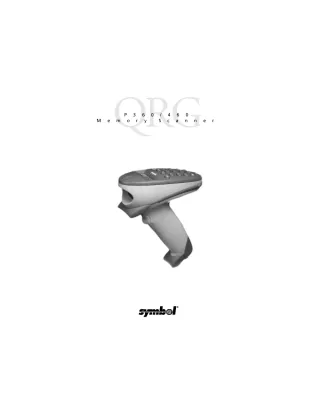
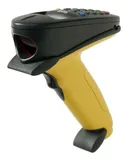
A quick reference for the Symbol Phaser P 360/460 Memory Scanner, a laser scanner with an integrated keypad and display that works corded or battery-powered cordless. The P 460 is the batch retail version and the P 360 the batch industrial version. The guide covers installing RS-232 and Synapse cables, changing the battery, powering up, recharging in the cradle, scanning and keypad entry, host communications, aiming, beeps, troubleshooting, cleaning, warranty and regulatory information.
Its parts
- Introduction
- Setting up the Phaser
- Powering Up the Scanner
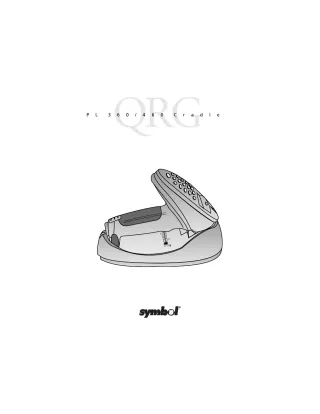
- Recharging the Scanner in the Cradle
- Scanning with the Phaser
- Keyboard Entry
- Host Communications
- Aiming
- What Does The Beep Mean?
- Ergonomic Recommendations
- Regulatory Information
From the manual · read page by page
Key facts from this manual
Some pages are scans or cannot be read; this says only what the readable text supports. Each line names its page in the PDF.
The quick reference guide for the Symbol Phaser P 360/460 Memory Scanner, a handheld batch scanner with its own keypad and display (P 460 retail version, P 360 industrial version). It shows how to attach and remove the cable, change the battery, recharge in the cradle, scan and key in data, aim, troubleshoot and clean the scanner, and gives regulatory and laser label information.
- Device
- Memory scanner with integrated keypad and display; P 460 is the batch retail version, P 360 the batch industrial version p. 3
- Charging
- Recharges front-side down in the cradle; full recharge up to 4 hours; cradle LED turns solid when charged p. 7
- Keypad
- Numeric keys, Mode key for alpha entry, programmable * key p. 8, 9
- Laser
- 630-680 nm laser, 1.0 mW max output (scanner label) p. 15
- Power up
- Press the Enter key or pull the trigger to wake the scanner from sleep mode p. 7
- Good read
- One short high beep, green LED above the screen, red laser turns off p. 8, 10
- Cables
- P 460: RS-232 cable direct to a host, or Synapse Adapter cable to a Synapse Smart Cable; the P 360 has no cable interface p. 4
- Software
- Default POS application ready out of the box; programming in the Phaser Series Scanner Product Reference Guide (p/n 70-33629-xx) p. 7
- Scan angle
- Tilt up to 65° forward or back; dead zone of ±2° when held straight over the code p. 9
- Uses
- Point-of-sale scanning plus delivery, inventory, pricing and gift registry p. 3
- Document
- 70-33628-01 Revision D, June 2000 p. 16
What this manual walks you through
- Installing an RS-232 cable with the twist-lock p. 4, 5
- Disconnecting the scanner cable p. 5
- Installing or changing the battery p. 6
- Recharging the scanner in the cradle p. 7
- Scanning a bar code and entering data on the keypad p. 8
- Aiming to avoid specular reflection and scanning the whole symbol p. 9, 10
- Troubleshooting a scanner that does not read p. 10
- Cleaning the scanner window p. 10
Good to know
- The P 360 has no cable interface. p. 4
- With some terminal types the Phaser cannot answer host polls until the right host type is selected. p. 9
- Do not pour, spray or spill any liquid on the scanner. p. 10
- The manual states the scanner label marks a Class II laser product and warns not to stare into the beam. p. 15
- The manual states the scanner is a Class B digital apparatus under Industry Canada Standard ICES-003. p. 13
Questions this manual answers
What is the difference between the Phaser P360 and P460?
The P 460 is the batch retail version and the P 360 the batch industrial version; the P 360 has no cable interface. p. 3, 4
How long does the Phaser P460 take to charge?
A full recharge in the cradle takes up to 4 hours, less if the battery is partly charged. p. 7
How do I type letters on the Phaser keypad?
Press the Mode key for Alpha Mode, then press the number key with the letter above it once, twice or three times; press Mode again to return to numbers. p. 8
What should I check if the Phaser will not scan?
Check system power, that scanning is enabled, the battery installation, loose cables, that the bar code type is programmed and that the symbol is not defaced. p. 10
What does one beep on the Phaser mean?
One short high tone means the data was decoded successfully. p. 10
Contents
Chapters and sections
Each line opens the PDF at its page.
The whole text · 2 parts
Read the manual here as text
Its text as extracted from the PDF, unedited, in parts; each page opens the PDF at that page.
The file