Manual · Opticon
Universal menu book: bar code configuration and commands manual
Manual151 pagesPDF 662 KB
Opticon Universal menu book: configuration bar codes and serial commands for setting up Opticon bar code readers.
What this file really is
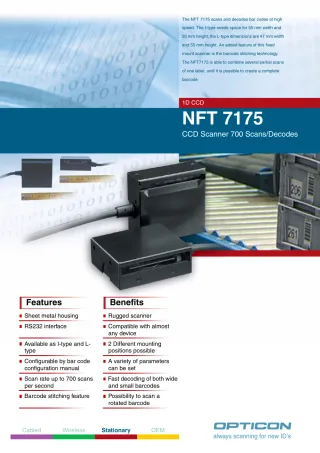
The old site listed this file as “Configuration Manual” for the Opticon NFT-2100, NFT-7175 and OPT-6125. This is Opticon's general Universal menu book for its bar code readers; it does not name the NFT-2100 or the other linked models.
Filed with · 3 models
Also filed with these models on the old site

Summary
What is in it
Opticon's Universal menu book, a bar code configuration and commands manual for setting up Opticon bar code readers. You configure the reader by scanning menu labels (or sending the same commands over RS232). It covers factory defaults, RS232, keyboard wedge, USB and wireless interface options, enabling symbologies and code-specific options, string options such as prefix and suffix, read options, buzzer and LED indicators, diagnostics, troubleshooting and example codes.
Its parts
- Introduction
- Defaults
- Interface
- Code options
- String options
- Read options
- Indicator options
- Miscellaneous
From the manual
Key facts from this manual
Each line names its page in the PDF.
Opticon's Universal menu book (version 12, December 2009), the bar code configuration and commands manual shared by Opticon bar code readers. It does not name the NFT-2100, NFT-7175 or OPT-6125 or any other reader model. It shows how to set interface, symbology, string, read and indicator options by scanning menu labels or sending serial commands.
- Document
- Opticon Universal menu book, version 12, December 2009: bar code configuration and commands manual p. 2
- Interface defaults
- Default sets for RS232, Serial TTL, AT wedge, USB-HID, USB-VCP, Bluetooth-SPP, Bluetooth-HID, IEEE 802.15.4-HID and IEEE 802.15.4-VCP p. 13
- RS232 connector
- Normally a DB25 or DB9 female connector, both fitted with an external power connector p. 15
- Baud rates
- 150 to 115200 baud p. 16
- Serial configuration
- <ESC><command string><CR> over RS232; command Z2 stores the settings in non volatile memory p. 10
- Serial commands
- B good read beep, E error beep, Z trigger, Y de-trigger, P disable laser, Q enable laser p. 10
- Wireless
- Bluetooth or IEEE 802.15.4 link to an Opticon cradle, or Bluetooth to third party dongles p. 27
- Cradle to computer
- RS232, or USB with a driver that installs a serial port p. 27
- Keyboard languages
- Include US, UK, German, French, French Macintosh, Italian, Spanish, Portuguese and Swiss (French) p. 23
- Buzzer
- Software buzzer duration 50, 100, 200 or 400 msec; loudness in four steps p. 131
- Diagnostics
- Transmits the software version, ROM checksum, reader settings and ASCII test strings p. 134
- No-read messages
- Up to 4 characters sent for No label or No decode, on readers with the trigger enabled p. 135
- Online version
- OptiConfigure, the interactive online version of the menu book p. 10
What this manual walks you through
- Configuring a reader by scanning SET, the options and END p. 9
- Configuring a reader over RS232 with escape commands p. 10
- Restoring the factory defaults for the reader's interface p. 12, 13
- RS232 connector pins and baud rate settings p. 15, 16
- Choosing keyboard wedge mode with or without a keyboard p. 22
- Selecting the keyboard language p. 23
- Connecting to an Opticon cradle or a third party Bluetooth dongle p. 27
- Setting buzzer type, tone, duration and loudness p. 131
- Troubleshooting a reader that does not work as expected p. 138
Good to know
- Disconnect power from the equipment before connecting the reader. p. 9
- Supported interfaces and keyboard languages depend on the reader model and software release. p. 12, 23
- The 'without keyboard' wedge mode is only for PC/AT wedges and must not be enabled with a keyboard on the Y-cable. p. 22
- Commands act at once but are not stored in non volatile memory, unlike options. p. 8
- Some options, such as baud rate, do not take effect immediately. p. 10
Questions this manual answers
How do I reset an Opticon scanner to factory defaults?
Scan SET, the default label for the reader's interface (matching its hardware defaults label), then END. p. 12, 13
How do I pair an Opticon wireless scanner with its cradle?
Read the address label on the bottom of the Opticon cradle; the reader connects and sets the pin code, authentication and encryption itself. p. 27
What does a low buzzer mean when scanning Opticon menu labels?
It indicates an unsupported option. If SET and END do not scan, the software and menu book do not match. p. 138
Can an Opticon reader be configured over RS232?
Yes: send each command as <ESC><command string><CR>, then send Z2 to store the settings. p. 10
My keyboard wedge scanner gives a keyboard error or no data. What can I try?
Try the 'without keyboard' wedge mode, then power the PC off, wait 10 seconds and power it on again. p. 22
The whole text · 16 parts
Read the manual here as text
Its text as extracted from the PDF, unedited, in parts; each page opens the PDF at that page.
- Pages 1 to 101-10
- Pages 11 to 2011-20
- Pages 21 to 3021-30
- Pages 31 to 4031-40
- Pages 41 to 5041-50
- Pages 51 to 6051-60
- Pages 61 to 7061-70
- Pages 71 to 8071-80
- Pages 81 to 9081-90
- Pages 91 to 10091-100
- Pages 101 to 110101-110
- Pages 111 to 120111-120
- Pages 121 to 130121-130
- Pages 131 to 140131-140
- Pages 141 to 150141-150
- Page 151151
The file