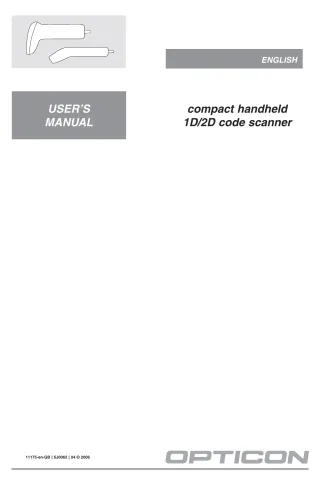
Manual · Opticon
User's Manual, compact handheld 1D/2D code scanner
Manual8 pagesPDF 242 KB
Short user's manual for Opticon compact handheld 1D/2D code scanners: connecting cabled and wireless models, handling, reading codes and troubleshooting.
What this file really is
The old site listed this file as a manual for the Opticon OPI-2002 and OPT-6125. The file is named as an OPT-6125 manual, but the document is Opticon's general user's manual for compact handheld 1D/2D code scanners and does not name the OPT-6125 or the OPI-2002.
Filed with · 2 models
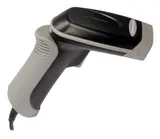
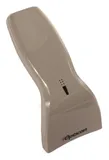
Also filed with these models on the old site
Summary
What is in it
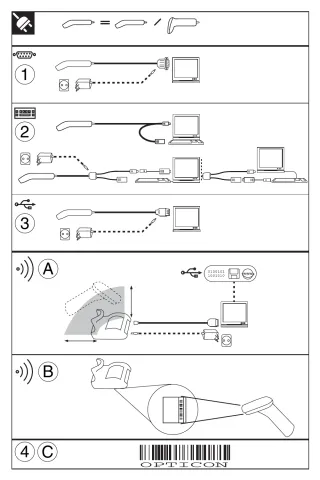
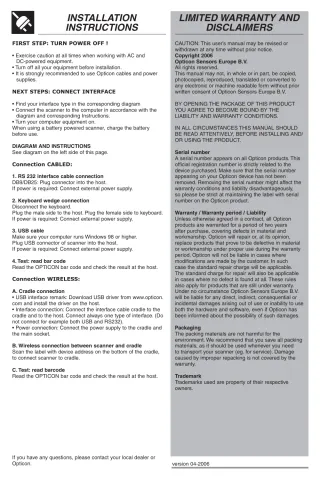
Opticon's short user's manual for its compact handheld 1D/2D code scanners. It gives installation instructions for cabled scanners (RS 232, keyboard wedge and USB) and for wireless scanners with a cradle, a detailed view of the scanner's parts and LED indications, handling instructions on temperature, shock, cleaning and disposal, how to read codes, troubleshooting tips, and the limited warranty and disclaimers.
From the manual · read page by page
Key facts from this manual
Some pages are scans or cannot be read; this says only what the readable text supports. Each line names its page in the PDF.
A short, generic Opticon user's manual (version 04-2006) for compact handheld 1D/2D code scanners, cabled or wireless with a cradle; it does not name the OPT-6125, the OPI-2002 or any other model. It shows how to connect the scanner by RS 232, keyboard wedge or USB, pair a wireless scanner with its cradle, read the LEDs, handle, clean and charge it, and troubleshoot reading and communication.
- Document
- Generic user's manual for Opticon compact handheld 1D/2D code scanners, cabled or wireless p. 1, 3
- RS 232 hookup
- DB9/DB25 connector into the host; external power supply if power is required p. 3
- Keyboard wedge
- Male side to the host, female side to the keyboard; external power supply if required p. 3
- USB
- Needs Windows 98 or higher; wireless cradles need a USB driver from www.opticon.com p. 3
- Wireless pairing
- Scan the device address label on the bottom of the cradle p. 3
- LED signals
- Red: no read or power on; green: good read or battery full; flashing: data transmission; blue: Bluetooth or 802.15.4 p. 5
- Operating temperature
- 0 to 40°C p. 5
- Charging
- The battery charges automatically when the scanner sits in the cradle p. 5
- Configuration
- Ships with factory defaults; options set with Opticonfigure p. 7
What this manual walks you through
- Connecting a cabled scanner by RS 232, keyboard wedge or USB p. 3
- Setting up a wireless scanner with its cradle p. 3
- Reading codes and checking for a good read p. 7
- Troubleshooting a scanner that does not operate, read or communicate p. 7
- Cleaning the reading window and charging contacts p. 5
Good to know
- Turn off all equipment before installation. p. 3
- Connect only one type of interface to the cradle, for example not both USB and RS232. p. 3
- Keep an empty charging compartment clear of paper clips, coins and other objects to avoid a short circuit. p. 5
- There are no user-serviceable parts inside the scanner. p. 5
- Do not use water or sanding paper on the contacts; it can cause malfunction. p. 5
Questions this manual answers
How do I pair a wireless Opticon scanner with its cradle?
Scan the label with the device address on the bottom of the cradle. p. 3
What does a blue LED mean on an Opticon scanner?
A Bluetooth connection or 802.15.4 communication. p. 5
My Opticon scanner will not read a code. What should I check?
Make sure the code is no wider than the light beam, and change the angle or distance between code and scanner. p. 7
Does an Opticon USB scanner work with my computer?
The manual asks for Windows 98 or higher; with a wireless cradle, install the USB driver from www.opticon.com first. p. 3
The whole text · 1 part
Read the manual here as text
Its text as extracted from the PDF, unedited, in parts; each page opens the PDF at that page.
The file