Manual · Symbol
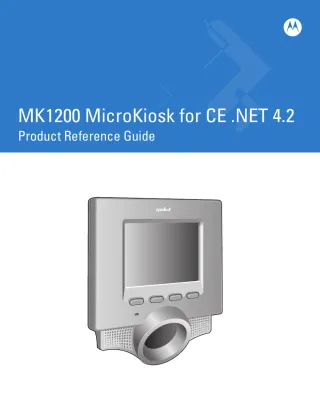
MK1200 MicroKiosk for CE .NET 4.2 Product Reference Guide
Manual232 pagesPDF 5.9 MB
Product reference guide for the Symbol MK1200 MicroKiosk price checker on Windows CE .NET 4.2: installation, configuration and software.
Covers · 1 model
The models it covers
Summary
What is in it
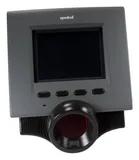
The product reference guide for the MK1200 MicroKiosk, a wall or pole mounted price verifier with a bar code scanner, color display and optional touch screen and magnetic stripe reader, running Windows CE .NET 4.2. It covers configurations and parts, mounting and connecting, configuration through the system menu and the Symbol Remote Device Manager, file transfer, the Web Kiosk Software Suite, system features, developer kits, technical specifications, RF network setup, OS upgrades and troubleshooting.
Its parts
- About This Guide
- MK1200 Introduction
- Installation
- Configuration
- Remote Device Manager
- Transferring Files to the MK1200
- Web Kiosk Software Suite
- System Features
- Software Development Environments
From the manual
Key facts from this manual
Each line names its page in the PDF.
Product reference guide from January 2008 for the MK1200 MicroKiosk running Windows CE .NET 4.2, a wall or pole mounted price-check kiosk with a bar code scanner. It covers the wired Ethernet MK1200 and the 802.11b MK1250 configurations, and walks through mounting, power and network connections, the optional magnetic stripe reader, scanning and troubleshooting.
- What it is
- In-store kiosk that verifies prices on bar coded merchandise, shows promotions and works as an electronic billboard p. 19
- Display
- Color 5.7 inch (14.5 cm) diagonal 1/4 VGA passive LCD, 320 X 240 pixels; touch screen optional p. 20
- Configurations
- MK1200-0N0DAKBNT0R (wired Ethernet, non-touch), MK1200-0N0DAKBWT0R (wired Ethernet, touch), MK1250-0N0DAKBNTWR (802.11b, non-touch), MK1250-0N0DAKBWTWR (802.11b, touch); all 32 MB / 32 MB p. 19
- Memory
- 32 MB flash / 32 MB DRAM p. 24
- Scanner
- Omnidirectional 1D scanning; Smart Raster and Always Raster modes also decode PDF417 p. 24, 26
- External ports
- Ethernet/Bias-T (10-conductor RJ-45, wired Ethernet configurations only), power (2.0 mm barrel jack), Printer RS-232 (RJ-45 jack, 10 conductor), Debug (ActiveSync port) p. 23, 24
- Connectivity
- Wired 10 Mbps Ethernet, serial RS-232, wireless 802.11b 11 Mbps p. 24
- Software
- Windows CE .NET 4.2; Embedded Visual C/C++ 4.0, Visual Studio.NET, Internet Explorer 6.0; SMDKs for C, the Web and .NET p. 3, 24, 25
- Expansion slot
- One Type III PCMCIA slot behind the rear access cover, for development or maintenance p. 20, 25
- MSR option
- Three-track magnetic stripe reader module; widens the unit from 8.92 inches to 11.5 inches p. 24, 42
- Mounting
- 100 mm VESA (four M4 threaded holes) or keyhole slide-on brackets; wall, pole up to 11.5 inches diameter, or recessed in an 8.0 x 8.63 opening p. 25, 33, 36
- Function buttons
- Four programmable buttons, A to D from left to right, not labeled on the unit p. 20
- Document number
- 72E-87924-02 Revision A, January 2008 p. 3
What this manual walks you through
- Mounting the kiosk on a wall, recessed in a wall, or on a pole p. 33, 34, 35, 36
- Powering the kiosk from AC or Power-Over-Ethernet and connecting Ethernet p. 37, 38, 39
- Connecting a host or printer to the RS-232 port, with pin-outs p. 39, 40, 41
- Fitting the optional magnetic stripe reader p. 42, 43, 44
- Choosing a scan mode and scanning bar codes without specular reflection p. 26, 27, 28, 29
- Troubleshooting power, host, scanner, touch screen and wireless problems p. 203, 204, 205
- Recovering from failed OS, partition table and command file upgrades p. 206
- Finding the device's version and memory information p. 207
Good to know
- Do not use Power-Over-Ethernet together with an external power supply on the power port; two sources can damage the kiosk or the network. p. 38
- Follow ESD precautions, such as an ESD mat and a grounded operator, whenever an access cover is removed. p. 22
- Recessed mounting may degrade wireless network performance. p. 35
- A failed monitor upgrade often leaves the kiosk inoperable. p. 206
- Cyclone Omnidirectional mode does not decode 2D (PDF417) bar codes. p. 26, 27
Questions this manual answers
How do I find the MAC address of an MK1200?
Open Start > Programs > CommandPrompt and type ipconfig /all; the MAC address shows next to 'address'. p. 204
Can the MK1200 be powered over Ethernet?
Yes, wired Ethernet configurations support Symbol's Bias-T Power-Over-Ethernet; the port does not work on MK1250 wireless units. p. 23, 38
Which MK1200 scan mode reads PDF417 bar codes?
Always Raster and Smart Raster decode PDF417; the Cyclone Omnidirectional mode does not. p. 26
What size wall opening does a recessed MK1200 need?
At least 8.63 inches high by 8.0 inches wide; Symbol does not supply hardware for this installation. p. 35
Contents
Chapters and sections
Each line opens the PDF at its page.
- MK1200 Product Reference Guide1
- About This Guide15
- MK1200 Introduction19
- Installation31
- Configuration47
- Remote Device Manager73
- Introduction73
- Generating Configuration Files73
- Performing Discovery (Detection) of Devices on a Network74
- Automated Staging/Configuring/Provisioning of Networked Devices74
- Remote Monitoring74
- Remotely Initiating Select Device Functionality74
- Installing the Symbol Remote Device Manager75
- Symbol Remote Device Manager Main Screen77
98 more lines, from page 83 on
- Creating a Configuration File83
- Modifying an Existing Configuration File84
- Cloning an MK1200 Configuration File to Multiple MK1200s85
- Setting RDM Options86
- Monitoring MK1200s on a Network87
- Setting a Static IP Address92
- Managing Static IP Addresses92
- DHCP Configuration96
- Updating the RDM on the Host Computer99
- Restoring Configuration Parameter Defaults99
- Data Entry Formats99
- Transferring Files to the MK1200101
- Web Kiosk Software Suite105
- System Features121
- Introduction121
- Security Overview122
- Network Security122
- SNMP-Based Remote Monitoring123
- RegMerge and CopyFiles126
- Accessing the Windows® CE Desktop127
- Password Protection (Gate Keeper)127
- Remapping Buttons128
- Network Time Update: SNTP Client130
- Memory Management130
- FTP Server131
- AirBEAM132
- Inactivity Application (Screen Saver)132
- Browser Applications - Hiding Toolbars133
- Browser Applications - Handling Network Disconnects134
- Configuring Error Page Redirection134
- Loading Additional Fonts on the MK1200135
- Input Panel (Virtual Keyboard)137
- Microsoft WordPad138
- Internet Explorer139
- Printer Object Test141
- MSR Object Test142
- Scanner Object Test143
- MicroKiosk Object Test144
- Software Development Environments145
- Technical Specifications149
- RF Network Configuration151
- Rapid Deployment Client169
- Web Kiosk Software Suite Bar Codes173
- Terminal Configuration Manager179
- OS Upgrade Procedures189
- Troubleshooting201
- Setting Scanner Parameters209
- Index223
- Tell Us What You Think...229
The whole text · 29 parts
Read the manual here as text
Its text as extracted from the PDF, unedited, in parts; each page opens the PDF at that page.
- MK1200 Product Reference Guide1-6
- Table of Contents7-14
- About This Guide15-18
- MK1200 Introduction19-30
- Installation, pages 31 to 3831-38
- Installation, pages 39 to 4639-46
- Configuration, pages 47 to 5547-55
- Configuration, pages 56 to 6456-64
- Configuration, pages 65 to 7265-72
- Remote Device Manager, pages 73 to 8273-82
- Remote Device Manager, pages 83 to 9283-92
- Remote Device Manager, pages 93 to 10093-100
- Transferring Files to the MK1200101-104
- Web Kiosk Software Suite, pages 105 to 112105-112
- Web Kiosk Software Suite, pages 113 to 120113-120
- System Features, pages 121 to 128121-128
- System Features, pages 129 to 136129-136
- System Features, pages 137 to 144137-144
- Software Development Environments145-148
- Pages 149 to 158149-158
- Pages 159 to 168159-168
- Rapid Deployment Client169-172
- Web Kiosk Software Suite Bar Codes173-178
- Terminal Configuration Manager179-188
- OS Upgrade Procedures189-200
- Troubleshooting201-208
- Setting Scanner Parameters209-222
- Index223-228
- Tell Us What You Think229-232
The file