Manual · Allen-Bradley
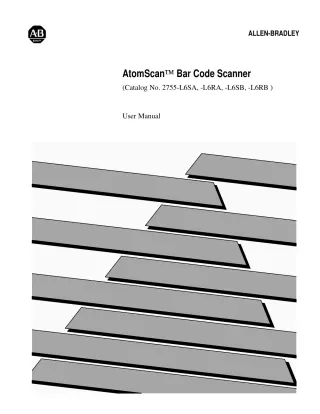
Bulletin 2755 Hand-Held Scanner with Wedge Option (Catalog No. 2755-G3-W, 2755-G6-W) User Manual
Manual88 pagesPDF 616 KB
User manual for the Allen-Bradley 2755-G3-W and 2755-G6-W hand-held laser scanners used as a keyboard wedge.
What this file really is
The old site listed this file as a manual for the Allen-Bradley 2755-DS and 2755-G3. The file is named for the 2755-DS decoder, but this is the user manual for the 2755-G3-W and 2755-G6-W hand-held scanners with wedge option and it does not mention the 2755-DS.
Names · 1 model
The models it names
Filed with · 1 model
Also filed with these models on the old site
Summary
What is in it
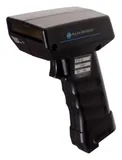
The user manual for the Allen-Bradley Bulletin 2755 hand-held scanners with wedge option, the standard range 2755-G3-W and long range 2755-G6-W. It explains how the scanner works as a keyboard wedge between a terminal's keyboard and display, hand-held and Autosense operating modes, installing the wedge interface and choosing a terminal type, and configuring general settings, message format and symbologies by scanning barcode labels. It ends with specifications, test symbols and maintenance.
Its parts
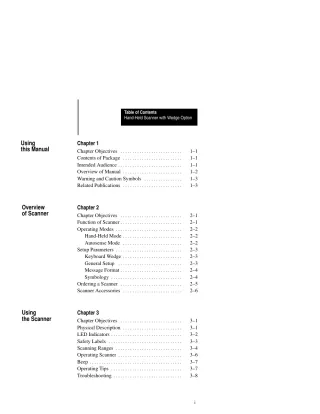
- Using this Manual
- Overview of Scanner
- Using the Scanner
- Setup Instructions
- General Setup Parameters
- Message Format Parameters
- Symbologies
- Specifications
From the manual
Key facts from this manual
Each line names its page in the PDF.
User manual for the Allen-Bradley Bulletin 2755 hand-held laser scanners with the keyboard wedge option, catalog numbers 2755-G3-W (standard range) and 2755-G6-W (long range). It shows how to connect the scanner between a terminal and its keyboard, set it up by scanning bar codes, and use it.
- Device
- Hand-held laser bar code scanner used as a keyboard wedge: scanned data arrives as if typed p. 11
- Power
- Draws power from the terminal; DEC terminals need the 2755-PW1 5V power supply p. 11, 16, 25
- Scan range
- 40.0 mil bar codes: 9.0 to 25.0 inches on the standard range 2755-G3-W, 23 to 60 inches on the long range 2755-G6-W p. 20
- Symbologies
- Code 39, UPC, EAN/JAN, Interleaved 2 of 5, Standard 2 of 5, Code 128, Codabar p. 14
- Light source
- Low power visible laser diode, about 35 scans per second p. 17, 18
- Scanner cable
- Modular plug at the scanner, DB9 squeeze-to-release at the wedge cable; 8 foot (2.4 meter) coiled cable included p. 16, 26
- Wedge cables
- 2755-NC20 (IBM PC, XT, AT and others), 2755-NC21 (IBM PS/2, Compaq 386), 2755-NC22 (IBM 3151, 3472), 2755-NC24 (DEC VT terminals) p. 16
- Terminal types
- PC-AT, PS/2, PC-XT, Allen-Bradley 6120, 6121, 1784-T35, -T50, -T60, 2706-DL40, Compaq p. 30
- Operating modes
- Hand-held with the trigger, or hands-free Autosense in the optional 2755-NS2 Autostand p. 12
- Accessories
- Holster belt 2755-GB1, scanner holster 2755-GH5, reflective tape 2755-NT1 p. 16
- Catalog number code
- 2755-G3-W: G = gun, 3 = standard range (6 = long range), W = wedge p. 15
- Power modes
- Continuous full power, or standby after a good read using microwatts p. 39
- Indicators
- Green GOOD READ and yellow SCANNING lights, plus a beep on a good read p. 18
- In the box
- Scanner, scanner holder, user manual p. 8
What this manual walks you through
- Connecting the scanner and wedge cables between a terminal and its keyboard p. 25, 26, 28
- Removing the scanner interface cable with a paper clip p. 27
- Connecting the optional power supply p. 29
- Enabling wedge mode and selecting the terminal type p. 30
- Aiming and scanning technique p. 22, 23
- Troubleshooting labels that will not scan p. 24
- Choosing the power consumption mode p. 39
- Cleaning the window and inspecting the cable p. 75
- Scanning ranges by bar width for both range versions p. 20, 21
Good to know
- Turn the terminal off before connecting or removing the scanner, or the scanner may be damaged. p. 27, 28
- Do not use abrasives or solvents such as alcohol or acetone on the window. p. 75
- The scanner has no serviceable parts; do not open the housing. p. 75
- A power supply other than the 2755-PW1 must have the same polarity. p. 29
- The manual does not cover writing the host program that receives the data. p. 8
Questions this manual answers
Which wedge cable does the 2755-G3-W need for an IBM PS/2?
The 2755-NC21 wedge interface cable, listed for IBM PS/2 models 50, 55, 60 and 80 and the Compaq 386. p. 16
How far away can the 2755-G3-W read a bar code?
It depends on bar width; for a 40.0 mil bar code the standard range 2755-G3-W reads from 9.0 to 25.0 inches. p. 20
How do I turn on wedge mode on the Allen-Bradley 2755 scanner?
Scan label CE, listen for two short beeps, then scan the label for your terminal type. p. 30
Does the 2755-G3-W need its own power supply?
Usually not: it draws power from the terminal. DEC terminals need the optional 2755-PW1 power supply. p. 11, 25
Why won't my 2755 scanner read labels?
Check that the symbology is enabled, the label is not worn, the scanner is held at an angle, the beam crosses every bar, and the cables and power are good. p. 24
Contents
Chapters and sections
Each line opens the PDF at its page.
The whole text · 13 parts
Read the manual here as text
Its text as extracted from the PDF, unedited, in parts; each page opens the PDF at that page.
The file