Manual · Oakton
TempLog & RH/TempLog User Guide
Manual219 pagesPDF 1.8 MB
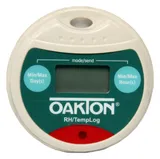
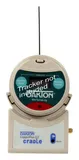
User guide for the Oakton OaktonLog temperature and humidity data logger and the wireless OaktonLog Plus system with cradle and receiver.
Names · 1 model
The models it names
Filed with · 1 model
Also filed with these models on the old site
Summary
What is in it
User guide for OaktonLog, a compact temperature and humidity data logger, and OaktonLog Plus, a wireless system that brings readings from many loggers to one PC. It covers the logger's displays, modes, battery and MicroLab software (download, graphs, setup, calibration, automatic daily download), the MicroLab Plus software with online meters, graphs and cradle map, the alarm and wireless cradles, the receiver, the external magnet antenna, external sensors, and specifications.
Its parts
- OaktonLog
- OaktonLog Plus
- The Cradle
- The Receiver
- External Magnet Antenna
- External Sensors
- Specifications
From the manual
Key facts from this manual
Some pages are scans or cannot be read; this says only what the readable text supports. Each line names its page in the PDF.
User guide (seventh edition, July 2006) for the OaktonLog TempLog and RH/TempLog data loggers, models EC600 and EC650, and for the wireless OaktonLog Plus system with its cradles and receiver. It explains the logger's keys and display, battery replacement, connecting to a PC and external sensors, the MicroLab and MicroLab Plus software, the cradles and the receiver. It ends with specifications for each part.
- Device
- Compact data logger for the temperature and humidity of perishable goods; takes external sensors and fits a cradle p. 17
- Models
- EC600: temperature and external sensor; EC650: temperature, relative humidity and external sensor p. 197
- Temperature sensor
- -30°C to 50°C, resolution 0.5°C, accuracy ±0.6°C p. 197
- Humidity sensor
- EC650: 0-100% RH, resolution 0.5%, accuracy ±3% p. 197, 198
- Outputs
- Two-digit 7-segment LCD; IRDA to HP printer and host computer; RS232 at 19,200 bps p. 198
- Memory
- 16,000 recording samples p. 199
- Battery
- Internal lithium, 3.6V 1.2AH, 1/2AA, replaceable p. 199
- Sampling rate
- User set, once every 10 seconds to every 2 hours p. 199
- Size and weight
- 72 mm diameter, 22.9 mm thick; 55 g p. 199, 200
- PC cable
- Serial communication cable DT058, 9-pin D female plug to a COM port p. 30
- Cradles
- DT174 Alarm Cradle; DT175 Wireless Cradle with Alarm; both RS232 at 19.2Kbps and USB at 1.5Mbps p. 167, 200
- Receiver
- OaktonLog Plus Receiver: RS232 at 19.2Kbps, USB at 1.5Mbps; 9-12VDC, minimum 300mA; SMA antenna socket p. 203, 204
- Wireless system
- OaktonLog Plus monitors up to 200 OaktonLogs at once p. 17
- Software
- MicroLab, for Windows 98/2000/ME/XP and NT; Pentium 300MHz, 32 MB RAM (64 MB recommended) p. 205, 207
What this manual walks you through
- Viewing min and max values for the last 1 to 24 hours or 1 to 30 days p. 22, 23, 24, 25, 26
- Reading the status messages and the four working modes p. 26, 28, 29
- Connecting the logger to a computer or an external sensor p. 30, 31, 32
- Replacing the logger battery without harming the humidity sensor p. 35, 36, 37
- Setting up a logger on a cradle and transmitting data by hand p. 168, 169, 170
- Replacing the cradle battery p. 171, 172
- Wiring the cradle's eight screw terminals p. 172, 173, 174, 175, 176, 177
- Powering the receiver, fitting its antenna and reading its LEDs p. 180, 181
- Turning the receiver beeper on and off p. 182
- Choosing external sensors: temperature probes, PT100 adapter, voltage, current, pH and contact p. 190, 191, 192, 193, 194, 195, 196
Good to know
- The back cover holds the humidity sensor, which is very fragile; take care when removing the cover. p. 35
- Leave the rubber plug in the rear socket when it is not in use; it keeps out moisture. p. 29
- High sampling rates shorten the logger's battery life considerably. p. 33
- The cradle's external control switch takes at most 30VDC, 1A; a larger or AC alarm device needs a relay. p. 173, 174
- The cradle's Sound Alarm works only with the AC power adaptor connected. p. 170
Questions this manual answers
What cable connects an OaktonLog to a PC?
Serial communication cable DT058, with a 9-pin D female plug for a COM port. A cradle can also connect it. p. 30, 31
What battery does the OaktonLog take?
A 1/2AA 3.6V lithium battery; the specifications list it as 3.6V 1.2AH. p. 36, 199
What is the difference between the EC600 and the EC650?
The EC650 adds a relative humidity sensor; both have temperature and an external sensor input. p. 197
Which OaktonLog cradle is wireless?
The Wireless Cradle with Alarm, DT175. The Alarm Cradle is DT174. p. 167
The whole text · 22 parts
Read the manual here as text
Its text as extracted from the PDF, unedited, in parts; each page opens the PDF at that page.
- Pages 1 to 101-10
- Pages 11 to 2011-20
- Pages 21 to 3021-30
- Pages 31 to 4031-40
- Pages 41 to 5041-50
- Pages 51 to 6051-60
- Pages 61 to 7061-70
- Pages 71 to 8071-80
- Pages 81 to 9081-90
- Pages 91 to 10091-100
- Pages 101 to 110101-110
- Pages 111 to 120111-120
- Pages 121 to 130121-130
- Pages 131 to 140131-140
- Pages 141 to 150141-150
- Pages 151 to 160151-160
- Pages 161 to 170161-170
- Pages 171 to 180171-180
- Pages 181 to 190181-190
- Pages 191 to 200191-200
- Pages 201 to 210201-210
- Pages 211 to 219211-219
The file