Manual · Datalogic
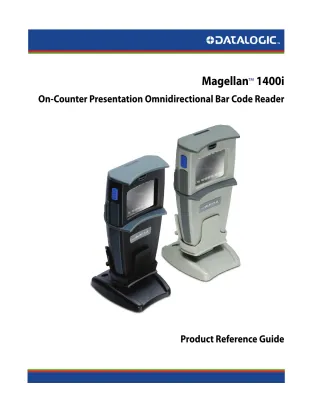
Magellan 1400i On-Counter Presentation Omnidirectional Bar Code Reader Product Reference Guide
Manual184 pagesPDF 2.4 MB
Product reference guide for the Datalogic Magellan 1400i on-counter omnidirectional imaging scanner: connection, programming bar codes and specifications.
Covers · 1 model
The models it covers
Summary
What is in it
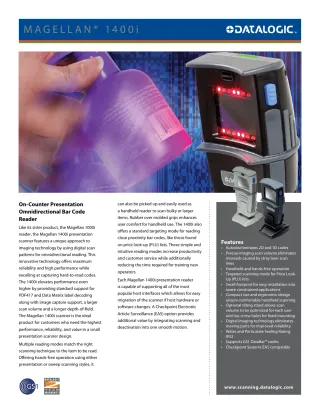
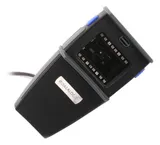
Datalogic's product reference guide for the Magellan 1400i, an on-counter omnidirectional imaging scanner for hands-free and handheld scanning at checkout. It explains how to connect the scanner over RS-232, USB, IBM, wand emulation or keyboard wedge, and how to program it by scanning the bar codes printed in the guide: general features, interface settings, data editing, each 1D symbology, 2D symbologies and image capture. Appendices give specifications, cable pinouts, defaults and keyboard mappings.
Its parts
- Getting Started
- General Features
- Interface Related Features
- Data Editing
- Symbologies
- 2D Symbologies & Advanced Decoding Features
- Product Specifications
From the manual
Key facts from this manual
Each line names its page in the PDF.
The Datalogic Product Reference Guide for the Magellan 1400i, an on-counter presentation omnidirectional imaging bar code reader. It explains how to connect the scanner to each host interface and program it by scanning bar codes, what the LED, beeper and error codes mean, and gives the specifications, cable pinouts, default settings and RS-232 host commands.
- Device
- On-counter presentation omnidirectional imaging bar code reader, hands-free for small items and handheld for bulkier ones p. 1, 7
- Interfaces
- RS-232 Standard, RS-232 Wincor-Nixdorf, IBM 4683 Port 5B, 9B and 17, USB-OEM, USB Keyboard, USB COM, Wand Emulation (needs a decoder), Keyboard Wedge types A to Y p. 9, 27
- Operating voltage
- Two models: 5V unit 5.0V ± 5%; 12V unit 8-14V ± 5% p. 154
- Scan performance
- 80 cubic inch scan volume, 100-line pattern, 1170 digital scan lines/second, 5 mil minimum resolution p. 153
- Image capture
- 752 x 480 JPEG; only on scanners with a button, over Standard RS-232 or USB COM p. 152
- Size and weight
- Scanner 66mm x 82mm x 154mm; with stand 97mm x 82mm x 181mm; scanner 9 oz., base station 15.7 oz. p. 154
- Reading angles
- Skew ± 75, pitch ± 65, roll between 0 and 360 p. 153
- Temperature
- Operating 0 C to +40 C (32 F to +104 F); storage -40 C to +70 C p. 154
- Sealing and drops
- IP52 water and dust; multiple 1.2m drops p. 154
- RS-232 cable pinout
- 10-position RJ at the scanner end: pin 2 CTS, 4 RTS, 5 RXD, 6 TXD, 8 VCC IN, 9 GND p. 155
- Error codes
- LED flashes or beeps at startup: 1 Configuration, 2 Interface PCB, 6 Main PCB, 10 Button Error, 11 Near Field Imager Module, 12 Far Field Imager Module, 13 Software ID Failure, 14 CPLD/Code Mismatch p. 11
- RS-232 host commands
- E enable, D disable, R reset, F not-on-file indication, B good read beep; i, h and s request identification, health and status p. 177
- Sleep mode
- Timeout selectable from 15 seconds to 1 hour with no reads; wakes when an object passes the window or the button is pressed p. 10, 15, 16
- EAS support
- Yes (Checkpoint) p. 154
What this manual walks you through
- Connecting the scanner by RS-232, USB, wand, IBM port or keyboard wedge p. 8, 9
- Selecting the interface type by scanning its bar code p. 27, 29
- Entering and leaving Programming Mode with the START/END bar code p. 9
- Restoring the factory default settings p. 9
- Reading the LED and beeper indications p. 10
- Interpreting self-test error codes p. 11
- Setting the sleep mode timeout p. 15, 16
- Installing the Windows USB COM driver p. 62
- Capturing an image and sending it to the host p. 152
- Controlling the scanner with RS-232 host commands p. 177
Good to know
- Image capture works only on scanners with a button and only over the Standard RS-232 or USB COM interface. p. 152
- A USB installation may need the approved AC adapter, for example on a non-powered USB hub. p. 8
- With 220-230 VAC adapters the cord must face down, or it strains the outlet. p. 8
- Turn off the terminal or PC before connecting an RS-232 or keyboard wedge cable. p. 8, 9
- For any self-test error code, the corrective action given is to contact the helpdesk. p. 11
Questions this manual answers
What do the Magellan 1400i error beeps mean?
At startup the number of LED flashes or beeps names the failed part, such as 1 for configuration, 2 for interface PCB and 6 for main PCB; the guide says to contact the helpdesk. p. 11
How do I reset a Magellan 1400i to factory defaults?
Scan the Standard Product Default Settings bar code; no START/END bar code is needed for it. p. 9
What voltage does the Magellan 1400i need?
It comes as a 5V unit (5.0V ± 5%) or a 12V unit (8-14V ± 5%). p. 154
Which interfaces allow image capture on the 1400i?
Only Standard RS-232 or USB COM, and only on scanners that have a button. p. 152
How do I install the 1400i USB COM driver?
Copy the DLS_EUG_CDC_ACM.inf file to the PC, set the scanner to USB COM, then point the Found New Hardware Wizard to that file. p. 62
Contents
Chapters and sections
Each line opens the PDF at its page.
The whole text · 20 parts
Read the manual here as text
Its text as extracted from the PDF, unedited, in parts; each page opens the PDF at that page.
- Pages 1 to 61-6
- Getting Started7-12
- General Features13-26
- Interface Related Features, pages 27 to 3527-35
- Interface Related Features, pages 36 to 4436-44
- Interface Related Features, pages 45 to 5345-53
- Interface Related Features, pages 54 to 6254-62
- Data Editing63-74
- Symbologies, pages 75 to 8475-84
- Symbologies, pages 85 to 9485-94
- Symbologies, pages 95 to 10495-104
- Symbologies, pages 105 to 114105-114
- Symbologies, pages 115 to 124115-124
- Symbologies, pages 125 to 134125-134
- Symbologies, pages 135 to 142135-142
- 2D Symbologies & Advanced Decoding Features143-152
- Pages 153 to 156153-156
- Pages 157 to 170157-170
- Keyboard Function Key Mappings171-176
- Pages 177 to 184177-184
The file