Manual · Motorola
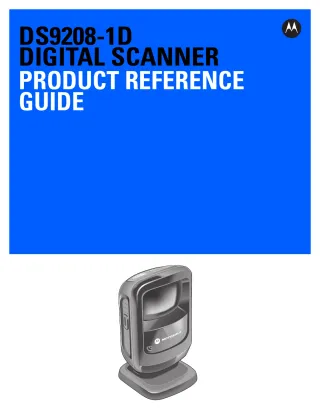
DS9208-1D Digital Scanner Product Reference Guide
Manual276 pagesPDF 6.4 MB
Product reference guide for the Motorola DS9208-1D presentation digital scanner: setup, mounting, host interfaces and bar code programming.
Covers · 1 model
The models it covers
Summary
What is in it
Motorola's product reference guide for the DS9208-1D digital scanner, a 1D omnidirectional scanner with a built-in stand for counter-top and hand-held use, in black or white and with optional Checkpoint EAS. It explains setup, mounting brackets, presentation and trigger scanning, maintenance, troubleshooting and technical specifications, then the USB, RS-232, IBM 468X/469X and keyboard wedge interfaces, symbology settings, 123Scan2 and advanced data formatting.
Its parts
- About This Guide
- Getting Started
- Data Capture
- Maintenance & Technical Specifications
- User Preferences & Miscellaneous Options
- USB Interface
- RS-232 Interface
- IBM 468X / 469X Interface
- Keyboard Wedge Interface
- Symbologies
- 123Scan2
- Advanced Data Formatting
From the manual
Key facts from this manual
Each line names its page in the PDF.
Motorola's Product Reference Guide (72E-162626-01 Revision A, May 2012) for the DS9208-1D, a 1D omnidirectional digital scanner with a built-in stand for counter-top or hand-held use. It covers the standard range black and white configurations, with or without Checkpoint EAS. It explains setup, mounting, scanning, beeps and LEDs, troubleshooting and connecting to USB, RS-232, IBM 468X/469X and keyboard wedge hosts.
- Device
- Digital scanner with a built-in adjustable stand for counter-top (presentation) or hand-held trigger use p. 19, 31
- Interfaces
- USB, RS-232, RS-485 (IBM 46xx protocols), keyboard wedge p. 39
- Power
- Idle: 5 +/-10% VDC @ 150 ma average; scanning: 5 +/-10% VDC @ 230 ma average p. 39
- Dimensions
- 5.512 in H x 3.232 in W x 3.150 in D (14.0 cm H x 8.21 cm W x 8.0 cm D) p. 39
- Weight
- 9.5 oz (269.3 g) p. 39
- Operating temperature
- 32º F to 104º F (0º C to 40º C); humidity 5% to 85% RH, non-condensing p. 39
- Light source
- Aiming dot: 625 nm LED; illumination: 630 nm LEDs p. 39
- Decode ranges
- 5.0 mil Code 39: 0 to 4.5 in; 10 mil 80% UPCEAN: 0 to 8.5 in; 13 mil 100% UPC: 0 to 10.5 in p. 34
- Field of view
- 46º H x 29.5º V p. 39
- Minimum resolution
- Code 39: 4 mil; UPC: 7.8 mil (60%) p. 39
- Swipe speed
- Up to 90 in (2.3 m) per second p. 39
- Drop and sealing
- Multiple 5 ft. (1.5 m) drops to concrete; IP50 p. 39
- 1D symbologies
- UPC/EAN, Code 39, Code 128, Code 93, Codabar/NW7, 2 of 5 types, Code 11, MSI Plessey, GS1 DataBar p. 39
- Options
- Checkpoint EAS deactivation; wall mount bracket; locking mount bracket p. 25, 40
What this manual walks you through
- Installing and removing the interface cable p. 21
- Mounting the scanner on a wall bracket or a locking counter bracket p. 22, 23, 24
- Scanning in presentation mode and momentary trigger mode p. 31, 32, 33
- Changing the beeper volume with the trigger p. 30
- Reading the beep sequences and LED colors p. 28, 29, 30, 31
- Troubleshooting a scanner that does not aim, decode or transmit p. 36, 37, 38
- Connecting to a USB host p. 74
- Connecting to an RS-232 host with a power supply p. 104
- Connecting to an IBM 468X/469X host and setting the port address p. 128
- Connecting a keyboard wedge Y-cable p. 134
Good to know
- The scanner uses TTL RS-232 signal levels; hosts needing RS-232C levels need a conversion cable. p. 103
- A special EAS scanner cable is needed to connect to a Checkpoint EAS deactivation system. p. 34
- Scanners with the optional RFID module need a power supply on USB. p. 74
- Do not spray water or cleaning liquids directly into the scan window, and keep abrasives off it. p. 35
- During a firmware download the LED is red, solid and fast blinking; wait for it to finish before use. p. 31
Questions this manual answers
What interfaces does the DS9208 support?
USB, RS-232, RS-485 for IBM 46xx hosts, and keyboard wedge, each with its own interface cable. p. 39
What do 4 low beeps mean on the DS9208?
A transmission error. The guide says to set the scanner's communication parameters to match the host. p. 28, 37
Does the DS9208 need a power supply?
Not on USB, where the host or a powered hub powers it. The RS-232 setup connects a power supply to the cable. p. 73, 104
How far away can the DS9208-1D read a UPC code?
A 13 mil 100% UPC reads from 0 to 10.5 in (26.7 cm). p. 34
How do I configure the DS9208 from a PC?
Use 123Scan2 on Windows XP SP2 or Windows 7, connected through a USB cable, or scan the bar codes in the guide. p. 223
Contents
Chapters and sections
Each line opens the PDF at its page.
- DS9208-1D Product Reference Guide1
- About This Guide15
- Getting Started19
- Data Capture27
- Maintenance & Technical Specifications35
- User Preferences & Miscellaneous Options43
67 more lines, from page 73 on
- USB Interface73
- RS-232 Interface103
- IBM 468X / 469X Interface127
- Keyboard Wedge Interface133
- Symbologies155
- Introduction155
- Scanning Sequence Examples155
- Errors While Scanning156
- Symbology Parameter Defaults156
- Disable All Code Types160
- UPC/EAN161
- Code 128178
- Code 39183
- Code 93190
- Code 11192
- Interleaved 2 of 5 (ITF)195
- Discrete 2 of 5 (DTF)199
- Codabar (NW - 7)202
- MSI206
- Chinese 2 of 5209
- Matrix 2 of 5210
- Korean 3 of 5213
- Inverse 1D214
- GS1 DataBar215
- Redundancy Level219
- Security Level221
- 123Scan2223
- Advanced Data Formatting225
- Standard Default Parameters227
- Programming Reference235
- Sample Bar Codes239
- Numeric Bar Codes243
- ASCII Character Sets245
- Index267
The whole text · 35 parts
Read the manual here as text
Its text as extracted from the PDF, unedited, in parts; each page opens the PDF at that page.
- DS9208-1D Product Reference Guide1-6
- Table of Contents, pages 7 to 127-12
- Table of Contents, pages 13 to 1413-14
- About This Guide15-18
- Getting Started19-26
- Data Capture27-34
- Maintenance & Technical Specifications35-42
- User Preferences & Miscellaneous Options, pages 43 to 5243-52
- User Preferences & Miscellaneous Options, pages 53 to 6253-62
- User Preferences & Miscellaneous Options, pages 63 to 7263-72
- USB Interface, pages 73 to 8273-82
- USB Interface, pages 83 to 9283-92
- USB Interface, pages 93 to 10293-102
- RS-232 Interface, pages 103 to 110103-110
- RS-232 Interface, pages 111 to 118111-118
- RS-232 Interface, pages 119 to 126119-126
- IBM 468X / 469X Interface127-132
- Keyboard Wedge Interface, pages 133 to 140133-140
- Keyboard Wedge Interface, pages 141 to 148141-148
- Keyboard Wedge Interface, pages 149 to 154149-154
- Symbologies, pages 155 to 164155-164
- Symbologies, pages 165 to 174165-174
- Symbologies, pages 175 to 184175-184
- Symbologies, pages 185 to 194185-194
- Symbologies, pages 195 to 204195-204
- Symbologies, pages 205 to 214205-214
- Symbologies, pages 215 to 222215-222
- Pages 223 to 226223-226
- Standard Default Parameters227-234
- Programming Reference235-238
- Sample Bar Codes239-242
- Pages 243 to 250243-250
- Pages 251 to 258251-258
- Pages 259 to 266259-266
- Index267-276
The file