Manual · Accu-Time
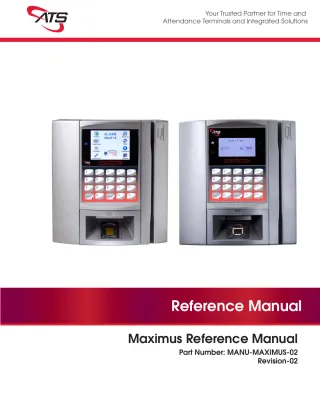
Maximus Reference Manual
Manual214 pagesPDF 18 MB
Reference manual for the Accu-Time Maximus time and attendance terminal family, including the MXS2100: installation, setup, testing and maintenance.
Names · 2 models
The models it names
 Ceridian MXS2100Stationary time and attendance data collection terminal from$825.007 in stock Accu-Time MXS2100Stationary time and attendance data collection terminal Call for availability
Filed with · 2 models
Also filed with these models on the old site
Summary
What is in it
The reference manual for Accu-Time Maximus time and attendance terminals in monochrome and color versions. It gives the specifications and the part numbers of each configuration (including the MXS2100 biometric verification model), installation, wiring and power connections, the setup, test and information menus for monochrome and color terminals, cleaning and troubleshooting. Appendices cover biometrics, badge specifications, using a USB drive and GSM/GPRS setup.
Its parts
- Preface
- Terminal Description
- Installation
- Monochrome Terminals
- Color Terminals
- Maintenance
From the manual
Key facts from this manual
Each line names its page in the PDF.
Reference manual MANU-MAXIMUS-02 (Revision-02, 2015) for the Accu-Time Systems Maximus time and attendance terminal in monochrome and color, Linux and Java versions. It covers the MXS, MCS, MXJ and MCJ part number families, among them the MXS2100 and MXS2105 biometric models. It gives the specifications, part numbers, installation and power, setup menus, maintenance and troubleshooting, biometrics, badges, USB use and GSM/GPRS setup.
- Device
- Maximus time and attendance terminal on a Linux operating system, in monochrome or color display versions p. 15
- Interfaces
- IEEE 802.3 10/100BASE-T Ethernet with DHCP; USB port for mass storage; optional EIA RS232, GSM/GPRS modem or internal modem p. 17
- Power
- 12 VDC ±5%, 1.25 A, 15 W maximum; optional non-interruptible power source with charger; optional IEEE 802.3af power over Ethernet p. 17
- Keypad
- 20-key 4x5 matrix: 0-9 numeric keys, 8 software-defined function keys, 10 LED illuminated keys p. 17
- Dimensions
- 21.33 cm x 22.22 cm x 9.91 cm (8.4" x 8.75" x 3.9") p. 18
- Temperature
- Operating 0° to 50°C (32° to 122°F); storage -20° to 80°C (-4° to 176°F) p. 18
- Display
- 128 x 64 pixel monochrome LCD (standard) or 320x240 transmissive color LCD p. 17
- Memory
- Linux or XML: 32 MB RAM and 32 MB flash; Java: 128 MB RAM and 128 MB flash p. 17
- Fingerprint reader
- MXS2100/XX: 1:1 E-Field fingerscan reader (4K templates, requires PIN), 32MB RAM, 32MB Flash, 128x64 monochrome LCD p. 20
- UPS battery
- BATTERY/K14 UPS with charging kit; about 1.5 hours of operation at 23°C (73°F); about seven hours to charge a drained battery p. 18, 29, 53
- Power supplies
- POWERPACK/K06 (domestic); POWERPACK/K03 (international, with adapter plugs); 39-1000-00 replacement backup battery p. 29
- Modules
- POE/K03 power over Ethernet; COMM/K58 RS232 serial; COMM/K56 56K modem; COMM/K67 GSM/GPRS modem kit; 90-1843-02 128/128 memory module p. 28, 29
- Internal readers
- 97-2111-04 HID Proxpoint; 97-9016-02 bar code visible red; 97-9016-03 bar code infrared; 97-9016-04 magnetic stripe track 2 p. 28
- Host port
- Default host port 2500; KeepAlives sent every 30 seconds by default p. 17, 31
What this manual walks you through
- Choosing part numbers for terminal configurations, modules and accessories p. 19, 20, 28, 29, 30
- Powering the terminal by power pack, power over Ethernet or UPS battery p. 51, 52
- Connecting the UPS battery and reading the charger LED p. 52, 53
- Host acknowledgement and KeepAlive messages p. 31
- Troubleshooting power, badge, keypad and host communication problems p. 160, 161, 162, 163
Good to know
- The terminal has no user-serviceable parts. p. 160
- The power pack outlet must be within four feet (1.2m) of the terminal. p. 51
- The UPS battery pack is disconnected before shipping; connect it after the terminal has power. p. 52
- An Ethernet cable segment should be 100 meters (328 feet) or less, category 5 twisted pair. p. 163
Questions this manual answers
What power does the Maximus MXS2100 need?
12 VDC ±5%, 1.25 A, 15 W maximum, or IEEE 802.3af power over Ethernet when the PoE option is installed. p. 17, 52
What fingerprint reader does the MXS2100 have?
The MXS2100/XX has a 1:1 E-Field fingerscan reader holding 4K templates, and it requires a PIN. p. 20
How long does the Maximus run on its backup battery?
About 1.5 hours after the primary power is lost, then it turns off; the yellow low-power LED is lit in battery mode. p. 52
Why is my Maximus terminal not communicating with the host?
Set the communication parameters in Setup Mode (port 2500 by default), reboot, ping the terminal and check the cable at both ends. p. 163
What is the part number of the Maximus power supply?
POWERPACK/K06 is the recommended domestic power pack and POWERPACK/K03 the international one. p. 29
Contents
Chapters and sections
Each line opens the PDF at its page.
- Revision History2
- Preface7
- Terminal Description13
- Installation33
- Monochrome Terminals55
- Color Terminals117
- Maintenance153
- Biometrics165
18 more lines, from page 170 on
The whole text · 25 parts
Read the manual here as text
Its text as extracted from the PDF, unedited, in parts; each page opens the PDF at that page.
- Pages 1 to 61-6
- Preface7-12
- Terminal Description, pages 13 to 2213-22
- Terminal Description, pages 23 to 3223-32
- Installation, pages 33 to 4033-40
- Installation, pages 41 to 4841-48
- Installation, pages 49 to 5449-54
- Monochrome Terminals, pages 55 to 6355-63
- Monochrome Terminals, pages 64 to 7264-72
- Monochrome Terminals, pages 73 to 8173-81
- Monochrome Terminals, pages 82 to 9082-90
- Monochrome Terminals, pages 91 to 9991-99
- Monochrome Terminals, pages 100 to 108100-108
- Monochrome Terminals, pages 109 to 116109-116
- Color Terminals, pages 117 to 125117-125
- Color Terminals, pages 126 to 134126-134
- Color Terminals, pages 135 to 143135-143
- Color Terminals, pages 144 to 152144-152
- Maintenance153-164
- Biometrics, pages 165 to 172165-172
- Biometrics, pages 173 to 180173-180
- Badge Specifications181-190
- Using the USB191-198
- GSM/GPRS Setup199-206
- Index207-214
The file