Manual · Videx
Application Builder for DuraTrax/LaserLite/LaserLite Pro/LaserLite Mx, for Windows Computers
Manual245 pagesPDF 2.4 MB
Manual for Videx Application Builder for Windows, used to design data collection programs for DuraTrax and LaserLite data collectors.
Covers · 4 models
The models it covers
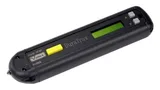 Videx DuraTraxPortable batch data collection terminal from$695.007 in stock
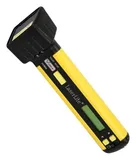 Videx LaserLitePortable batch data collection terminal from$895.0025 in stock
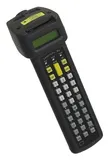 Videx LaserLite MxPortable batch data collection terminal from$995.002 in stock
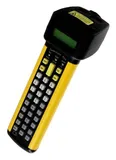 Videx LaserLite ProPortable batch data collection terminal from$995.0051 in stock
Summary
What is in it
The manual for Videx Application Builder for Windows, software that designs data collection applications for the DuraTrax, LaserLite, LaserLite Pro and LaserLite Mx data collectors and transfers them to the unit. It includes quick starts for a sample application and a cross-reference file, a full guide to the menus and windows, a step-by-step security example, advanced detour handlers and plug-ins, sample applications with bar codes, resetting the data collector, and using multiple data collectors with Base Stations.
Its parts
- Introduction
- Chapter 1 - Application Builder
- Chapter 2 - Application Builder: Menus & Windows
- Chapter 3 - Building an Application with Application Builder
- Chapter 4 - Advanced Application Building
From the manual
Key facts from this manual
Each line names its page in the PDF.
Videx manual for Application Builder for Windows, the software used to design data collection programs for the DuraTrax, LaserLite, LaserLite Pro and LaserLite Mx data collectors. It walks through installing the software, sending an application to the unit over infrared, collecting and transferring data, building applications step by step, resetting a locked unit and using several Base Stations together.
- Software
- Application Builder for Windows: designs data collection programs from a description of each step p. 9
- Link to computer
- Infrared (IrDA) link from the end cap to a Videx Base Station or an external IrDA transceiver on a serial port p. 17
- IR range
- About four inches; optimum about 3–12 inches p. 18
- Built-in features
- Scrolling through data, delete last entry, battery voltage and low-battery warnings, remaining memory and low memory warnings, power-loss warnings p. 9
- BASIC source
- Applications can generate BASIC source code for further customizing p. 10
- Package
- This manual and one CD p. 10
- Base Station slots
- DuraTrax/LaserLite Base Station: two slots; LaserLite Pro/Mx Base Station: one slot p. 17
- Input devices
- DuraTrax: contact scanner; LaserLite, LaserLite Pro, LaserLite Mx: laser; DuraTrax, LaserLite Pro, LaserLite Mx: Touch Memory button reader p. 73
- Keypad
- LaserLite Pro and LaserLite Mx have a keypad; a Code 3 of 9 bar code scanpad is included for manual entry p. 72
- Operating system files
- Names start with Trax (DuraTrax), Lite (LaserLite), Pro (LaserLite Pro) or Lmx (LaserLite Mx) and end in .OS p. 223
- Multiple Base Stations
- Up to ten in series on one serial port, linked with interconnect cable TWC-006 p. 225
- Units per transfer
- LaserLite Pro or LaserLite Mx: up to ten; DuraTrax or LaserLite: up to twenty p. 225
- Function keys
- LaserLite Pro and LaserLite Mx only p. 7
What this manual walks you through
- Installing the IR device and Application Builder software p. 5, 19
- Transferring an application to the data collector and the data file back with Vxcom p. 5
- Building cross-reference files p. 5, 7
- Building a simple application, step by step (security example) p. 7
- Detour handlers, plug-ins and customized templates p. 7
- Troubleshooting an application that will not transfer p. 144
- Manually resetting a locked data collector and resending its operating system p. 223
- Connecting several Base Stations and changing a data collector's ID p. 225, 226
Good to know
- Keep the Base Station at least three inches from the computer and monitor so interference does not disturb communication. p. 17
- When using a JetEye infrared station, do not install the JetEye drivers that come with it. p. 19
- Using the LaserLite Pro/Mx Base Station charge feature with only one power transformer limits the chain to three Base Stations. p. 226
- A unit that locks up and does not recover after two to three minutes must be reset by hand and have its operating system resent with Vxcom. p. 223
Questions this manual answers
How do I reset a Videx DuraTrax or LaserLite that is locked up?
Remove the battery end cap, hold the scan button while replacing it, wait for three beeps, then drag the operating system file onto the Vxcom icon. p. 223
How does a LaserLite connect to a computer?
Over an infrared IrDA link, through a Videx Base Station or an external IrDA transceiver on the computer's serial port. p. 17
Why won't my application transfer to the data collector?
Check the serial port and IR device settings, the Base Station or IR station connection and its distance from the computer, try unplugging the Base Station, and aim the end cap at the IR station from about 4 inches. p. 144
The whole text · 25 parts
Read the manual here as text
Its text as extracted from the PDF, unedited, in parts; each page opens the PDF at that page.
- Pages 1 to 101-10
- Pages 11 to 2011-20
- Pages 21 to 3021-30
- Pages 31 to 4031-40
- Pages 41 to 5041-50
- Pages 51 to 6051-60
- Pages 61 to 7061-70
- Pages 71 to 8071-80
- Pages 81 to 9081-90
- Pages 91 to 10091-100
- Pages 101 to 110101-110
- Pages 111 to 120111-120
- Pages 121 to 130121-130
- Pages 131 to 140131-140
- Pages 141 to 150141-150
- Pages 151 to 160151-160
- Pages 161 to 170161-170
- Pages 171 to 180171-180
- Pages 181 to 190181-190
- Pages 191 to 200191-200
- Pages 201 to 210201-210
- Pages 211 to 220211-220
- Pages 221 to 230221-230
- Pages 231 to 240231-240
- Pages 241 to 245241-245
The file