Manual · Metrologic
MetroSelect Single-Line Scanner Configuration Guide
Manual116 pagesPDF 1.9 MB
Bar code configuration guide for Honeywell Metrologic MetroSelect scanners: symbologies, interfaces, prefixes, suffixes and formatting.
Filed with · 1 model
Also filed with these models on the old site
Summary
What is in it
The MetroSelect configuration guide for Honeywell (Metrologic) scanners, set up by scanning the bar codes it prints. It covers the single-code and multi-code configuration methods, code types and decode rules, supplements, GS1 DataBar, ISBT Code 128, scanner operation (beeper, LED, time-outs, test modes), prefixes and suffixes, code formatting, RS232, keyboard wedge, OCIA, light pen, RS485 IBM port and USB settings, plus chapters for Voyager series scanners and IS4125, IS4225, IS4823 and IS4825 scan engines.
Its parts
- Introduction
- Code Types and Decode Rules
- Supplements
- GS1 DataBar
- ISBT Code 128 Implementation
- Communications
- Scanner Operation
- Prefixes/Suffixes
- Code Formatting
- RS232
- Keyboard
- OCIA
- Light Pen Parameters
- RS485 Configuration
- USB
From the manual
Key facts from this manual
Each line names its page in the PDF.
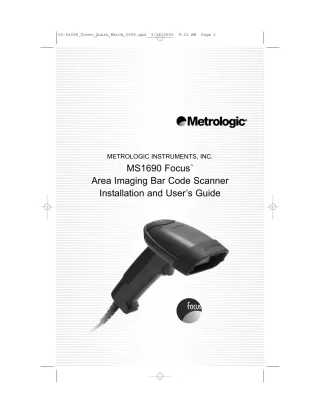
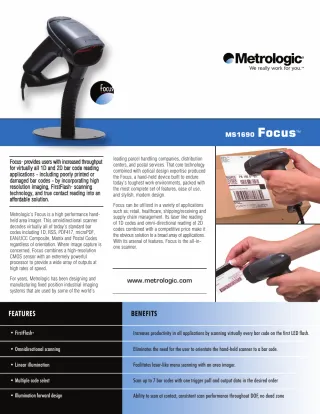
This is a Honeywell bar code configuration guide for MetroSelect single-line scanners. It does not name the MS1690; its chapters name the MS9520 Voyager, MS9540 VoyagerCG, MS9524, MS9544, MS9535 VoyagerBT and the IS4125, IS4225, IS4823 and IS4825 scan engines. Scanning its codes sets the interface, RS232, keyboard, USB, prefix and decode options.
- What it is
- Bar code configuration guide for MetroSelect single-line scanners p. 1
- Interface options
- RS232, keyboard wedge, stand-alone keyboard, light pen/wand, OCIA, RS485 p. 31
- RS232 baud rates
- 300 to 115200 baud; 57600 and 115200 not available with Voyager p. 59, 60
- RS232 defaults
- 9600 baud, space parity, 7 data bits, 2 stop bits p. 7, 59, 60
- Handshaking
- RTS/CTS, DTR support, XON/XOFF, ACK/NAK p. 60, 61, 62
- USB modes
- USB keyboard emulation (factory default) or USB serial emulation p. 79, 80
- IBM OEM USB modes
- 4B00h hand-held and 4A00h flat-bed, full speed USB only p. 79
- Low speed USB adapter
- MX009, for scanners without integrated low speed USB electronics p. 79
- Keyboard countries
- USA, UK, France, Germany, Italy, Spain, Switzerland p. 65
- Settings memory
- Nonvolatile memory (NOVRAM), kept with the power off p. 7
- Host commands
- D/E scan disable and enable, Z/R, F/L laser off and on, DC2 trigger, DTR scan disable p. 40
- Serial programming
- Commands framed by STX (02 Hex) and ETX (03 Hex) over the serial port p. 108
- OEM default sets
- RCH, Sanyo, Gilbarco, ALT, LaCaixa, ABACAB, Ruby Verifone p. 107
What this manual walks you through
- Changing settings with the single-code and multi-code methods p. 7
- Returning the scanner to its factory defaults p. 8
- Choosing the host interface p. 31
- Setting RS232 parity, baud rate, data bits and handshaking p. 59, 60, 61, 62
- Setting up keyboard wedge emulation and the keyboard country p. 65
- Setting USB keyboard or serial emulation p. 79, 80
- Adding prefix characters and code ID characters p. 43, 44
- Controlling scanning with host commands p. 40, 41
- Loading OEM custom default sets p. 107
- Recalling defaults through the serial port p. 108
Good to know
- On an MS9540, every configuration code must be scanned using the CodeGate option. p. 7
- In the multi-code method, powering off before the closing enter/exit code abandons the change. p. 7
- The scan count and power-up interface test modes are not to be enabled unless a Honeywell representative says so. p. 42
- Recalling defaults on a USB scanner returns it to keyboard emulation and drops USB serial emulation settings. p. 79
- RS485 is not supported by all scanners and needs the correct interface board. p. 31
Questions this manual answers
How do I reset a MetroSelect scanner to factory defaults?
Scan the Recall Defaults bar code. Keyboard wedge scanners load keyboard wedge defaults; all other scanners load RS232 defaults. p. 8
What RS232 baud rates can the scanner use?
From 300 to 115200 baud, with 9600 as the factory default. 57600 and 115200 are not available with the Voyager. p. 7, 59, 60
How do I switch the scanner to USB serial emulation?
Scan the Uni-Directional or Bi-Directional USB Serial Emulation Mode code. On Focus area-imaging products the uni-directional code turns on bi-directional mode, and the bi-directional code is not supported. p. 80
How do I change several settings at once?
Scan the enter/exit configuration mode code, scan each feature code, then scan the enter/exit code again to save. p. 7
Can the scanner be configured from a host over the serial port?
Yes. In Serial Program Mode the host sends commands framed by STX and ETX; the scanner answers ACK, or NAK for a command it does not recognize. p. 108
Contents
Chapters and sections
Each line opens the PDF at its page.
The whole text · 12 parts
Read the manual here as text
Its text as extracted from the PDF, unedited, in parts; each page opens the PDF at that page.
The file