Manual · Webscan
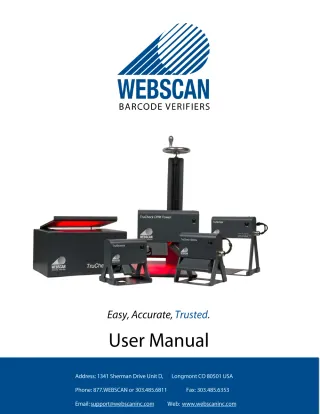
Webscan Barcode Verifiers TruCheck User Manual
Manual68 pagesPDF 5.0 MB
User manual for Webscan TruCheck laser and CCD imager barcode verifiers and their TruCheck software: setup, verification, settings and grading.
Filed with · 4 models
Also filed with these models on the old site
Summary
What is in it
The user manual for the Webscan TruCheck family of laser and CCD imager based barcode verifiers, which all run the same TruCheck software. It covers package contents, installing the TruCheck USB software and hardware, PC requirements, verifying 1D and 2D barcodes, defining regions, reading results and reports, calibration, 1D and 2D settings, grading standards, multi-mode, optional Postnet, Intelligent Mail and Maxicode verification, care, specifications, compliance, troubleshooting and warranty.
From the manual
Key facts from this manual
Some pages are scans or cannot be read; this says only what the readable text supports. Each line names its page in the PDF.
A Webscan user manual for the TruCheck family of laser and camera (CCD imager) barcode verifiers, which all run the same TruCheck software. It does not name the TruCheck TC-418 or the TruRemote TC-403; its compliance page lists model numbers of the TruCheck Omni, Optima, 2D USB, 2D DPM USB, Laser USB and Rover series. It walks the reader through installing the software, verifying 1D and 2D barcodes, calibration and basic troubleshooting.
- Device
- Laser and CCD imager based barcode verifiers that grade 1D and 2D barcodes to ANSI, ISO/IEC, CEN and GS1 standards p. 4
- PC connection
- USB 2.0, connected directly to the PC rather than through a hub; separate power supply with a barrel connector p. 5, 6
- PC requirements
- Windows 10, 8, Vista, 7 or XP; Intel Core 2 or Core i3/i5/i7 or equivalent; 2GB RAM minimum, 4 GB recommended; 200 MB free disk; .NET 3.5 SP1 p. 6
- Report formats
- Verification results saved as Adobe PDF, HTML, MS Excel and CSV p. 4
- Standards
- ISO 15415, ISO 15416, ISO 15426-1 and 15426-2, ISO/IEC TR 29158 (AIM DPM-2006); GS1 system requirements p. 56
- Symbologies
- Data Matrix ECC-200 (up to 48x48), QR Code, Aztec Code, PDF 417; EAN/UPC, UCC/EAN-128, ITF-14, GS1 DataBar, GS1 Composite, GS1 Data Matrix p. 56
- Optional symbologies
- Postnet and Intelligent Mail Barcode (IMB), and Maxicode, each enabled by a purchased license file p. 7, 8
- Laser calibration cards
- 4899 (3MIL, UPC/EAN) for 3mil lasers; 1556 (6MIL, UPC/EAN) for 6mil lasers; 2633 (10MIL, GS1/UCC/EAN-128) for 10mil lasers; 2222 (20MIL, ITF-14) for 20 mil lasers p. 25
- Camera calibration cards
- 4744 GS1 Data Matrix card for all camera-based verifiers; 5136 Webscan Calibration Symbol for all cameras and 6mil lasers, 1D or 2D p. 25, 65
- Calibration interval
- Monthly recommended, set as the default reminder; calibration cards expire 2 years after issue p. 25, 65
- Measurement accuracy
- Mean of 10 scans on a reference symbol within Decodability +8%, Rmin +3%, Rmax +5%, Defect +8%, Modulation +12% (ISO15426) p. 54
- Grade scale
- Final grade 0.0 to 4.0 in steps of 0.1; individual parameters 0 to 100 p. 55
- Environment
- Temperature 0-40° C; humidity 5% - 95% non-condensing p. 55
- In the box
- Verifier unit, TruCheck software CD, power supply (if applicable), quick set up sheet; calibration card often an optional item p. 4
What this manual walks you through
- Installing the TruCheck USB software before plugging in the verifier p. 5
- Connecting the power supply and USB cable p. 5
- Verifying a linear (1D) barcode p. 11
- Verifying a 2D matrix barcode p. 12
- Drawing a region around one code in the live image p. 10
- Calibrating a laser verifier with Rmin and Rmax values p. 26
- Calibrating with a Data Matrix or linear master symbol in the live image p. 27
- Enabling Postnet, IMB or Maxicode with a license file p. 7, 8
- Cleaning the verifier window p. 54
- Basic troubleshooting and returning a unit for service with an RMA number p. 63
Good to know
- If the verifier is plugged in before or during software installation, Windows installs it as an unknown device and it will not work. p. 5
- The system does not work on USB 1.0 or 1.1 ports or on some USB 2.0 add-on cards. p. 6
- A calibration card is required for proper operation, but it is often an optional item not included in the package. p. 4
- Calibrate only with a valid card; each card carries an expiration date. p. 25
- 1D-only verifiers such as the TruCheck Laser USB can be calibrated only with a 1D calibration barcode. p. 65
Questions this manual answers
How often should a Webscan TruCheck verifier be calibrated?
Webscan recommends monthly calibration, which is the default reminder; calibration cards expire 2 years after issue. p. 25, 65
Which calibration card fits a TruCheck camera verifier?
The 4744 GS1 Data Matrix card fits all camera-based verifiers, and the 5136 Webscan calibration symbol fits all cameras and 6mil lasers. p. 25
What computer does the TruCheck software need?
A Windows 10, 8, Vista, 7 or XP PC with at least 2GB RAM, .NET 3.5 SP1 and an embedded USB 2.0 port. p. 6
Why does Windows show the TruCheck verifier as an unknown device?
It was plugged in before or during the software installation; the TruCheck USB software must be installed first. p. 5
What file formats can TruCheck save verification results in?
Adobe PDF, HTML, MS Excel and CSV. p. 4
The whole text · 7 parts
Read the manual here as text
Its text as extracted from the PDF, unedited, in parts; each page opens the PDF at that page.
The file