Manual · UBI
MagScan User's Manual
Manual92 pagesPDF 4.1 MB
User's manual for the United Barcode Industries MagScan, a magnetic stripe and bar code reader that connects as a wedge or RS-232 device.
Covers · 2 models
The models it covers
Summary
What is in it
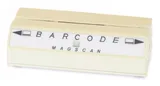
United Barcode Industries' user's manual for the MagScan, an on-line magnetic stripe and bar code reader with a port for a bar code wand or wand-compatible scanner. It explains the MagScan versions, reading magnetic cards and scanning with a wand, installing the unit as a keyboard wedge or as a single or dual RS-232 device, configuring it with bar code menus, and the parameter families for terminal type, RS-232, audio, bar code symbologies, magnetic stripe selection and advanced features.
Its parts
- Section 1 - Introduction of the MagScan
- Section 2 - Installing the MagScan
- Section 3 - Configuring the MagScan
- Section 4 - Families of Parameters
- Section 5 - Appendices
From the manual
Key facts from this manual
Some pages are scans or cannot be read; this says only what the readable text supports. Each line names its page in the PDF.
User's manual for the United Barcode Industries MagScan magnetic stripe and bar code reader, Versions 1 and 2. It explains reading cards and bar codes, installing the reader as a keyboard wedge or as a single or dual RS-232 device, and configuring it through bar code menus.
- What it is
- On-line magnetic stripe and bar code reader p. 8
- Host connection
- Keyboard wedge between keyboard and screen, or RS-232 device between terminal and host p. 8
- Versions
- Version 1: wedge output, P/N 155000; Version 2: RS-232 output; both read track 1, track 2, or tracks 1 and 2 p. 8, 9
- Track selection
- Track 1 or 3, Track 2, Tracks 1 and 2 (default), or Tracks 2 and 3 p. 68
- Bar code input
- Modular port on the rear for a wand, or a CCD or laser diode scanner with wand-compatible output p. 8, 9
- Wedge parts
- Cable Management Module P/N 3250XX and Wedge Cable P/N 601XXX for the terminal type p. 11
- RS-232 parts
- CMM P/N 704300, 704310, 704320, 704330 or 704340 by connector pin assignment; power supply P/N 700901 p. 13
- Dual RS-232 parts
- CMM P/N 704300 with Standard Dual Output Option P/N 700302 or Reverse Gender option P/N 701302, plus power supply P/N 700901 p. 16
- OEM power
- +5 VDC at minimum 115 mA on the CMM power pin, in place of a power supply p. 13
- RS-232 input option
- Part 700501 or 700601 on port J3, for portable terminals, scales or other devices p. 36
- Default terminal
- Terminal number 163, IBM AT and compatibles p. 27
- Indicators
- Beep and bi-color LED that turns from red to green on each good read; speaker with 7 volume levels p. 8, 39
- Card reading
- Stripe down and facing the front; swipe in either direction p. 9, 10
- Manual edition
- Part 600006-00-01 Revision 3.0 p. 3
What this manual walks you through
- Swiping a magnetic stripe card p. 9, 10
- Scanning bar codes with a wand p. 9
- Installing the reader as a keyboard wedge p. 11, 12
- Installing it as a single RS-232 device p. 13, 14, 15
- Installing it as a dual RS-232 device and setting the jumpers p. 16, 17, 18, 19
- Configuring the reader with bar code menus p. 20, 21, 22, 23, 25
- Selecting the terminal type for wedge use p. 27, 29
- RS-232 modes and flow control (ENQ/ACK, XON/XOFF, CTS/RTS) p. 36, 37, 38
- Setting the speaker volume p. 39
- Choosing which magnetic tracks to read p. 68, 69
Good to know
- The manual applies only to Versions 1 and 2; Version 3 is for OEM use. p. 8
- Configuring needs a wand connected to the bar code port and the reader powered on. p. 20
- Set upper or lower case to match the terminal keyboard's caps lock state. p. 29
- With XON/XOFF, a connected device should wait at least 50 ms between records. p. 38
Questions this manual answers
How do I swipe a card in the MagScan?
Hold the card with the magnetic stripe down and facing the front of the reader, and slide it through the slot in either direction. p. 9, 10
How do I program the MagScan?
With a wand connected, scan Enter Configuration, change the parameter families you need from the bar code menus, then scan End Configuration. p. 20, 22, 25
What power supply does the MagScan need for RS-232?
Power supply P/N 700901, plugged into the Power Supply port of the Cable Management Module. p. 13
What do two low beeps mean when configuring the MagScan?
An invalid configuration command, usually a configuration bar code read out of its proper sequence. p. 24
Which magnetic stripe tracks does the MagScan read by default?
Tracks 1 and 2; it can also be set to Track 1 or 3, Track 2, or Tracks 2 and 3. p. 68
The whole text · 10 parts
Read the manual here as text
Its text as extracted from the PDF, unedited, in parts; each page opens the PDF at that page.
The file