Manual · Symbol
LS 2200/2208 Product Reference Guide
Manual376 pagesPDF 3.4 MB
Product reference guide for the Symbol LS 2200 and LS 2208 laser bar code scanners: setup, scanning, specifications and programming.
Covers · 1 model
The models it covers
Summary
What is in it
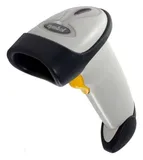
Symbol's product reference guide for the LS 2200 and LS 2208 hand-held laser scanners. It covers unpacking and setup, scanning in hand-held and hands-free modes, maintenance, troubleshooting and technical specifications, then gives the programming bar codes for user preferences, the keyboard wedge, RS-232, USB, IBM 468X/469X and wand emulation interfaces, 123Scan, symbologies, miscellaneous options and Advanced Data Formatting.
Its parts
- Getting Started
- Scanning
- Maintenance and Technical Specifications
- User Preferences
- Keyboard Wedge Interface
- RS-232 Interface
- USB Interface
- IBM 468X/469X Interface
- Wand Emulation Interface
- 123Scan
- Symbologies
- Miscellaneous Scanner Options
- Advanced Data Formatting
From the manual
Key facts from this manual
Each line names its page in the PDF.
Symbol product reference guide (2003) for the LS 2200/2208 laser scanner family: the decoded LS 2208 and the undecoded LS 2200. It covers setup, scanning, beeper and LED meanings, cleaning, troubleshooting and technical specifications, then how to connect and program the LS 2208 for keyboard wedge, RS-232, USB, IBM 468X/469X, wand emulation and Synapse hosts, including 123Scan, symbology options and Advanced Data Formatting.
- What it is
- Lightweight laser scanner, hand-held or hands-free in a stand; LS 2208 decoded, LS 2200 undecoded p. 21, 22
- Interfaces
- LS 2208: RS-232, Keyboard Wedge, Wand Emulation, IBM 468X/469X, USB, Synapse p. 41
- Power
- LS 2208: 5 VDC +/- 10% at approximately 200mA nominal. Power from the host, an external power supply or a 9 Volt battery box p. 40
- Scan rate
- 100 ± 5 scans/second p. 40
- Laser
- 650nm laser diode p. 41
- Symbologies
- LS 2208: UPC/EAN with supplementals, JAN 8 & 13, Code 39 (Full ASCII, Trioptic), Codabar (NW7), Interleaved and Discrete 2 of 5, Code 128, Code 93, MSI, Code 11, Code 32, Coupon Code, Bookland EAN, RSS p. 40
- Size and weight
- 6.0 x 2.5 x 3.34 in. (15.2 x 6.3 x 8.4 cm); 5.15 oz. (146 g) without cable p. 41
- Temperature
- Operating 32° to 120° F (0° to 50° C); storage -40° to 140° F (-40° to 60° C) p. 40, 41
- Humidity
- 5% to 95% (non-condensing) p. 41
- Durability
- 5 ft (1.5 m) drops to concrete p. 40
- Motion tolerance
- Yaw ± 10°, pitch ± 65°, roll ± 60° from nominal p. 40
- Minimum bar width
- 5 mil (0.127 mm) p. 41
- Synapse adapter cable
- p/n 25-32463-xx, used with a Synapse Smart Cable p. 25
- RS-232 defaults
- 9600 baud, no parity, 1 stop bit, 8 data bits, no hardware or software handshaking p. 85
What this manual walks you through
- Installing the interface cable and connecting external power p. 23, 24
- Connecting through a Synapse cable and removing the interface cable p. 25
- Reading the beeper sequences and LED colors p. 28, 29, 30
- Cleaning the exit window p. 37
- Troubleshooting scanning and host problems p. 38, 39
- Connecting a keyboard wedge Y-cable p. 56
- Connecting to an RS-232 host and its default settings p. 84, 85
- Setting up a USB connection and the HID driver p. 114, 115
- Connecting to IBM 468X/469X and wand emulation hosts p. 138, 144
- Programming the scanner with the 123Scan utility p. 151
Good to know
- The user preference, interface and symbology chapters apply only to the LS 2208; the LS 2200 is set by its external interface controller. p. 13
- Do not let abrasive material touch the window, and do not spray liquids directly into it. p. 37
- On USB, hearing the power-up beep more than once is normal, usually when the PC cold boots. p. 29
- On an IBM 468X/469X host the only required setting is the port number. p. 138
- 123Scan talks to the scanner over an RS-232 cable from a Windows PC. p. 151
Questions this manual answers
What do 4 long low beeps mean on the LS 2208?
A transmission error was detected in a scanned symbol and the data is ignored. It happens when the unit is not properly configured. p. 28
How do I reset the LS 2208 to default settings?
Scan the Set All Defaults bar code in the User Preferences chapter; it returns all parameters to their default values. p. 48
What are the LS 2208 default RS-232 settings?
9600 baud, no parity, 1 stop bit, 8 data bits, with no hardware or software handshaking. p. 85
Which operating systems work with the LS 2208 over USB?
Windows 98, 2000, ME and XP, MacOS 8.5 and above, and IBM 4690 OS, plus other hosts that support USB HID devices. p. 114
How do I clean the LS 2208 scanner window?
Remove dirt with a damp cloth, then wipe with a tissue moistened with ammonia/water. Keep abrasives off and do not spray liquid into the window. p. 37
Contents
Chapters and sections
Each line opens the PDF at its page.
- About This Guide13
- Introduction13
- Chapter Descriptions13
- Notational Conventions15
- Related Publications15
- Service Information15
- Symbol Support Center16
- Chapter 1 Getting Started21
- Chapter 2 Scanning27
- Chapter 3 Maintenance and Technical Specifications37
- Chapter 4 User Preferences45
- Chapter 5 Keyboard Wedge Interface55
72 more lines, from page 83 on
- Chapter 6 RS-232 Interface83
- Chapter 7 USB Interface113
- Chapter 8 IBM 468X/469X Interface137
- Chapter 9 Wand Emulation Interface143
- Chapter 10 123Scan151
- Chapter 11 Symbologies153
- Chapter 12 Miscellaneous Scanner Options231
- Chapter 13 Advanced Data Formatting243
- Appendix A Standard Default Parameters337
- Appendix B Programming Reference345
- Appendix C Sample Bar Codes351
- Appendix D Numeric Bar Codes355
- Glossary361
- Index367
The whole text · 44 parts
Read the manual here as text
Its text as extracted from the PDF, unedited, in parts; each page opens the PDF at that page.
- Pages 1 to 41-4
- Contents5-12
- Pages 13 to 1513-15
- Symbol Support Center16-20
- Chapter 1 Getting Started21-26
- Chapter 2 Scanning27-36
- Chapter 3 Maintenance and Technical Specifications37-44
- Chapter 4 User Preferences45-54
- Chapter 5 Keyboard Wedge Interface, pages 55 to 6455-64
- Chapter 5 Keyboard Wedge Interface, pages 65 to 7465-74
- Chapter 5 Keyboard Wedge Interface, pages 75 to 8275-82
- Chapter 6 RS-232 Interface, pages 83 to 9283-92
- Chapter 6 RS-232 Interface, pages 93 to 10293-102
- Chapter 6 RS-232 Interface, pages 103 to 112103-112
- Chapter 7 USB Interface, pages 113 to 120113-120
- Chapter 7 USB Interface, pages 121 to 128121-128
- Chapter 7 USB Interface, pages 129 to 136129-136
- Chapter 8 IBM 468X/469X Interface137-142
- Chapter 9 Wand Emulation Interface143-150
- Pages 151 to 160151-160
- Pages 161 to 170161-170
- Pages 171 to 180171-180
- Pages 181 to 190181-190
- Pages 191 to 200191-200
- Pages 201 to 210201-210
- Pages 211 to 220211-220
- Pages 221 to 230221-230
- Chapter 12 Miscellaneous Scanner Options231-242
- Chapter 13 Advanced Data Formatting, pages 243 to 252243-252
- Chapter 13 Advanced Data Formatting, pages 253 to 262253-262
- Chapter 13 Advanced Data Formatting, pages 263 to 272263-272
- Chapter 13 Advanced Data Formatting, pages 273 to 282273-282
- Chapter 13 Advanced Data Formatting, pages 283 to 292283-292
- Chapter 13 Advanced Data Formatting, pages 293 to 302293-302
- Chapter 13 Advanced Data Formatting, pages 303 to 312303-312
- Chapter 13 Advanced Data Formatting, pages 313 to 322313-322
- Chapter 13 Advanced Data Formatting, pages 323 to 332323-332
- Chapter 13 Advanced Data Formatting, pages 333 to 336333-336
- Appendix A Standard Default Parameters337-344
- Appendix B Programming Reference345-350
- Appendix C Sample Bar Codes351-354
- Appendix D Numeric Bar Codes355-360
- Glossary361-366
- Index367-376
The file