Manual · Symbol
Spectrum24 CB2000 Client Bridge Product Reference Guide
Manual56 pagesPDF 631 KB
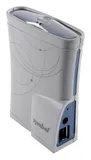
Product reference guide for the Symbol Spectrum24 CB2000 client bridge that links up to four Ethernet devices to an 802.11b wireless LAN.
Covers · 1 model
The models it covers
Summary
What is in it
The product reference guide for the Symbol Spectrum24 CB2000 Client Bridge, a wireless bridge that connects Ethernet devices such as PCs and printers to an IEEE 802.11b wireless LAN. It explains radio basics and the infrastructure and ad hoc operating modes, configuring the bridge (system parameters, tools and status), hardware installation and LEDs, the CB2000 Device Manager and its pre-IP configuration wizard, troubleshooting, and specifications.
Its parts
- Introduction
- Configuring the CB2000
- Hardware Installation
- CB2000 Device Manager
- Troubleshooting
From the manual
Key facts from this manual
Each line names its page in the PDF.
This is the Product Reference Guide for the Symbol Spectrum24 CB2000 Client Bridge, a wireless bridge that connects up to four Ethernet devices to an 802.11b wireless LAN. It explains how to configure the bridge through its web pages and the Device Manager, how to install and connect it, and gives the LED meanings, troubleshooting steps and specifications.
- Device type
- Wireless network bridge that connects up to four devices to a Wi-Fi IEEE 802.11b wireless LAN p. 7
- Radio
- 2.4 to 2.5 GHz spread spectrum; data rates 1, 2, 5.5 or 11 Mbps p. 7, 40
- Power
- 5 volt 1500mA power supply, from a 100-240 volt, 50-60 Hz source p. 42
- Dimensions
- 109 mm (4.29 in) high, 82 mm (3.24 in) wide, 39 mm (1.52 in) deep p. 53
- Ethernet
- RJ45 connector; DIX, Ethernet_II and IEEE 802.3 frames; filters and forwards 14,400 frames per second p. 46, 53
- Security
- 40-bit WEP, 128-bit (shared and session key) encryption, or Kerberos; one type at a time p. 34, 54
- Antennas
- Two internal antennas used in diversity by default; an external antenna can be selected instead p. 33, 34
- Humidity
- 10 to 95% non-condensing p. 53
- Management
- Web browser with JavaScript or SNMP tool; MIBs s24dsap.mib, MIB-II and 802.1x.mib p. 23, 28, 53
- Device Manager needs
- Windows 98/ME/2000/XP with Netscape 4.7 or later or Internet Explorer 5.0 or higher; not Windows 95 or NT p. 42
- Factory defaults
- Device name Symbol_CB2000, IP address 10.1.1.3, subnet mask 255.255.0.0, infrastructure mode, no security p. 24, 25
- Protocols
- TCP/IP, IPX, NetBEUI, DHCP p. 53
- Standards
- IEEE 802.11b High Rate, IEEE 802.11, IEEE 802.3, IEEE 802.1d, HTTP p. 54
- Firmware upgrades
- Loaded from a TFTP server, with the bridge acting as TFTP client p. 37
What this manual walks you through
- Choosing the setup for an open DHCP network or a closed, secured network p. 24, 25
- Opening the configuration pages with the Device Manager or a web browser p. 26, 27, 28, 29
- Setting the IP address, subnet mask and gateway p. 32
- Setting network mode, service area, channel and antenna p. 32, 33, 34
- Setting WEP shared keys or Kerberos security p. 34, 35, 36
- Upgrading firmware from a TFTP server p. 37, 38
- Backing up and restoring a bridge configuration p. 38, 39
- Clearing the Ethernet client list to add a new client p. 39, 40
- Connecting a network printer or NBX telephone through the bridge p. 44, 45, 46
- Troubleshooting association and configuration problems p. 51, 52
Good to know
- Do not connect a bridge set to Access Point (Infrastructure) mode straight to the wired LAN, as it can cause a transmission loop. p. 41
- Do not install the bridge in wet or dusty areas without additional protection. p. 41
- Applying new IP settings ends the configuration session; start a new one afterward. p. 31
- Changes saved only with Enter are lost in a reset; Apply All Changes stores them permanently. p. 30, 37
- A firmware upgrade can sometimes return the bridge to its default configuration. p. 52
Questions this manual answers
What power supply does the Symbol CB2000 use?
A 5 volt 1500mA supply, connected to a 100-240 volt, 50-60 Hz power source. p. 42
What are the dimensions of the CB2000 client bridge?
109 mm high, 82 mm wide and 39 mm deep. p. 53
How do I replace a client on a CB2000 that already has four devices?
Unplug the old client, clear it from the Ethernet Client List under System Status, then plug in the new one. p. 39, 40
How do I upgrade the CB2000 firmware?
Put the upgrade file on a TFTP server, then under Tools click Upgrade System, enter the file name and the server's IP address, and click Upgrade. p. 37, 38
Why can't my CB2000 associate with an access point?
The guide suggests moving the bridge for better reception and checking that its security, performance and privacy mode settings match the access point. p. 51
Contents
Chapters and sections
Each line opens the PDF at its page.
The whole text · 8 parts
Read the manual here as text
Its text as extracted from the PDF, unedited, in parts; each page opens the PDF at that page.
- Spectrum24 CB2000 Client Bridge1-6
- Chapter 1 Introduction, pages 7 to 147-14
- Chapter 1 Introduction, pages 15 to 2215-22
- Chapter 2 Configuring the CB2000, pages 23 to 3123-31
- Chapter 2 Configuring the CB2000, pages 32 to 4032-40
- Chapter 3 Hardware Installation41-46
- Chapter 4 CB2000 Device Manager47-50
- Pages 51 to 5651-56
The file