Manual · Symbol
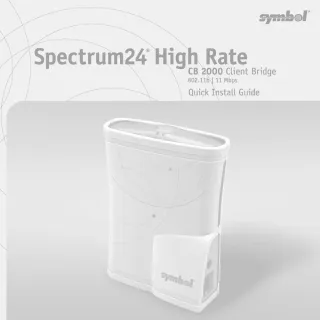
High Rate CB 2000 Client Bridge
Manual28 pagesPDF 905 KB
Quick setup guide for the Symbol Spectrum24 High Rate CB2000 Client Bridge, an 802.11b wireless bridge for up to four devices.
Covers · 1 model
The models it covers
Summary
What is in it
Quick setup guide for the Symbol Spectrum24 High Rate CB2000 Client Bridge, which lets up to four Ethernet devices such as a hub, telephone, computer or printer join an 802.11b wireless LAN. It lists the package contents and what else is needed, then walks through connecting the bridge, installing the CB2000 Device Manager, configuring the bridge (with a table of factory defaults) and verifying operation by its LEDs. It ends with customer support, regulatory and copyright information.
Its parts
- To the User
- Installing the CB2000
- Contact Information
- Legal Information
From the manual · read page by page
Key facts from this manual
Some pages are scans or cannot be read; this says only what the readable text supports. Each line names its page in the PDF.
This is the quick install guide for the Symbol Spectrum24 High Rate CB2000 Client Bridge, which links up to four Ethernet devices to an 802.11b wireless LAN. It walks through the package contents, placing and connecting the bridge, installing the Device Manager, basic configuration and checking the LEDs, and ends with regulatory notes.
- Device type
- Wireless network bridge that connects up to four devices to a Wi-Fi IEEE 802.11b wireless LAN p. 6
- Ethernet port
- RJ45 Ethernet connector, for a hub, telephone, computer or printer p. 9, 19
- Client limit
- Up to four Ethernet client devices, kept in a client list of MAC addresses p. 9
- Security
- 40-bit and 128-bit WEP and Kerberos encryption p. 6
- Management
- Standard web browser or SNMP management tool; CB2000 Device Manager for Windows p. 6, 10
- Network modes
- Ad hoc or infrastructure networks p. 6
- Distance to access point
- Within 300 feet (100 meters) of a Wi-Fi compliant access point p. 9
- In the box
- Bridge, power adapter and power cord, Category 5 UTP Ethernet cable, software and documentation CD-ROM p. 7
- Device Manager needs
- Windows XP, 2000, NT 4.0, Me or 98 with Netscape 4.7 or later or Internet Explorer 5.0 or later; not Windows 95 p. 7
- Default IP settings
- IP address, subnet mask and gateway obtained automatically; default IP address 10.1.1.3 p. 11
- Other defaults
- Access Point (infrastructure) mode, channel taken from the access point, diversity antenna, no security p. 11
- LEDs
- Two: Wireless Association on top, Ethernet Connection at the RJ45 connector p. 19
- Radio band
- 2.4 GHz wireless LAN p. 24
- Guide part number
- 72-58573-01 Revision A p. 28
What this manual walks you through
- Checking the package contents and the items needed p. 7
- Choosing a location for the bridge p. 9
- Clearing a device from the four-device client list p. 9
- Connecting the bridge to a computer or an Ethernet hub p. 13, 14
- Installing the CB2000 Device Manager from the CD-ROM p. 15
- Configuring the bridge for a closed or secured network p. 16, 17, 18
- Setting IP settings with the Pre-IP Configuration Wizard p. 17
- Checking operation with the two LEDs p. 19
- Downloading firmware updates, drivers and tools p. 8
- Applying the regulatory country stamp p. 22
Good to know
- Do not connect a bridge set to Access Point (Infrastructure) mode straight to the wired LAN, as it can cause a transmission loop. p. 12
- If the hub has no uplink (MDIX) port, an Ethernet crossover cable is needed; it is not included. p. 14
- Keep the bridge away from equipment that can cause radio interference, such as motors, fluorescent lights and microwave ovens. p. 9
- In France, channel use is restricted to channels 10-13. p. 22
- Under the FCC RF exposure rules, external or desktop antennas must stay at least 20 cm from all persons. p. 23
Questions this manual answers
How many devices can the Symbol CB2000 connect?
Up to four Ethernet client devices, either directly or through a hub. p. 9
What is the default IP address of the CB2000?
The default IP address is 10.1.1.3; by default the IP address, subnet mask and gateway are obtained automatically. p. 11
How do I connect a fifth device to a CB2000?
After four devices the client list is full, so first clear the device being replaced from the client list in the bridge's configuration management system. p. 9
Where are the CB2000 LEDs?
The Wireless Association LED is on the top of the bridge and the Ethernet Connection LED is at the RJ45 connector. p. 19
Which Windows versions does the CB2000 Device Manager run on?
Windows XP, 2000, NT 4.0, Me and 98; Windows 95 is not supported. p. 7
The whole text · 3 parts
Read the manual here as text
Its text as extracted from the PDF, unedited, in parts; each page opens the PDF at that page.
The file