Manual · QSI Corp
Qlarity-Based Terminal Hardware User's Manual
Manual56 pagesPDF 895 KB
Hardware user's manual for the QSI QTERM-G70, G75, G55 and Z60 graphic operator terminals: interfaces, installation and setup.
Covers · 1 model
The models it covers
Summary
What is in it
The hardware user's manual for QSI's Qlarity-based graphic terminals: the QTERM-G70, QTERM-G75, QTERM-G55 and QTERM-Z60. A chapter for each terminal gives its description and specifications, standard and optional interfaces (serial, Ethernet, PS/2 keyboard, Power-over-Ethernet), components such as the touch screen, keypad, speaker, clock and memory, and how to install it to NEMA-4 specifications and power it on. A final chapter explains the Power On Setup utility for display, calibration, network, serial port, keypad, sound and diagnostic settings.
Its parts
- QTERM-G70 Terminal
- QTERM-G75 Terminal
- QTERM-G55 Terminal
- QTERM-Z60 Terminal
- Power On Setup
From the manual
Key facts from this manual
Each line names its page in the PDF.
Revision 2.40 hardware user's manual for QSI's Qlarity-based terminals: the QTERM-G70, QTERM-G75, QTERM-G55 and QTERM-Z60. It gives each terminal's specifications, ports and pinouts, components and NEMA-4 installation steps, then explains the Power On Setup utility. The facts below come from the QTERM-G70 chapter and the Power On Setup chapter.
- Device
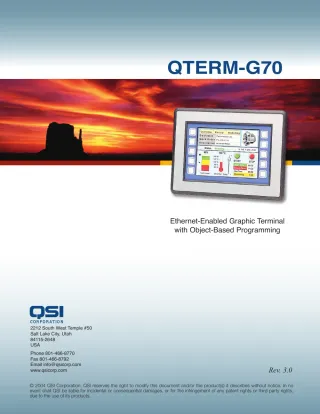
- QTERM-G70: Ethernet-enabled graphic terminal with touch screen and object-based programming p. 9
- Display
- QTERM-G70: 320x240 LCD, STN color (256 colors) standard; grayscale (16 shades), TFT or enhanced TFT optional; CCFL backlight p. 9
- Serial ports
- QTERM-G70: one DB9f port (EIA-232, EIA-422 or EIA-485); optional second port; optional two or four extra EIA-232 ports p. 10
- Power
- QTERM-G70: 8 to 26 V dc on pin 9 of the primary serial connector, or PoE (48 V dc optimal, 36 to 57 V dc) p. 9, 11, 12
- Ethernet
- QTERM-G70: optional 10/100Base-T on an RJ-45 jack with TCP/IP; optional IEEE 802.3af Power-over-Ethernet module p. 11, 12
- Memory
- QTERM-G70: 4 Mbytes flash and 16 Mbytes SDRAM p. 10
- Processor
- QTERM-G70: 200 MHz Intel XScale core p. 10
- Serial range
- QTERM-G70: EIA-232 up to five meters at 115,200 bps; EIA-422 up to 2,000 meters p. 11
- Clock battery
- QTERM-G70: Duracell CR1220 or equivalent p. 13
- Size and weight
- QTERM-G70: 215 x 161 x 50 mm, 1.16 kg p. 10
- Temperature
- QTERM-G70: operating -10 to 60 °C; storage -20 to 70 °C p. 10
- Keypad option
- QTERM-G70: external keypad up to 8 columns by 8 rows with up to 6 LEDs p. 13
- COM2 5 V output
- QTERM-G70: optional 5 V dc, up to 100 mA, on pin 9 of the secondary serial port p. 11
- Software
- QTERM-G70: Qlarity language, Qlarity Foundry for Windows, Qlarify command line compiler p. 10
What this manual walks you through
- Wiring the DB9 serial port for EIA-232, EIA-422 or EIA-485 p. 11
- Powering the QTERM-G70 over Ethernet and the PoE pinouts p. 12
- Connecting an external keypad to the J1 and J2 connectors p. 13
- Cutting the panel or drywall opening p. 14, 15
- Installing the QTERM-G70 in a panel to NEMA-4 specifications p. 14, 15
- Installing and removing the drywall-mount terminal p. 16
- Entering Power On Setup from a touch screen, keypad or keyboard p. 43, 44
- Putting the terminal in Download mode to load firmware or an application p. 46
- Calibrating the touch screen p. 55
Good to know
- QTERM-G70 power must come from an SELV source with a 5 A current limit, between 8 and 26 volts DC. p. 16
- The PS/2 keyboard port is not available on terminals with the PoE option. p. 11
- The 5 volt power input option is only offered on QTERM-G70 units with the TFT display. p. 9
- Over-tightening the drywall-mount screws damages the cam locks, and removing that terminal means replacing the outer legend. p. 16
Questions this manual answers
How do I enter Power On Setup on a QTERM-G70 touch screen?
Turn the power off, then press and hold the hidden Setup touch area (the left quarter in landscape) while powering on, and release when Power On Setup appears. p. 43, 44
QTERM-G70 touch keys not working
The touch screen probably needs calibration. Hold the Calibration touch area while powering on, then press the cross symbol each time it appears. p. 43, 55
What battery does the QTERM-G70 clock use?
A Duracell CR1220 or an equivalent type recommended by the manufacturer. p. 13
How is power wired to the QTERM-G70?
Through the primary serial port connector, at 8 to 26 volts DC from a current-limited SELV supply; a PoE option is also offered. p. 12, 16
How do I load new firmware or an application on a QTERM-G70?
In Power On Setup set App Mode to Download and choose Save and Exit, then send the file with Qlarity Foundry's Download Application or Upgrade Firmware function. p. 46
Contents
Chapters and sections
Each line opens the PDF at its page.
The whole text · 8 parts
Read the manual here as text
Its text as extracted from the PDF, unedited, in parts; each page opens the PDF at that page.
The file