Manual · PSC
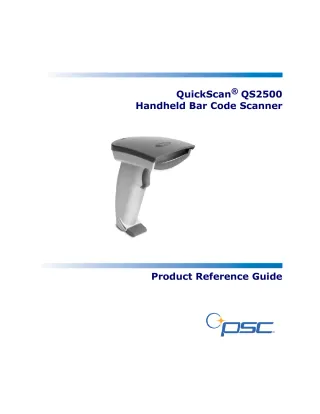
QuickScan QS2500 Handheld Bar Code Scanner Product Reference Guide
Manual74 pagesPDF 498 KB
Product reference guide for the PSC QuickScan QS2500 handheld bar code scanner: installation, interfaces, programming and symbologies.
Covers · 2 models
The models it covers
Summary
What is in it
Product reference guide for the PSC QuickScan QS2500 handheld bar code scanner. It gives installation steps for keyboard wedge, wand emulation, RS-232, USB and IBM hosts, explains programming by scanning option bar codes and resetting to defaults, then details interface options, scanning modes, beep, tone and LED settings, label editing with prefix and suffix, and settings for each supported symbology, with appendices of defaults, sample bar codes and ASCII codes.
Its parts
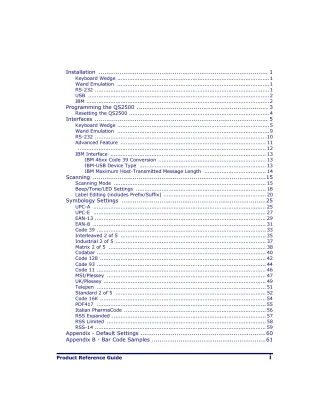
- Installation
- Programming the QS2500
- Interfaces
- Scanning
- Symbology Settings
From the manual
Key facts from this manual
Some pages are scans or cannot be read; this says only what the readable text supports. Each line names its page in the PDF.
Product reference guide for the PSC QuickScan QS2500 handheld linear imager scanner. It covers installing the scanner on each host interface, programming it by scanning option bar codes, and the settings for interfaces, scanning modes, beeps, label editing and each bar code type.
- Device
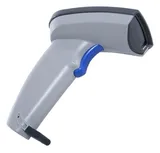
- Handheld linear imager bar code scanner with a trigger button, set up by scanning programming bar codes p. 7, 73
- Interface options
- Keyboard Wedge, RS-232, Wand Emulation, USB, AutoDetect, IBM p. 8
- IBM ports
- IBM 46xx port 17, port 5B, port 9B, and IBM USB p. 17
- RS-232 power
- External power supply (DC adapter), or none with a power-off-terminal (POT) cable p. 5
- RS-232 settings
- 300 to 38400 baud (9600 default); parity none, odd or even; 8 or 7 data bits; 1 or 2 stop bits p. 16
- Flow control
- None (default), RTS/CTS, Xon/Xoff, ACK/NAK, PSC Aux. Port, Mode B p. 15
- Keyboard layouts
- USA (default), Belgium, Danish, France, Germany, Italian, Portuguese, Spanish, Swedish, Switzerland, UK, Latin American, Japan p. 10
- Scanning modes
- Good-read off, Momentary (default), Alternate, Timeout off, Continue/Scan Mode, Test only p. 20
- Prefix and suffix
- Up to 22 ASCII characters before and after the data; default suffix <cr> p. 24, 25
- Code length limits
- Global minimum 0 to 63 (default 04) and maximum 0 to 63 (default 63) p. 21
- Setup software
- Configurator Express, on the QS2500 product CD p. 8
- Firmware version
- Shown on the host by scanning the Firmware Version List bar code p. 70
- Document number
- R44-2398 (Rev C), 09/03 p. 74
What this manual walks you through
- Installing the scanner on a Keyboard Wedge, Wand, RS-232, USB or IBM host p. 5, 6
- Programming an option by scanning bar codes p. 7, 8
- Resetting all settings to factory defaults p. 8
- Setting keyboard type, layout, speed and delays for a keyboard wedge p. 9, 10, 11, 12
- Setting RS-232 flow control, baud rate, parity, data and stop bits p. 14, 15, 16
- Configuring the IBM 46xx and IBM USB interface p. 17, 18
- Choosing a trigger and scanning mode p. 19, 20
- Adjusting the beep, tone and good-read LED p. 22, 23
- Adding a prefix, suffix or inserted characters to scanned data p. 24, 25, 26, 27, 28
- Displaying the current configuration and product information on the host p. 70
Good to know
- Auto-detect finds every interface except Wand Emulation; IBM interfaces must be chosen by port. p. 7
- If the scanner does not work on USB, turn off the computer at once and check all connections. p. 6
- With RTS/CTS, if the host sends no CTS before the timeout, the scanner gives five warning beeps. p. 14
- The minimum code length must not be greater than the maximum, or that symbology will not read. p. 21
- Reading PDF417 through a PSC scanner's aux. port depends on the host. p. 16
Questions this manual answers
How do I reset a QS2500 to factory defaults?
Scan the Start Program bar code and then the Default Value Initialization bar code, in that order. p. 8
What baud rates does the QS2500 support on RS-232?
300 to 38400 baud, with 9600 as the default. p. 16
How do I add a prefix to QS2500 scans?
Scan Start Program and the Prefix Characters setting, scan the hex value of each character from the ASCII table, then Store Settings and Exit. Up to 22 characters are allowed. p. 24
Which scanning mode should I use with a stand?
Continue mode, in which the scanner keeps reading whether or not the trigger is pressed. p. 19
How do I find the QS2500 firmware version?
Scan the Firmware Version List bar code; the version is shown on the host terminal or computer. p. 70
Contents
Chapters and sections
Each line opens the PDF at its page.
The whole text · 11 parts
Read the manual here as text
Its text as extracted from the PDF, unedited, in parts; each page opens the PDF at that page.
The file