Manual · PSC
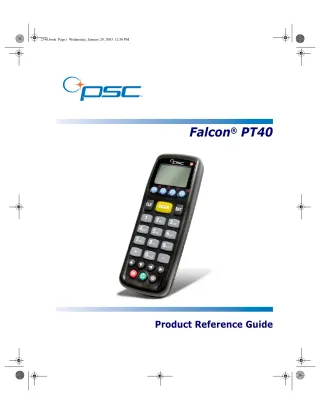
Falcon PT40 Product Reference Guide
Manual122 pagesPDF 6.7 MB
Product reference guide for the PSC Falcon PT40 handheld data-collection terminal with laser scanner: use, software, batteries and setup.
Covers · 2 models
The models it covers
Summary
What is in it
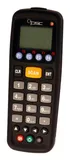
The product reference guide for the PSC Falcon PT40, a rugged handheld data-collection terminal with a built-in laser scanner. It covers the power button, keypad, display, laser and beeper, the PALPRO40 data collection applications (ASSETPRO, INVPRO, TRACKPRO) and others such as DESCRIPT and TIMESTMP, transferring files with XFER32 and PPGXFER, batteries and charging, the dock, serial cable and power adaptor, configuring with bar codes, programming parameters, and maintenance and troubleshooting.
Its parts
- About this Guide
- Introduction
- Data Collection with PT40 Software Applications
- Transferring Files and Data
- Falcon PT40 Batteries
- PT40 Dock, Serial Cable, and Power Adaptor
- Connector Configurations
- Configuring with Bar Codes
- Programming Parameters
- Memory Table
- Maintenance, Troubleshooting, and Technical Support
From the manual
Key facts from this manual
Each line names its page in the PDF.
Product reference guide for the PSC Falcon PT40, a rugged handheld data-collection terminal with a built-in laser scanner. It explains the keypad, display, preinstalled applications, batteries, the PT40 Dock, serial cable and power adaptor, and basic troubleshooting. Later chapters cover file transfer, bar code configuration and programming parameters.
- Device
- Rugged handheld portable data-collection terminal with an integral laser scanner p. 11, 18
- Symbologies
- Codabar, Code 39, Code 93, Code 128, EAN-8, EAN-13, JAN-8, JAN-13, Interleaved 2 of 5, UPC-A, UPC-E and UPC/EAN/JAN extensions p. 11
- Scan distance
- One inch to 18 inches, depending on symbology, density and lighting p. 18
- Display
- Backlit LCD showing 6 lines of 16 characters with the default 5x7 font; adjustable contrast p. 17, 18
- Keypad
- 12 data keys, function keys F1 to F4 (F5 to F8 in Shift mode) and ten action keys; letters upper case only p. 14, 15, 16
- Main battery
- Rechargeable lithium-ion; a full charge takes about 4 hours p. 70
- Backup battery
- Internal lithium battery keeps RAM and clock for 7-10 days when fully charged p. 73
- Power adaptor
- 9-volt adaptor; input 100 to 240 VAC (50--60 Hz), output 9 VDC @ 1.3A p. 76
- Charging temperature
- 32°–113°F (0°–45°C) p. 67
- Battery storage
- -4° to 122°F (-20° to 50°C); typical life 2-3 years or 300-500 cycles p. 73
- PT40 Dock
- Docking port, spare battery charging slot and cable with 9-pin serial connector and power adaptor jack p. 75
- Serial cable
- Docking port connector, 9-pin serial connector and power adaptor jack; transfers data or charges the PT40 p. 76
- Preinstalled software
- PALPRO40 (ASSETPRO, INVPRO, TRACKPRO) plus DESCRIPT, INVMODEM and TIMESTMP p. 20
- PC tools
- PT Program Generator v5.0 (PPG) builds applications; PPGXFER downloads the operating system and applications; XFER32 transfers data files p. 20, 21
What this manual walks you through
- Turning the PT40 on and off and doing a soft or hard reset p. 12, 13
- Entering numbers and letters with the keypad p. 14, 15
- Moving around the virtual display and setting contrast and backlight p. 17, 18
- Scanning bar codes correctly p. 19
- Installing the belt clip p. 23
- Installing the main battery p. 69
- Recharging the main battery in the dock slot, in the dock or with the serial cable p. 70, 71, 72, 73
- Attaching the PT40 to a PC with the dock or serial cable p. 77, 78
- Cleaning the terminal and troubleshooting common problems p. 111, 112, 113
Good to know
- Resetting the PT40 clears all data stored in its memory. p. 13
- Do not remove the main battery while the backup battery charging message is shown, or data may be lost. p. 74
- Use only a 9-volt power adapter supplied by PSC; another adapter can damage the PT40. p. 76
- The dock needs power to transfer data; the serial cable does not. p. 68
- Do not immerse the PT40, docks or chargers in liquid, and do not use abrasive cleaners. p. 111
Questions this manual answers
What power adapter does the PSC Falcon PT40 use?
A 9-volt adaptor rated 100 to 240 VAC input and 9 VDC at 1.3A output, plugged into the jack on the dock or serial cable connector. p. 76
How long does the PT40 battery take to charge?
A full charge of the main battery takes about 4 hours. p. 70
How do I hard reset a Falcon PT40?
Remove the main battery or external power, then hold the CLR and ENT keys while putting the battery back or reconnecting power. p. 13
How far away can the PT40 read a bar code?
From one inch to 18 inches; the actual distance depends on the symbology, density and lighting. p. 18
Does the PT40 keep its data when the main battery is removed?
Yes, an internal backup battery keeps the memory and clock for 7-10 days when fully charged. p. 73
Contents
Chapters and sections
Each line opens the PDF at its page.
- Falcon® PT40 Product Reference Guide1
- About this Guide7
- Introduction11
- Data Collection with PT40 Software Applications25
- Transferring Files and Data53
- Falcon PT40 Batteries67
- PT40 Dock, Serial Cable, and Power Adaptor75
- Connector Configurations79
- Configuring with Bar Codes81
- Programming Parameters95
- Memory Table109
- Maintenance, Troubleshooting, and Technical Support111
- Index115
The whole text · 13 parts
Read the manual here as text
Its text as extracted from the PDF, unedited, in parts; each page opens the PDF at that page.
The file