Manual · Microscan
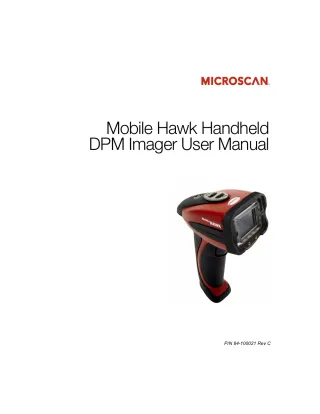
Mobile Hawk Handheld DPM Imager User Manual
Manual128 pagesPDF 3.2 MB
User manual for the Microscan Mobile Hawk handheld DPM imager: setup, ESP configuration, symbologies, I/O and specifications.
Covers · 1 model
The models it covers
Summary
What is in it
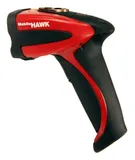
The user manual for the Microscan Mobile Hawk Handheld DPM Imager, a handheld reader for direct part marks and bar codes with USB and RS-232 interfaces. It covers setting up, installing and configuring the imager in the order it would be assembled: quick start, the ESP configuration software, basic operations, communications, read cycle, symbologies, I/O parameters, advanced illumination settings, the terminal view and utilities, with appendices for specifications, default reset, maintenance and troubleshooting.
Its parts
- Quick Start
- Using ESP
- Basic Operations
- Communications
- Read Cycle
- Symbologies
- I/O Parameters
- Advanced Operations
- Terminal
- Utilities
From the manual
Key facts from this manual
Each line names its page in the PDF.
The Microscan user manual (P/N 84-100021 Rev C) for the Mobile Hawk Handheld DPM Imager, a handheld reader for direct part marks and barcodes. It walks through connecting the imager by USB or RS-232, installing and using the ESP setup software, and setting communications, symbologies, read cycle and illumination. Appendices give specifications, the default reset procedure, maintenance and troubleshooting.
- Device
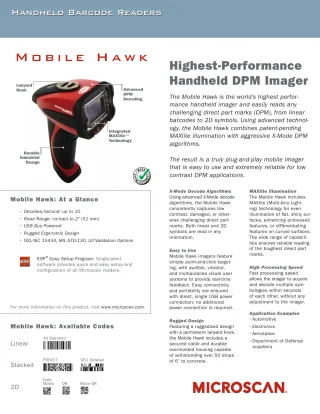
- Handheld DPM imager with MAXlite illumination and X-Mode DPM decode algorithms p. 5
- Interfaces
- USB (12 ft. cable pre-attached, powered by the host) or RS-232 (8 ft. coiled cable and power supply) p. 10, 11
- RS-232 setup
- 57.6K baud, 8 data bits, no parity, 2 stop bits; 8-pin mini-DIN at the imager, 9-pin D-sub at the host p. 12
- USB modes
- USB Keyboard (default), USB Downloader, USB Native Two-Way, USB Virtual COM (needs a driver) p. 48
- Power
- 5 VDC; typical 408mA, peak 500mA, idle 285mA p. 120
- Sensor
- CMOS, 1280 x 1024 array p. 120
- Read range
- Focal range 0 to 2” (0 to 50.8 mm), best at 0.25” (6.3 mm); field of view 1.59” x 1.27” at optimum focus p. 120
- Illumination
- Dome 640nm red and 470nm blue; low angle quadrant 30°, 640nm red p. 120
- Size and weight
- 7” (180 mm) high, 2.5” (63 mm) wide, 4.5” (114 mm) deep; 7.2 oz. (204 g) without cable p. 120
- Environment
- Operating 0° to 50°C (32° to 122°F); storage –20° to 65° C; humidity 5 to 95% non-condensing p. 120
- Shock
- More than 50 drops of 6’ (1.8 meters) to concrete p. 120
- Symbologies
- Aztec, BC412, Codabar, Code 39, Code 93, Code 128, Data Matrix (ECC 0-200), GS1 DataBar, Interleaved 2 of 5, MicroPDF417, Micro QR Code, PDF417, Pharmacode, QR Code, UPC/EAN p. 120
- Part numbers
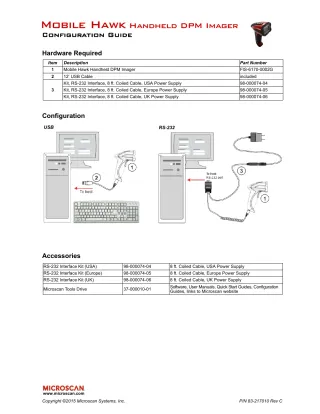
- Imager FIS-6170-0002G (USB); RS-232 kits 98-000074-04, 98-000074-05, 98-000074-06, each with a U.S., EU or UK power supply p. 121
- ESP software
- Windows 8, 7, Vista or XP; 128 MB RAM; 160 MB free disk; on the Microscan Tools Drive p. 13
What this manual walks you through
- Connecting the imager by USB and reading the factory default symbol p. 11
- Connecting the imager by RS-232 and setting up a terminal program p. 12
- Installing ESP and connecting it to the imager p. 13, 14, 15, 16
- Choosing a USB mode: Keyboard, Downloader, Native Two-Way or Virtual COM p. 48
- Changing RS-232 baud rate, parity, stop bits and data bits p. 49, 50
- Resetting a locked-up imager to defaults p. 125
- Cleaning the window and housing p. 126
- Troubleshooting no data output and no illumination p. 127, 128
- Setting symbologies, read cycle and illumination in ESP p. 3, 4
Good to know
- The default reset clears the buffer, configuration and XML programming, including preamble and postamble. p. 125
- Do not submerge the imager; the housing is not watertight. p. 126
- Turning on an RS-232 mode disables USB communications until the imager is defaulted or reads the USB Keyboard symbol. p. 49
- The threaded holes take #2-56 hardware no deeper than .115” and are for training accessories, not mounting. p. 120
- A replacement license file must match the unit serial number. p. 128
Questions this manual answers
How do I reset a Mobile Hawk that has locked up?
Unplug it, hold the trigger while plugging it into a USB port, release after five rapid beeps, then hold the trigger about five seconds until it reboots. p. 125
What are the Mobile Hawk RS-232 settings?
57.6K baud, 8 data bits, no parity and 2 stop bits. p. 12
What does License Key Failed mean on a Mobile Hawk?
The license has been deleted. The manual says to request the license file from Microscan customer support and load it in the ESP Utilities section. p. 128
Why does my Mobile Hawk beep but send no data?
It is not connected to the PC; check that the PC supports High Power Devices and is not allowed to power down the device. p. 127
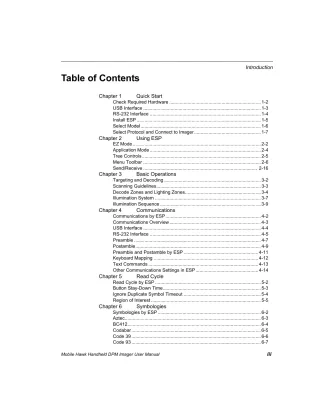
Contents
Chapters and sections
Each line opens the PDF at its page.
- Mobile Hawk Handheld DPM Imager User Manual1
- About the Mobile Hawk Handheld DPM Imager5
- About This Manual5
- Highlighting5
- Statement of Agency Compliance6
- Statement of RoHS Compliance7
- 1 Quick Start9
- 2 Using ESP17
- 3 Basic Operations35
- 4 Communications45
- 5 Read Cycle61
- 6 Symbologies67
- 7 I/O Parameters87
- 8 Advanced Operations99
- 9 Terminal105
- 10 Utilities113
- Appendices119
The whole text · 13 parts
Read the manual here as text
Its text as extracted from the PDF, unedited, in parts; each page opens the PDF at that page.
The file