Manual · Intermec
Installing EasyCoder Printers in Microsoft Windows Guide
Manual64 pagesPDF 662 KB
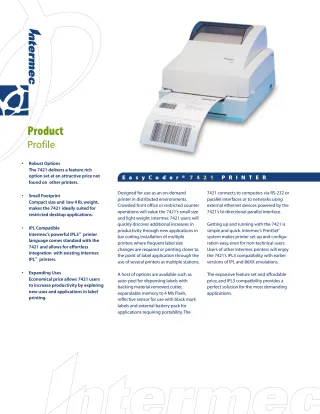
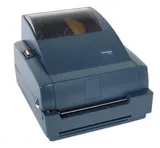
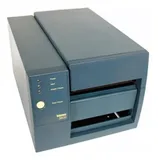
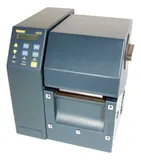
Guide to installing Intermec EasyCoder network printers, including the 3600, 4400 and 7421, in Windows 95, 98 and NT.
Covers · 3 models
The models it covers
Summary
What is in it
Guide to installing Intermec EasyCoder label printers on a network under Microsoft Windows 95, Windows 98 and Windows NT. It covers choosing a printing protocol (NetBIOS/NetBEUI or LPR TCP/IP), setting IPL label parameters with PrintSet, installing the InterDriver printer drivers, Intermec ActiveX Controls and the AXIS Print Monitor and IP Installer, assigning the printer an IP address, adding the printer in Windows and using ActiveX controls in Word, Excel and Access.
Its parts
- Downloading and Installing Software
- Adding a Printer to Windows 95 or Windows 98
- Adding a Printer to Windows NT
- Using ActiveX Controls
From the manual · read page by page
Key facts from this manual
Each line names its page in the PDF.
Guide P/N 070768-001 (2000) for installing Intermec EasyCoder Ethernet printers in Microsoft Windows 95, 98 and NT. It covers the IPL printers 3240, 3400, 3440, 3600, 4400, 4420, 4440, 4830 and 7421, and Direct Protocol (DP) EasyCoder printers. It walks through installing drivers and utilities, assigning an IP address, adding the printer to Windows and printing bar codes with ActiveX controls.
- Printer language
- IPL (Intermec Printer Language) printers: 3240, 3400, 3440, 3600, 4400, 4420, 4440, 4830 and 7421 p. 9
- Windows driver
- InterDriver for IPL printers, file Intdripl.exe p. 12
- Windows versions
- Windows 95, Windows 98 and Windows NT p. 3
- Network setup
- IPL printers: label parameters set with PrintSet over a serial cable before the Ethernet connection, as they lack bidirectional communication with Windows p. 9, 10
- IP address
- Set with the AXIS IP Installer (IPL printers only) or the DOS ARP command; the AXIS Ethernet adapter needs a specific, not dynamic, address p. 13
- Printing protocols
- NetBIOS/NetBEUI (no IP address, same subnet only) or LPR (TCP/IP) (IP address required, printer or queue name PR1) p. 57
- Utilities
- Intermec ActiveX Controls (axcont.exe), AXIS Print Monitor (setup.exe), AXIS IP Installer (Setup_IPInstaller.exe) p. 12, 13
- Install order
- InterDriver, then ActiveX Controls, then AXIS Print Monitor, then AXIS IP Installer p. 11
- Port name
- NetBIOS/NetBEUI port: AX plus the last six digits of the AXIS adapter serial number, ending .LP1 (example AX560B35.LP1) p. 57
- ActiveX controls
- Print bar codes from Microsoft Word, Excel or Access using the printer's resident symbologies p. 51
What this manual walks you through
- Choosing between NetBIOS/NetBEUI and LPR (TCP/IP) printing p. 9, 57, 58
- Setting IPL printer label parameters with PrintSet p. 9, 10
- Installing InterDriver, ActiveX Controls and the AXIS utilities p. 11, 12, 13
- Assigning an IP address with the AXIS IP Installer or ARP p. 13, 14, 15
- Adding and configuring the printer in Windows 95 or 98 p. 19, 21, 25, 26, 32
- Adding and configuring the printer in Windows NT p. 35, 38, 44, 47
- Printing bar codes from Word, Excel and Access with ActiveX controls p. 51, 52, 53
- Deleting old Intermec printer drivers from Windows 95, 98 or NT p. 58, 59
- Resetting the AXIS Ethernet adapter to factory default p. 60
- Adding NetBEUI to Windows 95 or 98 and TCP/IP printing to Windows NT p. 61, 62, 63, 64
Good to know
- Remove old Intermec drivers first: copying over existing InterDriver drivers may cause Windows problems. p. 9
- The AXIS Ethernet adapter needs a specific IP address, not a dynamically assigned one. p. 13
- NetBIOS/NetBEUI printing works only on the same subnet or on networks without subnets. p. 57
- Removing drivers in Windows NT means editing the Registry; the guide warns that mistakes may disable the PC. p. 59
- Printing across subnets needs routers that pass BOOTP and DHCP packets, or separate setup and final IP addresses. p. 57, 58
Questions this manual answers
Which Windows driver does the Intermec 7421 use?
The 7421 is an IPL printer, so it uses InterDriver for IPL printers, the file Intdripl.exe. p. 9, 12
How do I set the IP address of an EasyCoder network printer?
Use the AXIS IP Installer (IPL printers only), or the DOS commands arp -s, ping and arp -d with the adapter's IP and MAC address. p. 13, 14
How do I reset the AXIS Ethernet adapter on an EasyCoder printer?
Hold the adapter test button while powering it on for at least 5 seconds, release, wait for 5 LED flashes, then hold it again until the Network LED stays lit. p. 60
Should I use NetBEUI or LPR to print to an EasyCoder printer?
NetBIOS/NetBEUI needs no IP address but stays on one subnet; LPR (TCP/IP) needs an IP address and can print across subnets. p. 57
Which Windows versions does this EasyCoder install guide cover?
Windows 95, Windows 98 and Windows NT. p. 3
The whole text · 7 parts
Read the manual here as text
Its text as extracted from the PDF, unedited, in parts; each page opens the PDF at that page.
The file