Manual · Sensormatic
AD TOUCH TRACKER 16 System Operator's Manual
Manual108 pagesPDF 568 KB
Operator's manual for the Sensormatic AD Touch Tracker 16 camera controller system for SpeedDome cameras, quad splitters and multiplexers.
Covers · 1 model
The models it covers
Summary
What is in it
Sensormatic's operator's manual for the AD Touch Tracker 16 video surveillance system, in which one or two Touch Tracker camera controllers drive SpeedDome cameras through a quad splitter or multiplexer. It explains the modes of operation and monitor display formats, controlling pan, tilt, zoom, focus and iris, Quick Views, Patterns, Sequences, dome outputs and alarms, how to program those automatic functions, and utilities such as tracker ball calibration and dome reset. Programming worksheets are included.
Its parts
- About AD Touch Tracker 16
- Monitor Display Formats
- Controlling Cameras and Their Outputs
- Defining Automatic System Functions
- Touch Tracker Utilities
- Programming Worksheets
- Software License Agreement
From the manual
Key facts from this manual
Each line names its page in the PDF.
System operator's manual (document 8000-1009-02, 1998) for the Sensormatic AD Touch Tracker 16 camera control system, with one or two Touch Tracker keypads. It shows how to select and steer cameras, set monitor display formats with a quad splitter or multiplexer, and define Quick Views, Patterns, the Sequence and alarms. It also covers utilities such as Tracker Ball calibration, dome reset and LCD language.
- System
- Camera control system with one or two Touch Tracker controllers; video from up to 16 cameras p. 12, 16
- Compatible cameras
- Programmable and non-programmable domes, PTZ cameras and fixed cameras p. 16
- Controls
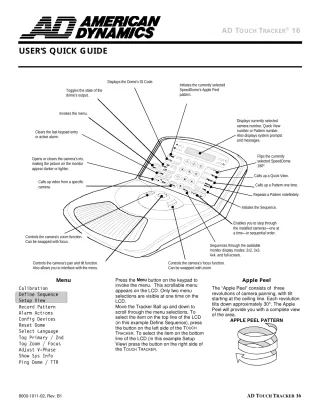
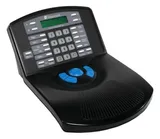
- Tracker Ball for variable speed pan and tilt; zoom and focus buttons, which can be swapped; keypad with iris and output buttons p. 17, 18
- LCD
- Shows the selected camera, Pattern and Quick View numbers, prompts and the menu, two menu items at a time p. 18, 19
- External units
- Quad splitter, 4-, 9- or 16-camera multiplexer, PC (service personnel only) or none p. 24, 25
- Display formats
- Quad splitter: up to 8 cameras connected, 4 on screen at once; multiplexer: up to 16 cameras in 2x2, 3x3 or 4x4 p. 13, 26
- Sequence
- Up to 16 events of Quick Views, Patterns or fixed shots, each up to 90 seconds p. 53
- Alarms
- Up to 64 alarms triggered by dome inputs; up to four held in the queue at one time p. 13
- Dome outputs
- Up to 64 dome outputs, which through relays can control lights or door locks p. 13
- Call Touch Tracker
- No programming; cannot select a display format, start the Sequence or clear alarms p. 16
- LCD languages
- English, French, Spanish, German, Dutch, Italian, Japanese, Portuguese, Swedish, Hungarian p. 64
- Dome ID codes
- Info button shows the dome's Flash PROM (F) and EEPROM (E) ID codes p. 70
- Document numbers
- This manual 8000-1009-02; User's Quick Guide 8000-1011-02 p. 9, 10
What this manual walks you through
- Assigning the external unit (quad splitter, multiplexer, PC or none) p. 23, 24, 25
- Viewing cameras in quad mode with a dual page quad splitter p. 26
- How Main and Call Touch Trackers share camera control p. 30
- Selecting a camera p. 30
- Defining the Sequence p. 53
- Setting up system alarms from dome inputs p. 53
- Calibrating the Tracker Ball p. 62, 63
- Resetting a SpeedDome p. 63
- Choosing the LCD language p. 64
- Displaying a dome's ID code p. 70
Good to know
- Select the external unit actually connected; for a 16-camera multiplexer, do not select a 9-camera one. p. 24
- The Point of Sale Exception Monitoring (POS/EM) interface is not supported. p. 25
- Designating both Touch Trackers as Main, or both as Call, causes a communication error. p. 64
- The SpeedDome cannot be used while it is resetting. p. 63
- The V-Phase utility is for authorized service personnel only. p. 71
Questions this manual answers
How many cameras can the AD Touch Tracker 16 control?
Video from up to 16 cameras; a multiplexer can show up to 16 at once on one monitor. p. 16
How do I calibrate the Touch Tracker ball?
Select Calibration from the menu, then push the ball fully left, right, toward you and away from you as the LCD prompts, and release it. p. 62, 63
What should I do if a SpeedDome does not respond to the Touch Tracker?
Select the camera, press Menu and choose Reset Dome; the dome cannot be used until the reset ends. p. 63
Can two operators use the AD Touch Tracker 16 at once?
Yes. A system can have two Touch Trackers, one Main and one Call; the Main has priority over a camera both select. p. 12, 30
When does the Main operator release a camera?
On selecting another camera, entering the menu, starting the Sequence, when an alarm arrives, or after 3 minutes idle. p. 30
Contents
Chapters and sections
Each line opens the PDF at its page.
- Before You Begin7
- Chapter 1: About AD Touch Tracker 1611
- Chapter 2: Monitor Display Formats23
- Chapter 3: Controlling Cameras and Their Outputs29
- How the System Resolves Conflicts in Camera Control30
- Selecting a Camera30
- Stepping Through the Cameras31
- Controlling a Camera's Pan and Tilt31
- Controlling Zoom and Focus32
- Controlling the Iris32
- “Flipping” the SpeedDome33
- Running the “Apple Peel” Pattern33
- Displaying Quick Views34
- Running Patterns36
- Running the Sequence38
- Controlling Dome Outputs39
- Clearing System Alarms40
- Chapter 4: Defining Automatic System Functions43
- Chapter 5: Touch Tracker Utilities61
16 more lines, from page 64 on
The whole text · 14 parts
Read the manual here as text
Its text as extracted from the PDF, unedited, in parts; each page opens the PDF at that page.
- Pages 1 to 31-3
- Table of Contents4-6
- Before You Begin7-10
- Chapter 1: About AD Touch Tracker 1611-22
- Chapter 2: Monitor Display Formats23-28
- Chapter 3: Controlling Cameras and Their Outputs29-42
- Chapter 4: Defining Automatic System Functions, pages 43 to 5143-51
- Chapter 4: Defining Automatic System Functions, pages 52 to 6052-60
- Chapter 5: Touch Tracker Utilities61-71
- Appendix A: Programming Worksheets, pages 72 to 8072-80
- Appendix A: Programming Worksheets, pages 81 to 8981-89
- Appendix B: Software License Agreement90-95
- Glossary96-104
- Index105-108
The file