Manual · Sensormatic
Sensormatic TouchTracker 16 Quick Guide
Manual2 pagesPDF 62 KB
Both pages are below, each with its text.
Covers · 1 model
The models it covers
From the manual · read page by page
Key facts from this manual
Each line names its page in the PDF.
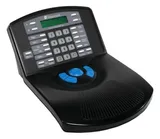
Two-page user's quick guide for the AD Touch Tracker 16 keypad, which controls cameras, SpeedDomes and the monitor display. It explains each button and gives short steps for selecting cameras, Quick Views, Patterns, the Sequence, dome outputs and display formats.
- Device
- Keypad with LCD and Tracker Ball for camera pan, tilt, zoom, focus and iris control p. 1
- Display
- LCD showing camera, Quick View or Pattern number and system prompts; two menu lines visible at a time p. 1
- Quick Views
- SpeedDome Ultra III: 96 views; other domes: 4 views p. 2
- Patterns
- Patterns 1 to 3 per camera, run once or repeated p. 2
- Dome outputs
- Outputs 1 to 4 per dome, switched on or off from the keypad p. 2
- Apple Peel
- Three revolutions of panning from the ceiling line, each tilting down about 30° p. 1
- Quad splitters
- Display button switches between Quad A (cameras 1-4) and Quad B (cameras 5-8) p. 2
- Document number
- 8000-1011-02, Rev. B1 p. 1, 2
What this manual walks you through
- Using the menu with the Tracker Ball and side buttons p. 1
- Selecting a camera and stepping through cameras p. 2
- Choosing the monitor display format p. 2
- Displaying and defining Quick Views p. 2
- Running and defining Patterns p. 2
- Programming SpeedDome LT Auto Pan p. 2
- Running and defining the Sequence p. 2
- Turning dome outputs on and off p. 2
- Flipping a SpeedDome, running Apple Peel and clearing an alarm p. 2
Good to know
- A repeating Pattern or the Apple Peel keeps running until a pan, tilt, zoom or focus command is sent to that dome. p. 2
- The Sequence repeats until Seq or Clear is pressed. p. 2
- 3x3 needs a 9 or 16-camera multiplexer and 4x4 a 16-camera multiplexer. p. 2
Questions this manual answers
How many Quick Views does the Touch Tracker 16 support?
Up to 96 with a SpeedDome Ultra III; other domes support 4 views. p. 2
How do I stop a repeating pattern on a SpeedDome?
Send a camera command (pan, tilt, zoom or focus) to the dome running the pattern. p. 2
How do I show a camera full-screen on the Touch Tracker 16?
Press the camera's number, then press Camera. p. 2
What is the Apple Peel pattern?
Three revolutions of camera panning starting at the ceiling line, each tilting down about 30 degrees, for a complete view of the area. p. 1
The file
Size and text
Every page · 2
Read it here
Each page as it is printed, and its words beside it, so a phone can search and copy them.
Page1of 2
Open in the PDF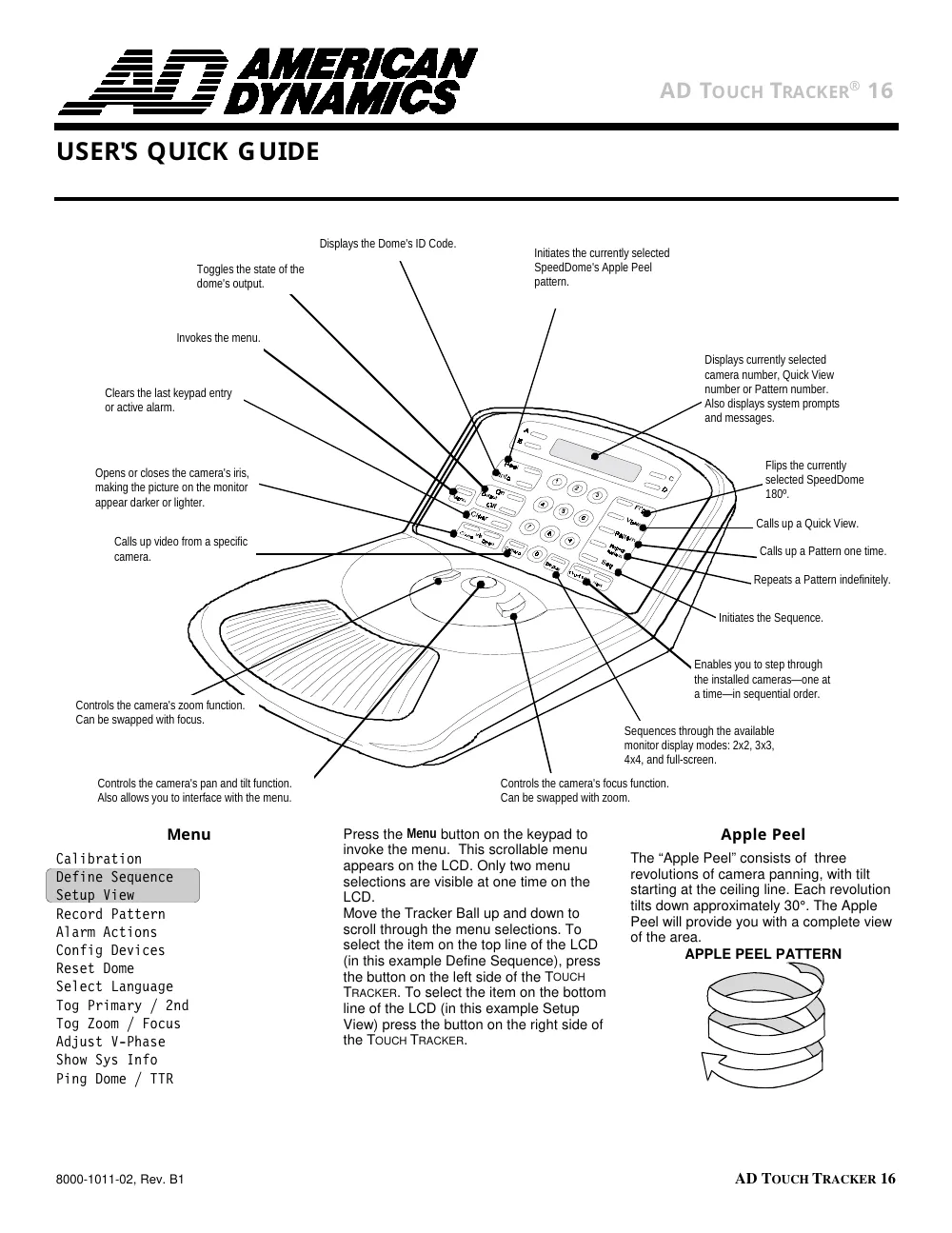
The text of page 1, from the PDF itself
AD TOUCH TRACKER® 16
USER'S QUICK GUIDE
Displays the Dome's ID Code. Toggles the state of the dome's output.
Initiates the currently selected SpeedDome's Apple Peel pattern.
Invokes the menu. Displays currently selected camera number, Quick View number or Pattern number. Also displays system prompts and messages.
Clears the last keypad entry or active alarm.
Flips the currently selected SpeedDome 180º.
Opens or closes the camera's iris, making the picture on the monitor appear darker or lighter.
Calls up a Quick View. Calls up video from a specific camera.
Calls up a Pattern one time. Repeats a Pattern indefinitely. Initiates the Sequence.
Enables you to step through the installed cameras - one at a time - in sequential order.
Controls the camera's zoom function. Can be swapped with focus.
Controls the camera's pan and tilt function. Also allows you to interface with the menu.
Menu !"#$%&"'$() *+,$)+-.+/0+)1+ .+'02-3$+4 5+1(&6-7"''+&) 8#"&9-81'$(): !(),$;-*+<$1+: 5+:+'-*(9+ .+#+1'-=");0";+ >(;-7&$9"&?-@-A)6 >(;-B((9-@-C(10: 86D0:'-3E7F":+ .F(4-.?:-G),( 7$);-*(9+-@->>5
8000-1011-02, Rev. B1
Sequences through the available monitor display modes: 2x2, 3x3, 4x4, and full-screen. Controls the camera's focus function. Can be swapped with zoom.
Press the Menu button on the keypad to invoke the menu. This scrollable menu appears on the LCD. Only two menu selections are visible at one time on the LCD. Move the Tracker Ball up and down to scroll through the menu selections. To select the item on the top line of the LCD (in this example Define Sequence), press the button on the left side of the TOUCH TRACKER. To select the item on the bottom line of the LCD (in this example Setup View) press the button on the right side of the TOUCH TRACKER.
Apple Peel The “Apple Peel” consists of three revolutions of camera panning, with tilt starting at the ceiling line. Each revolution tilts down approximately 30°. The Apple Peel will provide you with a complete view of the area. APPLE PEEL PATTERN
AD TOUCH TRACKER 16
Page2of 2
Open in the PDF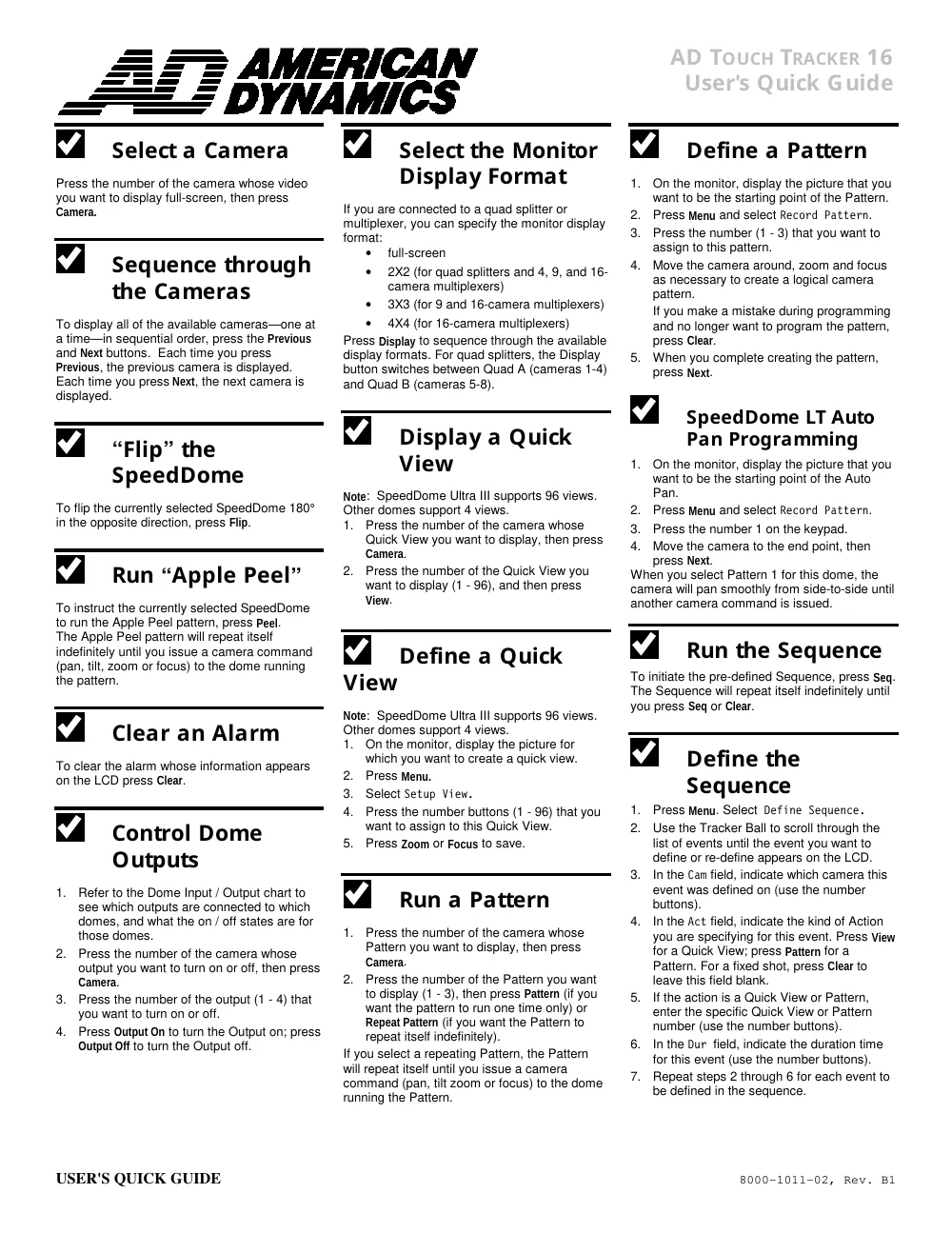
The text of page 2, from the PDF itself
AD TOUCH TRACKER 16 User's Quick Guide Select a Camera Press the number of the camera whose video you want to display full-screen, then press Camera.
Sequence through the Cameras To display all of the available cameras - one at a time - in sequential order, press the Previous and Next buttons. Each time you press Previous, the previous camera is displayed. Each time you press Next, the next camera is displayed.
Select the Monitor Display Format If you are connected to a quad splitter or multiplexer, you can specify the monitor display format:
- full-screen
- 2X2 (for quad splitters and 4, 9, and 16camera multiplexers)
- 3X3 (for 9 and 16-camera multiplexers)
- 4X4 (for 16-camera multiplexers) Press Display to sequence through the available display formats. For quad splitters, the Display button switches between Quad A (cameras 1-4) and Quad B (cameras 5-8).
Display a Quick View
“Flip” the SpeedDome To flip the currently selected SpeedDome 180° in the opposite direction, press Flip.
Run “Apple Peel” To instruct the currently selected SpeedDome to run the Apple Peel pattern, press Peel. The Apple Peel pattern will repeat itself indefinitely until you issue a camera command (pan, tilt, zoom or focus) to the dome running the pattern.
Clear an Alarm To clear the alarm whose information appears on the LCD press Clear.
Control Dome Outputs 1. Refer to the Dome Input / Output chart to see which outputs are connected to which domes, and what the on / off states are for those domes. 2. Press the number of the camera whose output you want to turn on or off, then press Camera. 3. Press the number of the output (1 - 4) that you want to turn on or off. 4. Press Output On to turn the Output on; press Output Off to turn the Output off.
USER'S QUICK GUIDE
Note: SpeedDome Ultra III supports 96 views. Other domes support 4 views. 1. Press the number of the camera whose Quick View you want to display, then press Camera. 2. Press the number of the Quick View you want to display (1 - 96), and then press View.
Define a Quick View Note: SpeedDome Ultra III supports 96 views. Other domes support 4 views. 1. On the monitor, display the picture for which you want to create a quick view. 2. Press Menu. 3. Select .+'02-3$+4H 4. Press the number buttons (1 - 96) that you want to assign to this Quick View. 5. Press Zoom or Focus to save.
Run a Pattern 1. Press the number of the camera whose Pattern you want to display, then press Camera. 2. Press the number of the Pattern you want to display (1 - 3), then press Pattern (if you want the pattern to run one time only) or Repeat Pattern (if you want the Pattern to repeat itself indefinitely). If you select a repeating Pattern, the Pattern will repeat itself until you issue a camera command (pan, tilt zoom or focus) to the dome running the Pattern.
Define a Pattern 1. On the monitor, display the picture that you want to be the starting point of the Pattern. 2. Press Menu and select 5+1(&6-7"''+&). 3. Press the number (1 - 3) that you want to assign to this pattern. 4. Move the camera around, zoom and focus as necessary to create a logical camera pattern. If you make a mistake during programming and no longer want to program the pattern, press Clear. 5. When you complete creating the pattern, press Next.
SpeedDome LT Auto Pan Programming 1. On the monitor, display the picture that you want to be the starting point of the Auto Pan. 2. Press Menu and select 5+1(&6-7"''+&). 3. Press the number 1 on the keypad. 4. Move the camera to the end point, then press Next. When you select Pattern 1 for this dome, the camera will pan smoothly from side-to-side until another camera command is issued.
Run the Sequence To initiate the pre-defined Sequence, press Seq. The Sequence will repeat itself indefinitely until you press Seq or Clear.
Define the Sequence 1. Press Menu. Select-*+,$)+-.+/0+)1+H 2. Use the Tracker Ball to scroll through the list of events until the event you want to define or re-define appears on the LCD. 3. In the !"9 field, indicate which camera this event was defined on (use the number buttons). 4. In the 81' field, indicate the kind of Action you are specifying for this event. Press View for a Quick View; press Pattern for a Pattern. For a fixed shot, press Clear to leave this field blank. 5. If the action is a Quick View or Pattern, enter the specific Quick View or Pattern number (use the number buttons). 6. In the *0&-field, indicate the duration time for this event (use the number buttons). 7. Repeat steps 2 through 6 for each event to be defined in the sequence.
8000-1011-02, Rev. B1