Manual · Opticon
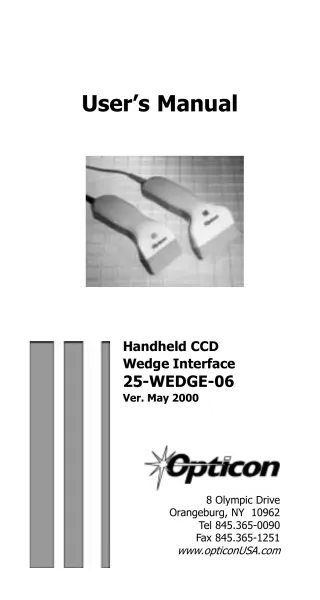
Users Manual Handheld CCD Wedge Interface 25-WEDGE-06
Manual49 pagesPDF 154 KB
User manual and bar code programming menu for Opticon HLT/ELT series handheld CCD scanners with keyboard wedge interface.
What this file really is
The old site listed this file as a manual for the Opticon 25-WEDGE-06, HLT-1120 ELT-1120 and LG-K1WE5SP. The file is named for the LG-K1WE5SP, but the manual covers Opticon's HLT/ELT series handheld CCD wedge scanners (25-WEDGE-06) and does not name the LG-K1WE5SP.
Names · 1 model
The models it names
Filed with · 2 models
Also filed with these models on the old site
Summary
What is in it
The user manual for Opticon's handheld CCD bar code scanners with a keyboard wedge interface (the HLT/ELT series), which plug in between the keyboard and the computer with a Y cable so scanned data appears as typed keystrokes. Part I covers setup, scanning, maintenance, troubleshooting, technical specifications and ordering information. Part II is the bar code menu used to program the scanner: computer type, symbologies and their settings, delays, length and suffix options, keyboard emulation, trigger, beeper and read mode.
Its parts
- CCD Scanning
- Bar Code Menu Functions
From the manual · read page by page
Key facts from this manual
Some pages are scans or cannot be read; this says only what the readable text supports. Each line names its page in the PDF.
Opticon's user manual (Ver. May 2000) for its handheld CCD bar code scanners with a keyboard wedge interface, the HLT/ELT series wedges; the cover carries 25-WEDGE-06. It covers installation with a Y cable, scanning, care, troubleshooting and specifications, then a menu of programming bar codes for host type, symbologies, delays, suffixes and keyboard emulation.
- Reading distance
- 0 to 1.0" (2.3" window); 0 to 2.5" (3.2" window) p. 9
- Power
- +5V DC ±10%, 60 mA max.; no external power supply p. 6, 13
- Optics
- 2048 Element CCD array, 50 scans/sec., red LED light source (660 nm) p. 13
- Host computers
- IBM PC/XT; IBM AT & compatibles (PS-2/50, 60, 70, 80); IBM PS-2/25, 30; HP Vectra; Macintosh and laptop mode on Ranger only p. 22
- Symbologies
- UPC and variants, Code 39, Codabar, 2 of 5, Code 93, Code 128, MSI/Plessey, Code 4 and Code 5 p. 23, 24
- Dimensions
- 5.5 x 2.5 x 2 inches (2.3" window); 5.5 x 3.2 x 2 inches (3.2" window) p. 13
- Weight and cable
- 6 oz.; cable 5 ft. nominal p. 13
- Temperature
- Operating +32° to +105° F; storage -15° to +140° F p. 13
- Humidity
- Up to 80% operating, up to 90% storage, non-condensing p. 13
- Case
- ABS plastic, ivory/grey p. 13
What this manual walks you through
- Programming settings by scanning menu bar codes p. 8
- Resetting all settings to factory defaults p. 21
- Selecting the host computer type p. 22
- Choosing which symbologies the scanner reads p. 23, 24, 25
- Check digit and transmission options for UPC, Code 39, Codabar, 2 of 5, Code 128 and MSI/Plessey p. 26, 29, 31, 33, 35
- Setting the intercharacter delay to stop keyboard buffer overrun p. 36, 37
- Emulating function, arrow and other keyboard keys p. 41, 42, 43
Good to know
- The scanner will not read a bar code label wider than its scan window. p. 9
- If the host computer type is set wrong, the scanner puts random characters on the screen. p. 22
- On file servers an interrupt conflict may arise; the manual recommends an RS232C CCD scanner interface there. p. 12
Questions this manual answers
How far from the bar code does the Opticon CCD wedge scanner read?
From contact up to 1.0" with the 2.3" window, or up to 2.5" with the 3.2" window. p. 9
Why does my Opticon wedge scanner type random characters?
The scanner is not set to the right host computer type; pick the correct one in the Computer Type Selection menu. p. 22
The whole text · 5 parts
Read the manual here as text
Its text as extracted from the PDF, unedited, in parts; each page opens the PDF at that page.
The file