Manual · Microscan
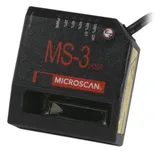
Quick Start Guide, MS-3 CCD Reader
Manual10 pagesPDF 164 KB
Quick start guide for the Microscan MS-3 CCD reader: hardware, connecting through the IB-131 box, ESP setup and read rate test.
Covers · 1 model
The models it covers
Summary
What is in it
An eight-step quick start guide for the Microscan MS-3 CCD Reader. It lists the hardware needed, shows how to connect the reader, adapter, IB-131 interface box, host computer and power supply, then explains installing ESP (Easy Setup Program) on Windows, selecting the reader model and auto-connecting, positioning the symbol, running a read rate test by ESP or serial command, and configuring the reader.
Its parts
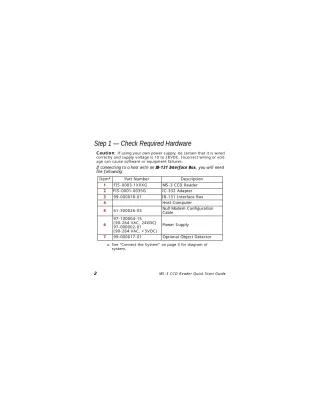
- Check Required Hardware
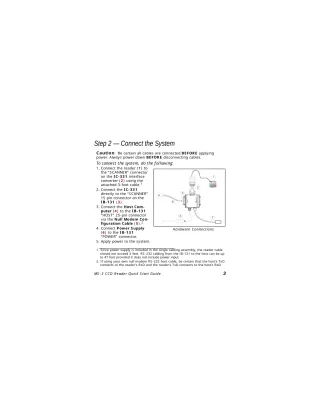
- Connect the System
- Install ESP
- Select Reader Model in ESP
- Autoconnect
- Position Symbol and Reader
- Test for Read Rate
- Configure the Reader
From the manual · read page by page
Key facts from this manual
Each line names its page in the PDF.
Microscan's Quick Start Guide (P/N 83-210038 Rev D) for the MS-3 CCD Reader. It walks through the hardware needed, connecting the reader to a host through an IB-131 interface box, installing the ESP setup program, connecting, positioning the symbol, testing the read rate and changing settings by ESP or serial command.
- Device
- MS-3 CCD Reader, set up with ESP (Easy Setup Program) on Windows 98 or above, or by serial command p. 1
- Supply voltage
- 10 to 28 VDC p. 2
- Host connection
- Through an IB-131 Interface Box: reader to its 15-pin SCANNER connector, host to its 25-pin HOST connector by null modem cable p. 3
- Cable lengths
- Reader cable no more than 3 feet; RS-232 cable from IB-131 to host up to 47 feet without power input p. 3
- Default symbology
- Code 39; the Auto Discriminate macro enables all symbologies p. 7
- Default read mode
- Continuous Read: reads and beeps repeatedly while a readable symbol stays in range p. 8
- Read rate LEDs
- LEDs on top show decodes per images captured, 20% through 100% p. 8
- I 2/5 lengths
- Default symbol lengths 10 and 6 p. 7
- Serial commands
- <C> starts and <J> ends the read rate test; <K100?> reads a setting; <K?> lists all K commands p. 8, 9
- Null modem wiring
- Host TxD to reader RxD and reader TxD to host RxD p. 3
- Software
- ESP from the Microscan Tools CD or the Microscan download center p. 4
What this manual walks you through
- Checking the hardware needed for an IB-131 setup p. 2
- Connecting the reader, IB-131, host and power supply p. 3
- Installing ESP from CD or the web p. 4
- Selecting the MS-3 CCD model in ESP p. 5
- Connecting ESP to the reader through a COM port p. 6
- Positioning the symbol and reader p. 7
- Testing the read rate by ESP or serial command p. 8
- Changing reader settings by ESP or serial command p. 9
Good to know
- Connect all cables before applying power, and power down before disconnecting cables. p. 3
- Wrong wiring or voltage from your own power supply can cause software or equipment failures. p. 2
- Tilt the symbol or reader at least ±15° to avoid specular reflection, and keep bright or IR light from other readers away. p. 7
- For I 2/5 symbols, the number of characters must match an enabled symbol length. p. 7
Questions this manual answers
What voltage does the Microscan MS-3 CCD reader need?
A supply voltage of 10 to 28 VDC, correctly wired. p. 2
How do I configure the MS-3 CCD reader?
Use Microscan's ESP (Easy Setup Program) on Windows 98 or above, or send serial commands from a terminal program. p. 1, 9
How do I test the read rate of the MS-3 CCD?
Click Test in ESP's Setup Mode, or send <C> to start and <J> to stop; the LEDs on top show 20% through 100%. p. 8
Which bar codes does the MS-3 CCD read by default?
Code 39 is the default symbol type; the Auto Discriminate macro in Terminal mode enables all symbologies. p. 7
How long can the MS-3 CCD host cable be?
The reader cable should not exceed 3 feet, but RS-232 cabling from the IB-131 to the host can be up to 47 feet without power input. p. 3
The whole text · 1 part
Read the manual here as text
Its text as extracted from the PDF, unedited, in parts; each page opens the PDF at that page.
The file