Manual · Metrologic
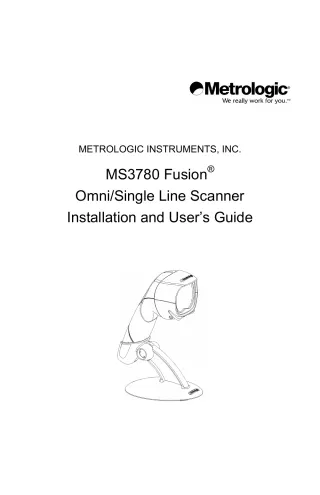
MS3780 Fusion Omni/Single Line Scanner Installation and User's Guide
Manual56 pagesPDF 3.5 MB
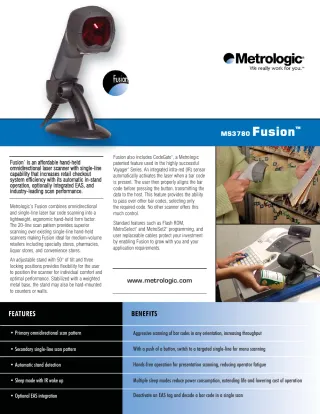
Installation and user's guide for the Metrologic MS3780 Fusion hand-held omnidirectional and single-line bar code scanner.
Covers · 1 model
The models it covers
Summary
What is in it
The installation and user's guide for the Metrologic MS3780 Fusion, a hand-held omnidirectional bar code scanner with an optional single-line mode, designed for retail. It lists the interface models and accessories, then explains installation for RS232, light pen, RS485, OCIA, keyboard wedge and USB hosts and EAS deactivation, scanner operation with the mode select button and CodeGate, audible and visual indicators, depth of field, troubleshooting, design specifications, default communication settings, configuration modes, firmware upgrades and cable pinouts.
Its parts
- Introduction
- Installation
- Scanner Operation
- Troubleshooting Guide
- Design Specifications
- Applications and Protocols
- Default Settings - Communication Parameters
- Scanner and Cable Terminations
- Regulatory Compliance
- Limited Warranty
- Patents
From the manual
Key facts from this manual
Each line names its page in the PDF.
The Metrologic MS3780 Fusion Omni/Single Line Scanner Installation and User's Guide (2008), for the hand-held omnidirectional retail scanner and its interface versions such as MS3780-9, MS3780-38, MS3780-47 and MS3780-120. It covers the parts and accessories, connecting each host interface, the scan pattern modes and CodeGate, the beeps and LEDs, troubleshooting, the specifications, firmware upgrades and the cable pinouts.
- Device
- Hand-held omnidirectional bar code scanner with a single-line mode, built on the QuantumE scan engine, for retail use p. 5
- Interface versions
- MS3780-9 OCIA and RS232; -11 RS485S and full RS232; -38 RS232 and low speed USB; -40 full speed USB; -41 RS232/light pen emulation; -47 keyboard wedge, stand-alone keyboard and RS232; -48 stand alone keyboard and RS232; -120 USB and RS232 with EAS p. 5
- Scanner connector
- 10-pin RJ45 female socket; host cables are PowerLink type and user replaceable p. 5, 8
- Power
- 5VDC ± 0.25V; 275 mA typical operating, 200 mA typical standby p. 32
- Power transformers
- Regulated 5.2VDC @ 1A, 90VAC – 255VAC: 46-00525 United States, Canada and Japan; 46-00526 Continental European; 46-00527 United Kingdom; 46-00528 Australia; 46-00529 China; 46-00530 India p. 6
- Host cables
- 53-53000x-3 RS232 PowerLink with power jack; 53-53002x-3 Keyboard Wedge PowerLink; 53-53020x-3 Stand Alone Keyboard PowerLink; USB 53-53213x-N-3, 53-53214x-N-3 or 53-53235x-N-3 p. 6, 43
- Voltage converter cables
- ±12VDC to +5.2VDC: MVC-3MPC-IB9 for IBM applications, MVC-3MNC-N7052 for OCIA applications p. 6, 7
- EAS cables and stand
- EAS models: 59-59000x-E-3 RS232 PowerLink, 59-59006x-E-3 RS485S PowerLink, 55-55809x-N-E-3 USB keyed Type A; stand 46-00225 p. 7
- Scan performance
- Omni: 1333 scan lines per second, 20 lines; single-line: 67 scan lines per second; laser 650 nm; motor 4000 RPM p. 31
- Depth of field
- Normal 25 mm - 280 mm (1"- 11"), reduced 25 mm - 150 mm (1"- 6"), on a 0.33 mm (13 mil) bar code p. 31
- Default symbologies
- UPC/EAN, Code 39, Interleaved 2 of 5, Code 93, Code 128 and Codabar enabled by default; also reads RSS-14, RSS-Expanded and RSS-14 Limited p. 27, 31
- Firmware
- Flash upgradeable with MetroSet2 on a Windows 95 or later PC; RS232 upgrades need PowerLink Cable #54-54014, USB uses the standard cable p. 40
- Temperature
- Operating -20°C to 40°C (-4°F to 104°F); storage -40°C to 60°C (-40°F to 140°F) p. 32
- Size and weight
- 189 mm (7.44") long, 65 mm (2.56") wide, 73 mm (2.88") high; 195 g (6.9 oz.) p. 31
What this manual walks you through
- Connecting an RS232 or light pen model p. 11
- Connecting an RS485 or OCIA model with the MVC cable p. 12
- Connecting a keyboard wedge or stand-alone keyboard model p. 13, 14
- Connecting a full speed or low speed USB model p. 15
- Setting the Checkpoint switch banks for EAS deactivation p. 16
- Switching between the primary and secondary scan patterns p. 17
- Using CodeGate and the manual activation mode p. 18
- Reading the beeps, LEDs and failure indicators p. 19, 20, 21
- Troubleshooting power, scanning and host communication problems p. 27, 28, 29, 30
- Upgrading the firmware with the MetroSet2 Flash Utility p. 40
Good to know
- If the PowerLink cable is not fully latched, the scanner can power on and off intermittently. p. 10
- For keyboard wedge use, an external power supply is recommended because not all computers supply the same current through the keyboard port. p. 13
- For an RS232 firmware upgrade, do not use the standard cable from the keyboard wedge or RS485 kits. p. 40
- Clean the window only with a mild glass cleaner that contains no ammonia, sprayed onto a lint free cloth. p. 10
- Laser, motor, electronic or memory failure indicators mean the unit must go to a Metrologic authorized service center for repair. p. 21
Questions this manual answers
What power supply does the Metrologic MS3780 Fusion use?
A regulated 5.2VDC @ 1A AC to DC transformer; part 46-00525 is the version for the United States, Canada and Japan. p. 6
How do I remove the cable from the MS3780?
Disconnect power, then push a bent paperclip into the small pin-hole beneath the Fusion logo until the lock clicks, and pull gently on the strain relief. p. 10
What does it mean when the MS3780 beeps three times at power up?
The nonvolatile memory that holds the scanner configuration has failed, and the unit needs repair at an authorized service center. p. 21
Which MS3780 model has a USB interface?
The MS3780-38 (RS232 and low speed USB, keyboard emulation by default), the MS3780-40 (full speed USB) and the MS3780-120 (USB and RS232 with EAS). p. 5
How do I upgrade the firmware on the MS3780 Fusion?
Load the firmware file supplied by Metrologic with the MetroSet2 Flash Utility from a Windows PC over an RS232 serial or USB port. p. 40
Contents
Chapters and sections
Each line opens the PDF at its page.
The whole text · 6 parts
Read the manual here as text
Its text as extracted from the PDF, unedited, in parts; each page opens the PDF at that page.
The file