Manual · Metrologic
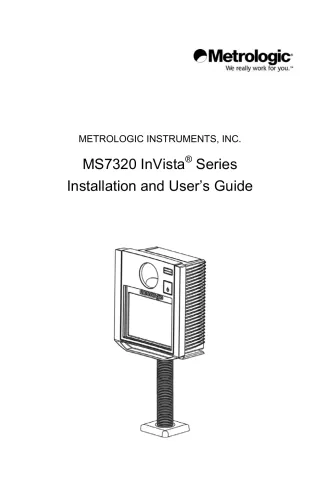
MS7320 InVista Series Installation and User's Guide
Manual64 pagesPDF 1.3 MB
Installation and user's guide for the Metrologic MS7320 InVista fixed mount laser bar code scanner: interfaces, setup, indicators and specs.
Covers · 1 model
The models it covers
Summary
What is in it
The installation and user's guide for the Metrologic MS7320 InVista series, a fixed mount laser bar code scanner. It lists the kit, accessories and replacement parts, gives step-by-step installation for OCIA, keyboard wedge, stand-alone keyboard, USB, RS232, light pen and IBM 46xx interfaces and for a secondary scanner, and covers maintenance, indicators, power save modes, scan volume, depth of field, the flex stand, the EAS deactivation antenna, troubleshooting, design specifications, firmware upgrades, default settings and cable pinouts.
Its parts
- Introduction
- Scanner and Accessories
- Installation
- Scanner Parts
- Maintenance
- Cable Cover Installation and Removal
- Face Plate Removal
- Scanner Labels
- Indicators
- Power Save Modes and the Multi-Function Button
- Scan Volume
- Depth of Field by Minimum Bar Code Element Width
- Flex Stand Installation
- EAS Deactivation Antenna
- Troubleshooting Guide
From the manual
Key facts from this manual
Each line names its page in the PDF.
A 64-page Metrologic installation and user's guide (copyright 2008) for the MS7320 InVista series fixed mount omnidirectional laser scanner, in the MS7320-13 and MS7320-37 versions. It walks through installing the scanner for each host interface, reading its beeps and lights, the power save modes, the EAS deactivation settings, troubleshooting and upgrading the firmware. It also gives the design specifications, accessory part numbers and the pinouts of the scanner jacks and cables.
- Device
- Fixed mount omnidirectional laser bar code scanner with an EAS deactivation antenna, RS232 auxiliary port and field replaceable outer window p. 5
- Versions
- MS7320-13: RS232, IBM 46xx, OCIA, Aux; MS7320-37: RS232, Light Pen, Keyboard Wedge, Stand-Alone Keyboard, USB, Aux p. 5
- Power
- 5.2VDC ± 0.25V input, 1.9 W, 360 mA operating current; DC transformer Class II, 5.2 VDC @ 1A p. 39
- Power transformers
- Regulated 5.2V @ 1A: 46-46759 (120V United States), 46-46616 (Continental European), 46-46615 (United Kingdom), 46-46984 (China), 46-46985 (Australia) p. 7
- Cables
- Straight PowerLink 59-59xxx (2.1 m), Keyboard Wedge PowerLink 59-59002, Stand Alone Keyboard Wedge PowerLink 59-59020, USB PowerLink (Type A) 59-59165, RS232 AUX PowerLink 54-54667, 24" EAS cable 52-52511; MVC voltage converter cable ±12VDC to +5.2VDC p. 6
- Light source
- Visible Laser Diode (VLD) @ 650 nm, 0.678 mW (peak) p. 38
- Scan pattern
- 5 fields of 4 parallel lines (omnidirectional), 20 scan lines, 2000 scans/second p. 38
- Depth of field
- 0 mm to 215 mm (0"- 8.5") for a 0.33 mm (13 mil) bar code; minimum bar width 0.127 mm (5.0 mil) p. 38
- Symbologies
- Autodiscriminates all standard bar codes; up to 80 data characters, varying with symbology and density; UPC/EAN, Code 39, interleaved 2 of 5, Code 93, Code 128 and Codabar enabled by default p. 34, 38
- Connections
- Three 10-pin modular RJ45 jacks; standard 2.1m (7') straight cable p. 38
- Size and weight
- 185 mm (7.3") H, 99 mm (3.9") D, 168 mm (6.6") W; 1.2 Kg (2.65 lbs); stand footprint 64 mm (2.5") x 64 mm (2.5") p. 38
- Temperatures
- Operating 0°C to 40°C (32°F to 104°F); storage -40°C to 60°C (-40°F to 140°F) p. 39
- Stands and parts
- Flex stands 3" 46-00174, 6" 46-00157, 12" 46-00175; pedestal base 46-46852; standard red window face plate 46-46925 p. 7
- Firmware
- Flash upgradeable with MetroSet2 software from a Windows 95 or greater PC with an RS232 serial or USB port p. 43
What this manual walks you through
- Installing the scanner for OCIA, keyboard wedge, stand-alone keyboard, USB, RS232 or light pen hosts p. 8, 9, 10, 11, 12
- Cleaning the window and case p. 18
- Reading the beeps and the LEDs p. 21, 22
- Recognizing failure modes p. 23
- Choosing a power save mode and using the Multi-Function Button p. 24, 25
- Setting the Checkpoint EAS deactivation switch banks and depth of field p. 32
- Troubleshooting by interface p. 33, 34, 35, 36, 37
- Upgrading the firmware with MetroSet2 p. 43
- Scanner jack and host cable pinouts p. 50, 51, 52, 53
Good to know
- Do not use the standard cable from the Keyboard Wedge or RS485 interface kits for firmware upgrades. p. 43
- Some hosts cannot supply enough current to power the scanner; use the power supply included with it. p. 33
- Connecting the cable to the wrong interface jack can cause communication problems or damage the scanner. p. 8
- All circuits connected to the scanner must meet SELV requirements according to EN/IEC 60950-1. p. 20
- In the recommended EAS depth of field setting the minimum element width changes to 6.8 mil. p. 32
Questions this manual answers
What does it mean when the MS7320 beeps 3 times at power up?
The nonvolatile memory holding the scanner configuration has failed; the guide says to return the unit for repair at an authorized service center. p. 23
What do the green and red LEDs on the MS7320 mean?
Green means the laser is on and ready to scan; a red flash with one beep means a good read. p. 22, 38
How do I change the beep tone on the MS7320 InVista?
Press the Multi-Function Button briefly (under 3 seconds); the new tone sounds, then two more confirm it is stored. p. 25
What power supply does the MS7320 use?
A regulated 5.2V at 1A AC to DC transformer, for example 46-46759 for 120V in the United States. p. 7
Why does my MS7320 lock up after the first scan with the red LED on?
The scanner is set for host handshaking but is not getting the signal; check that the host cable and host support the handshaking. p. 34
Contents
Chapters and sections
Each line opens the PDF at its page.
The whole text · 7 parts
Read the manual here as text
Its text as extracted from the PDF, unedited, in parts; each page opens the PDF at that page.
The file