Manual · Metrologic
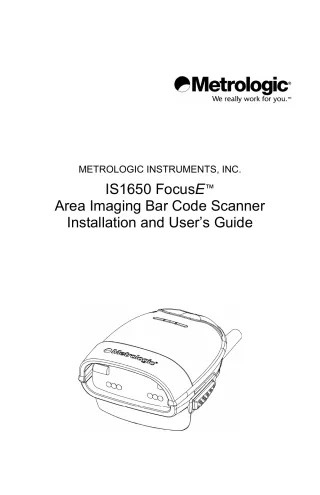
IS1650 FocusE Area Imaging Bar Code Scanner Installation and User's Guide
Manual52 pagesPDF 6.0 MB
Installation and user's guide for the Metrologic IS1650 FocusE area imaging bar code scanner for presentation and fixed-mount use.
Covers · 1 model
The models it covers
Summary
What is in it
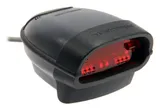
The installation and user's guide for the Metrologic IS1650 FocusE, a 2D area imaging bar code scanner for presentation and fixed-mount use. It gives the product overview, model numbers by interface, kit contents and accessories, design specifications and dimensions, then shows how to install the PowerLink cable for RS232, keyboard wedge, stand-alone keyboard, IBM 46xx and USB versions and the optional Flex Stand. It also covers configuration, firmware upgrades, operation and indicators, maintenance, troubleshooting, default settings, pinouts and regulatory notes.
Its parts
- Introduction
- Base Model Characteristics
- Installation
- Scanner Configuration
- Scanner Operation
- Maintenance
- Troubleshooting Guide
- Default Settings
- Scanner and Cable Terminations
- Regulatory Compliance
- Patents
- Limited Warranty
From the manual
Key facts from this manual
Each line names its page in the PDF.
Installation and user's guide for the Metrologic IS1650 FocusE area imaging bar code scanner. It explains the interface versions, how to connect each cable, how to upgrade the firmware and read the indicators, and how to troubleshoot problems. It also lists accessory part numbers, specifications and connector pinouts.
- Device
- Area imaging (2D) bar code scanner with a CMOS sensor, for presentation and fixed-mount use p. 5
- Interface versions
- IS1650-14: RS232; IS1650-38: low speed USB and RS232 transmit/receive; IS1650-47: keyboard wedge, stand-alone keyboard and RS232 transmit/receive; IS1650-106: IBM 46xx RS485, full speed USB and RS232 transmit/receive p. 6
- Scanner connector
- 10-pin RJ45 female socket p. 12
- Power
- 5.0VDC ± 0.25V input; 330 mA typical when operating p. 11
- Power supplies
- 5.2VDC 1 AMP transformer: 46-00525 (120V United States), 46-00526 (220V-240V Continental European), 46-00870 (220V-240V United Kingdom), 46-00528 (220V-240V Australia), 46-00529 (220V-240V China) p. 7
- Interface cables
- 59-59000-3 RS232 PowerLink with power jack; 54-54002-3 keyboard wedge PowerLink; 54-54020-3 stand alone keyboard PowerLink; 59-59313-N-3 USB; MVC-3M106S-IB9 voltage converter cable (±12VDC to +5.2VDC) p. 8
- Firmware upgrade cable
- PowerLink Cable #54-54014 for RS232 upgrades with MetroSet2; the standard USB cable works for USB upgrades p. 24
- Scan range
- LED 645 nm; 0 mm to 254 mm (0" to 10") for a 13 mil bar code at default; minimum bar width 0.127 mm (5.0 mil) p. 10
- Symbologies
- All standard 1-D, RSS, PDF417, microPDF, MaxiCode, Data Matrix, QR Code, UCC/EAN Composites, Postals, Aztec; OCR (A, B, MICR) optional; image transfer as BMP, TIFF or JPEG p. 10
- Size and weight
- 62 mm (2.44") high, 80 mm (3.15") wide, 116 mm (4.57") deep; 204 g (7.2 oz.) p. 10
- Temperature
- Operating 0°C to 40° (32° to 104°F); storage -40°C to 60°C (-40°F to 140°F) p. 11
- IR activation range
- Long range 0 mm to 203 mm (0" to 8"), short range 0 mm to 101 mm (0" to 4") from the window p. 10
- Status LEDs
- Blue: powered and ready to scan; white: good read; yellow: in stand p. 10
- Stand
- Flex Stand kit 46-00710; IS1650 Series Stand Installation Guide 00-02001 p. 9
What this manual walks you through
- Connecting and releasing the PowerLink cable p. 15
- Installing the RS232 version (IS1650-14) p. 16
- Installing the keyboard wedge and stand-alone keyboard version (IS1650-47) p. 17, 18
- Installing the IBM 46xx RS485 version (IS1650-106) with the MVC cable p. 19
- Installing the USB versions (IS1650-38 and IS1650-106) p. 20
- Upgrading the firmware with MetroSet2 p. 24
- Reading the LED indicators p. 27
- Understanding failure tones p. 28
- Troubleshooting by symptom p. 32, 33, 34, 35
- Scanner connector pinouts p. 40
Good to know
- The mounting holes are 12 mm deep; screws must not go deeper than 10 mm past the bottom surface or be over-tightened. p. 13
- If the PowerLink cable is not fully latched, the unit can power on and off intermittently. p. 15
- The keyboard wedge and stand-alone keyboard installs need the external power supply. p. 17, 18
- Some hosts cannot supply enough current for the scanner, so a power supply may be needed. p. 32
- For an RS232 firmware upgrade, do not use the standard cable from the keyboard wedge or RS485 kits. p. 24
Questions this manual answers
What power supply does the IS1650 use?
A regulated 5.2VDC, 1 AMP AC to DC transformer; for 120V United States outlets the part number is 46-00525. p. 7
Which cable do I need to flash IS1650 firmware over RS232?
PowerLink Cable #54-54014. Over USB, the standard USB cable supplied with the scanner can be used. p. 24
What does a long razzberry tone at power up mean on the IS1650?
The scanner failed to initialize or configure. If it still does not respond after reprogramming, the manual says to return it for repair. p. 28
How do I unplug the cable from an IS1650?
Push a bent paperclip into the small pin-hole on the bottom near the cable until it clicks, then pull gently on the cable's strain relief. p. 15
What does the IS1650-38 USB version emulate out of the box?
It leaves the factory with USB Keyboard Emulation Mode enabled; USB Serial Emulation is set through the MetroSelect Single-Line Configuration Guide. p. 20
Contents
Chapters and sections
Each line opens the PDF at its page.
The whole text · 6 parts
Read the manual here as text
Its text as extracted from the PDF, unedited, in parts; each page opens the PDF at that page.
The file