Manual · Intermec
EasyCoder 4400 Printer Getting Started Guide
Manual62 pagesPDF 743 KB
Getting started guide for the Intermec EasyCoder 4400 bar code label printer: setup, media and ribbon loading, connection and print quality.
Covers · 1 model
The models it covers
Summary
What is in it
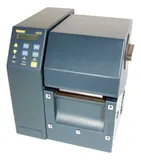
The getting started guide for the Intermec EasyCoder 4400 bar code label printer, used to get the printer running for the first time. It covers unpacking, the printer's components and control panel, loading fanfold or roll media and thermal transfer ribbon, printing a test label, connecting to a PC (serial or parallel), a network, an AS/400 or a mainframe, configuring the serial port, and optimizing print quality with media sensitivity settings, cleaning and basic troubleshooting.
Its parts
- Understanding and Preparing the Printer
- Connecting the Printer to Your System
- Optimizing Print Quality
From the manual
Key facts from this manual
Each line names its page in the PDF.
The Getting Started Guide (P/N 054324-003) for the Intermec EasyCoder 4400 bar code label printer. It walks through unpacking, the control panel and menus, loading media and ribbon, connecting to a PC, network, AS/400 or mainframe, setting the serial port, and basic cleaning and troubleshooting.
- Printer type
- Bar code label printer for direct thermal media or thermal transfer ribbon p. 9, 34
- Serial interface
- Shielded RS-232, RS-422 or RS-485 with a 25-pin D-style connector p. 34
- Control panel
- 32-character LCD, nine keys and three status lights p. 14
- Serial settings
- 110 to 19200 baud, 7 or 8 data bits, 1 or 2 stop bits, odd, even, mark, space or no parity p. 40
- Default settings
- 9600 baud, even parity, 7 bit word length, XON/XOFF no status response, device address A, direct thermal media p. 34
- PC serial cables
- 048693 for an IBM PC AT; 048668 for an IBM PC XT (25-pin to 25-pin null modem) p. 34
- Parallel option
- Centronics interface adapter 056830 (field installable); parallel cable 051211 p. 36
- Network
- Novell NetWare, Token Ring or TCP/IP, through the Centronics parallel interface and a network adapter p. 36
- AS/400 twinax
- Twinax adapter option 056835; IBM cable 7362267 or 7362062, up to 5000 feet (1525 m) p. 37
- Mainframe coax
- Coax adapter option 056836; IBM cable 2577672 or 1833108, up to 4920 feet (1500 m) p. 37
- Software
- PrintSet configuration software, third-party label software, or IPL commands p. 42
- User's manual
- 4400 Bar Code Label Printer User's Manual, Intermec part number 058607 p. 5
What this manual walks you through
- Unpacking the printer and checking the shipping contents p. 9
- Using the control panel keys, lights and menu circle p. 14, 15, 16
- Printing a hardware configuration test label p. 28
- Connecting the printer to a PC serial or parallel port p. 34, 36
- Connecting the printer to an AS/400 or an IBM mainframe p. 37
- Checking communications with Data Line Print and a DOS test p. 38, 39
- Changing the main serial port settings from the control panel p. 41
- Restoring the factory default configuration p. 45
- Troubleshooting operation and print quality problems p. 60, 61
Good to know
- Serial port changes take effect only after the printer is turned off and on again. p. 41
- A network connection needs the Centronics parallel interface installed, and the network must handle XON/XOFF protocol. p. 36
- A burnt main power fuse or blown secondary fuse is replaced by an Intermec service technician. p. 60
- The OPEN and FEED/RELOAD keys work only when the printer is offline. p. 14
Questions this manual answers
What cable connects an Intermec 4400 to a PC serial port?
Intermec cable 048693 for an IBM PC AT, or 048668 (25-pin to 25-pin null modem) for an IBM PC XT. p. 34
What are the Intermec 4400 default serial settings?
9600 baud, even parity, 7 bit word length, XON/XOFF no status response protocol and device address A. p. 34
How do I reset an Intermec 4400 to its factory defaults?
From OFFLINE READY, go to the Service menu, choose MEMORY RESET, then CONFIGURATION, and press ENTER. p. 45
Can the Intermec 4400 print over a network?
Yes, on Novell NetWare, Token Ring or TCP/IP networks, with the Centronics parallel interface (056830) and a network interface adapter such as Ethernet. p. 36
How do I print a configuration test label on the Intermec 4400?
From OFFLINE READY, open the Service menu, choose PRINT CONFIG, then USER DEFINED and EXECUTE TEST, and press ENTER. p. 28
The whole text · 7 parts
Read the manual here as text
Its text as extracted from the PDF, unedited, in parts; each page opens the PDF at that page.
The file