Manual · Ingenico
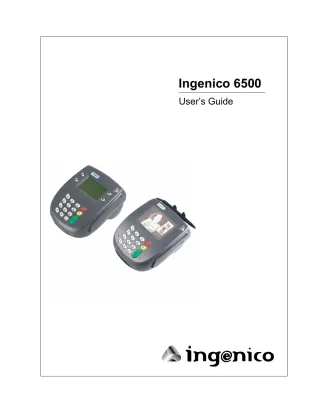
Ingenico 6500 User's Guide
Manual126 pagesPDF 881 KB
User's guide for the Ingenico 6500 payment terminals (6510 and 6550): extended menu, setup, diagnostics, key management and downloads.
Covers · 1 model
The models it covers
Summary
What is in it
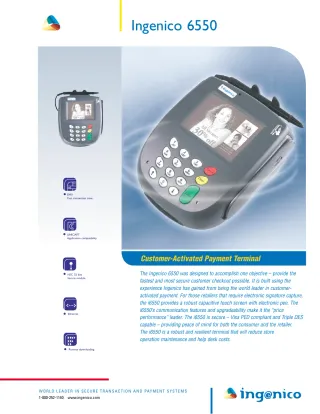
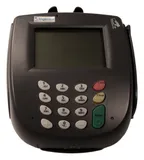
Ingenico user's guide for the 6500 customer-activated payment terminal range, the 6510 with screen-addressable keys and the 6550 with a touch screen and signature capture. It explains the extended menu: system configuration, system info, supervisor, system parameters for ports and networking, and diagnostics for the display, keypad, card readers, ports and touch screen. Later chapters describe the terminal and key architecture, the secure certificate, and how to perform and troubleshoot an IBMEFT download.
Its parts
- Introduction
- Extended Menu Overview
- System Configuration Menu
- System Info Menu
- Supervisor Menu
- System Parameters Menu
- Diagnostic Menu
- Architecture
- Key Architecture
- Secure Certificate
- IBMEFT Download
- Download Errors
From the manual
Key facts from this manual
Each line names its page in the PDF.
The user's guide (part number DL00458, Revision E) for the Ingenico 6500 range of customer-activated payment terminals, which covers the Ingenico 6510 and the Ingenico 6550 (also printed as i6550). It explains the extended menu, the built-in diagnostic tests, the terminal and download architecture, and how to clear IBMEFT download errors and register error messages.
- Device
- Customer-activated payment terminal; the 6550 has a touch screen for finger and stylus input and signature capture p. 9
- Payment types
- Credit, debit/ATM, smart card, EBT (with the appropriate application software) p. 9
- Host port
- RS232, USB/PoweredUSB, RS485 IVI LAN protocol, or RS485 Tailgate protocol (North America only) p. 95
- AUX port
- RS232, for a printer or check reader p. 95
- Other ports
- E-NET (Ethernet 10 base T, TCP/IP) on certain configurations; ITI port for ISDN in Germany; two to four ports in all p. 95
- Signature capture
- 6550: captures an electronic image of the customer's signature and sends it to the host p. 9
- Processor and OS
- Millennium ASIC processor running the UNICAPT32 operating system p. 96
- Default download setup
- IBMEFT protocol, Com1, RS232, 19200 baud, 8 data bits, no parity, 1 stop bit p. 123
- Installation kits
- Basic kit: terminal and 6500-to-ECR cable; Store kit adds the Retail Base Application CD-ROM and MLDT utility p. 11
- Development kits
- OPOS, JavaPOS and UNICAPT 32 software development kits p. 11, 12
- Download tools
- IBMEFTDL for downloads; MLDT or Wingload 32 to read and manage the data file system p. 121, 124
What this manual walks you through
- Testing the display, keypad and beeper p. 81, 82, 83
- Testing the RS232, RS485 Tailgate and USB connections p. 83, 84, 85
- Testing the magnetic stripe reader, smart card reader and SAMs p. 86, 87, 88
- Testing the touch screen and signature capture, and calibrating pen and finger input (i6550) p. 89, 90, 91, 92, 93
- How the terminal connects to the cash register, store controller and server p. 94, 95
- Fixing IBMEFT download errors such as Error Opening Port and 3 NAKs p. 121, 122, 123
- Clearing Card Read Error and EFT Device Not Available messages p. 125, 126
Good to know
- A CRC Error on the terminal means the Security Module has been compromised; the unit must go to an authorized repair facility. p. 123
- Error: Bad Prog. means the terminal's flash may not match the file, and the terminal must be sent in for repair. p. 123
- Reformatting the data file system deletes all existing data files. p. 124
- The touch screen, signature capture, pen and finger calibration tests are for the i6550 only. p. 89
Questions this manual answers
What does CRC Error mean on an Ingenico 6550?
It means the Security Module has been compromised; note the error and return the unit for recovery under an RMA number. p. 123
How do I fix EFT Device Not Available on an Ingenico 6500?
Check the terminal shows the first prompt, press Clear on the register and reselect the transaction; if needed restart the terminal with Cancel + 0 + Enter. p. 125
What are the default download port settings of the Ingenico 6500?
IBMEFT on Com1 over RS232 at 19200 baud, 8 data bits, no parity, 1 stop bit. p. 123
What to do when the Ingenico 6550 shows Card Read Error?
Swipe again at varied speed, in the reverse direction and in a straight line; if it still fails the card is worn, so key the number in. p. 125
Which ports does the Ingenico 6500 have?
A HOST port (RS232, USB/PoweredUSB or RS485), an RS232 AUX port, and on some configurations an Ethernet E-NET port or ISDN ITI port. p. 95
Contents
Chapters and sections
Each line opens the PDF at its page.
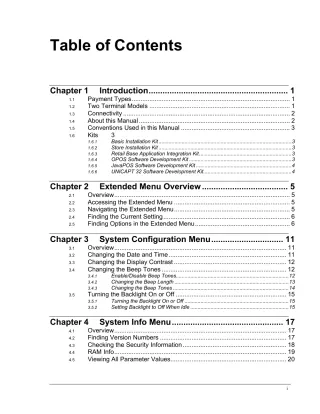
- User’s Guide1
- Introduction9
- Extended Menu Overview13
- System Configuration Menu19
- System Info Menu25
- Supervisor Menu32
- System Parameters Menu43
52 more lines, from page 81 on
- Diagnostic Menu81
- Overview81
- Testing the Display Contrast81
- Testing the Keypad82
- Testing the Beeper82
- Testing the RS232 Connection83
- Testing the RS485 Tailgate Connection84
- Testing the USB Port85
- Testing the Magnetic Stripe Reader86
- Testing the Smart Card Reader87
- Testing the SAMs88
- Testing the Touch Screen89
- Testing Signature Capture90
- Testing Pen Calibration91
- Testing Finger Calibration92
- SCV Verification93
- Architecture94
- Key Architecture100
- Secure Certificate108
- IBMEFT Download117
- Download Errors121
- IBM EFT Troubleshooting125
The whole text · 16 parts
Read the manual here as text
Its text as extracted from the PDF, unedited, in parts; each page opens the PDF at that page.
- User’s Guide1-8
- Introduction9-12
- Extended Menu Overview13-18
- System Configuration Menu19-24
- System Info Menu25-31
- Supervisor Menu32-42
- System Parameters Menu, pages 43 to 5243-52
- System Parameters Menu, pages 53 to 6253-62
- System Parameters Menu, pages 63 to 7263-72
- System Parameters Menu, pages 73 to 8073-80
- Diagnostic Menu81-93
- Architecture94-99
- Key Architecture100-107
- Secure Certificate108-116
- IBMEFT Download117-120
- Pages 121 to 126121-126
The file