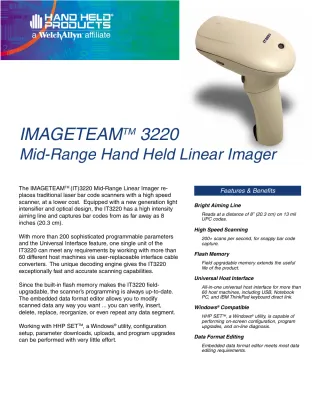
Manual · HHP
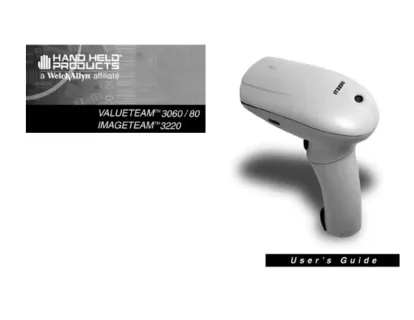
ValueTeam 3060 / 80, ImageTeam 3220 User's Guide
Manual71 pagesPDF 769 KB
User's guide for the Hand Held Products ImageTeam 3220 linear imager and ValueTeam 3060B/3080B CCD scanners: interfaces and programming.
Covers · 1 model
The models it covers
Summary
What is in it
The user's guide for the Hand Held Products ImageTeam 3220 mid-range linear imager and the ValueTeam 3060B and 3080B CCD bar code scanners. It gives installation and programming instructions: keyboard wedge, RS-232 serial and USB keyboard interfaces, the HHP SET Windows utility and data editor, and bar code programming menus for host interface, symbologies, keyboard and serial control and operating settings. Appendices cover interface cable converters, beep indications and sample bar codes, with customer service and warranty information.
Its parts
- Getting Started
- Terminal Interfaces
- Programming the Scanner
- Customer Service
- Limited Warranty
From the manual
Key facts from this manual
Some pages are scans or cannot be read; this says only what the readable text supports. Each line names its page in the PDF.
This user's guide covers the IMAGETEAM IT3220 mid-range linear imager and the VALUETEAM VT3060B and VT3080B CCD scanners. It explains how to connect them to keyboard wedge, RS-232 and USB hosts through interface cable converters, and how to program them with bar codes or the HHP SET Windows utility.
- Device
- IT3220: mid-range linear imager that reads bar codes from as far as 8 inches (20.3 cm) p. 9
- Main cable
- Main cable with an RJ-45 phone plug that joins a host interface cable converter p. 11
- Default interface
- IBM PC/AT, PS/2 keyboard wedge p. 13
- Host interfaces
- TTL RS-232 serial, IBM and notebook keyboard wedges, keyboard replacement, Apple ADB wedge, RS-232 serial wedge, wand emulation, USB keyboard; DOS/V, NEC PC-98xx and IBM ThinkPad direct link on Japanese version only p. 25
- Cable converters
- PC/AT and PS/2 keyboard wedge, notebook PS/2 direct link, USB Type A, Apple ADB, IBM ThinkPad wedge and direct link, NEC 98xx, RS-232 serial, RS-232 serial wedge, wand emulation p. 61
- RS-232 settings
- RS-232 interface bar code sets 9600 baud, 8 data bits, no parity, 1 stop bit, no handshaking p. 15
- RS-232 power
- Optional AC power adapter plugs into the side power jack of the D-sub connector p. 15
- USB support
- USB keyboard interface on Windows 98, Windows 2000 or above and Apple iMac p. 25
- Configuration software
- HHP SET for Windows 95/98, NT and 2000: on-screen setup, configuration upload and download, firmware upgrade, data editor p. 11
- HHP SET hookup
- IT3220: needs a serial adapter cable and a power supply p. 11
- Trigger modes
- Low power, presentation, manual trigger, auto trigger, level (auto power off), alternative, toggle p. 43
- Low power standby
- Maximum 500uA standby current in low power mode p. 43
- Settings memory
- Settings kept in Flash Memory ASIC or non-volatile memory when the unit is off p. 22
- Label part number
- IT3220 sample label: P/N 3220-12 p. 10
What this manual walks you through
- Connecting the scanner as a PC/AT or PS/2 keyboard wedge p. 13, 14
- Connecting to an RS-232 serial port p. 15
- Connecting to a computer's USB port p. 16
- Entering and leaving programming mode and restoring factory defaults p. 23, 24
- Selecting the host interface by bar code p. 25
- Choosing a trigger mode p. 43
- Identifying the interface cable converters p. 61, 62, 63
- Reading the beep signals p. 64
Good to know
- After scanning END the scanner needs 3 to 4 seconds to store settings; turning power off before the completion beeps may destroy them. p. 23
- Cables must be shielded, with the shield grounded to the connector shell, to keep FCC compliance. p. 5
- The host's RS-232 settings must match the scanner's. p. 15
- A separate cable adapter is needed to complete the installation. p. 11
Questions this manual answers
How do I reset the IT3220 to factory defaults?
Scan the M_DEFAULT bar code; the scanner returns all programmable settings to factory presets and gives 3 short beeps. p. 23
How do I connect the IT3220 to USB?
Plug the main cable's RJ45 plug into the USB keyboard cable converter, plug its USB Type A connector into the computer, then scan the USB Keyboard Interface bar code. p. 16
What does one long beep mean on the IT3220?
A medium tone means a programming error or no CTS signal; a low tone means a record over-size warning. p. 64
What serial settings does the IT3220 use for RS-232?
Scanning the RS-232 interface bar code sets 9600 baud, 8 data bits, no parity, 1 stop bit and no handshaking. p. 15
What interface is the IT3220 set to out of the box?
IBM PC/AT, PS/2 keyboard wedge. p. 13
The whole text · 8 parts
Read the manual here as text
Its text as extracted from the PDF, unedited, in parts; each page opens the PDF at that page.
The file