Manual · Extron
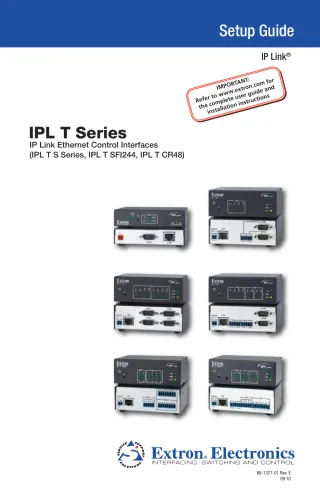
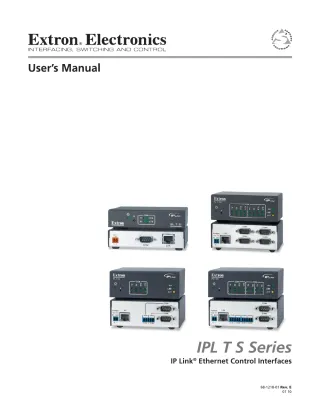
IPL T S Series IP Link Ethernet Control Interfaces User's Manual
Manual79 pagesPDF 4.8 MB
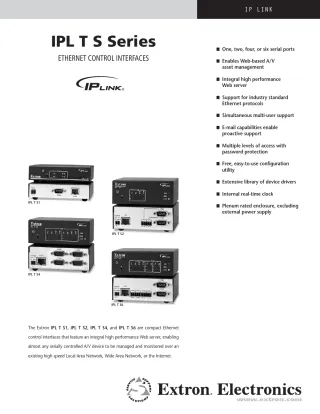
User's manual for the Extron IPL T S1, S2, S4 and S6 IP Link Ethernet control interfaces for serially controlled A/V devices.
Covers · 3 models
The models it covers
Summary
What is in it
Extron's user's manual for the IPL T S Series IP Link Ethernet control interfaces (IPL T S1, S2, S4 and S6), which put serially controlled A/V equipment such as projectors, displays and switchers on a network for remote monitoring and control. It covers mounting, rear panel cabling, front panel indicators and reset, setting the IP address, configuration with Global Configurator, the embedded web pages or DataViewer, the Telnet and web command set, custom web pages, serial pass-through and bridging, troubleshooting and specifications.
Its parts
- Introduction
- Installation and Operation
- Connection and Configuration
- Communication and Control
From the manual
Key facts from this manual
Each line names its page in the PDF.
This is the Extron user's manual for the IPL T S Series IP Link Ethernet control interfaces: the IPL T S1, IPL T S2, IPL T S4 and IPL T S6. It covers mounting, rear panel cabling, the front panel LEDs and reset modes, setting the IP address, configuration, the SIS command set and troubleshooting. An appendix lists specifications, included parts and optional mounting kits with part numbers.
- Device
- Ethernet control interface for remote monitoring and control of projectors, flat-panel displays, switchers and other serially controlled A/V devices p. 10
- Network
- 1 female RJ-45 connector, 10/100Base-T, half/full duplex with autodetect p. 72
- Power
- 12 VDC, 0.5 A input, from an included external power supply p. 72
- Memory
- 7.25 MB nonvolatile user memory; Web server with up to 200 simultaneous sessions p. 10, 72
- Serial settings
- 300 to 115200 baud; default RS-232, 9600 baud, 8 data bits, 1 stop bit, no parity p. 20, 72
- Operating temperature
- +32 to +122 °F (0 to +50 °C), 10% to 90% noncondensing p. 72
- Weight
- 0.7 lbs (0.3 kg) p. 73
- Default network settings
- IP address 192.168.254.254, subnet mask 255.255.0.0, gateway 0.0.0.0, DHCP off p. 72
- Model details
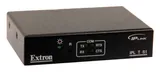
- IPL T S1: PN 60-801-81; one RS-232 serial port on a male 9-pin D; 1.0 inch H x 4.3 inches W x 3.0 inches D p. 10, 72
- Model details
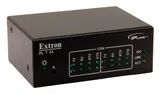
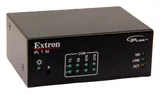
- IPL T S2: PN 60-544-81; two RS-232, RS-422, or RS-485 ports on male 9-pin D, plus a 5-pole 3.5 mm captive screw connector in parallel; 1.7 inches H p. 10, 19, 72
- Model details
- IPL T S4: PN 60-544-83; four RS-232, RS-422, or RS-485 ports on male 9-pin D; 1.7 inches H x 4.3 inches W x 3.0 inches D p. 10, 72
- Error codes
- E12 invalid port number, E13 invalid parameter, E14 not valid for this configuration, E17 system timed out, E22 busy, E24 privilege violation, E25 device not present, E26 maximum connections exceeded, E28 bad filename/file not found p. 45
- Power supply part numbers
- External power supply 70-055-01 (U.S., Canada) or 70-055-02 (International) p. 74
- Mounting kits
- Rack shelves RSF 123 (60-190-20) and RSU 129 (60-190-01); MBU 123 under-desk (70-212-01); PMK 100 mini projector (70-217-01); IPL T S1 only: MBU 125 (70-077-01), PMK 200 (70-077-04) p. 74
What this manual walks you through
- Wiring the 9-pin D and captive screw serial ports p. 19, 20, 21
- Using the five reset modes p. 22, 23
- Setting the IP address with Global Configurator, the Web pages or ARP p. 27, 28
- Reading SIS error responses p. 45
- Troubleshooting power and data connections p. 68, 69
Good to know
- Pacing and handshaking are not supported on the captive screw serial connectors. p. 19
- On the IPL T S2, each serial port uses either its captive screw connector or its 9-pin D connector, never both. p. 19
- Using the wrong reset mode can erase flash memory programming, reassign ports or reboot the unit. p. 22
- Every reset mode except mode 2 closes all open IP and Telnet connections. p. 22
- If the unit answers a ping but its Web pages will not load, the browser must use a direct connection, not a proxy server. p. 69
Questions this manual answers
How do I reset the Extron IPL T S1 to its default IP address?
Do a mode 4 reset: hold the Reset button until the Power LED blinks twice (6 seconds), release, then press and release it again within 1 second. The Power LED blinks quickly four times to confirm. p. 27
Why can't I ping my IPL T S1?
Check that the unit uses the right subnet mask and that no software firewall on the PC blocks the unit's IP address. p. 69
What does error E24 mean on an IPL T S unit?
E24 is a privilege violation: the command needs administrator-level access. p. 45
Contents
Chapters and sections
Each line opens the PDF at its page.
The whole text · 8 parts
Read the manual here as text
Its text as extracted from the PDF, unedited, in parts; each page opens the PDF at that page.
The file