Manual · Extron
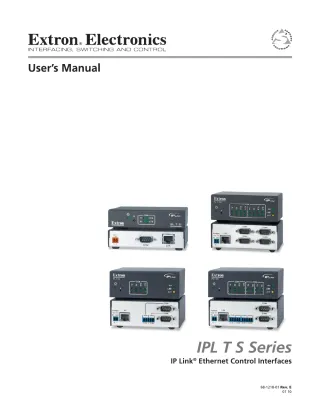
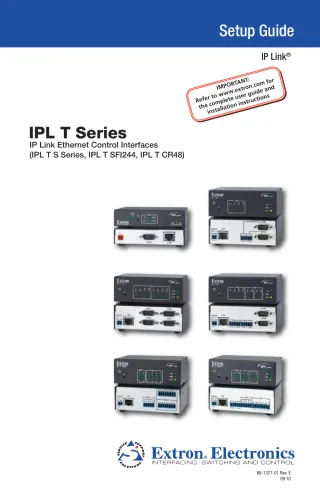
IPL T Series Setup Guide: IP Link Ethernet Control Interfaces (IPL T S Series, IPL T SFI244, IPL T CR48)
Manual29 pagesPDF 3.6 MB
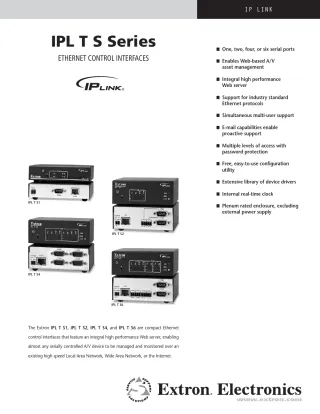
Setup guide for the Extron IPL T series IP Link Ethernet control interfaces, including the IPL T S1, S2, S4 and S6.
Covers · 3 models
The models it covers
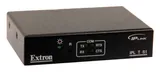
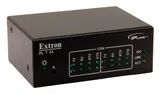
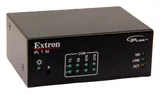
Summary
What is in it
Extron's setup guide for the IPL T series IP Link Ethernet control interfaces: the IPL T S series (S1, S2, S4, S6), the IPL T SFI244 and the IPL T CR48. These controllers sit on an Ethernet network to monitor and control A/V devices. The guide lists each model's ports, introduces the Global Configurator software and GlobalViewer, then covers front and rear panels, resetting the controller, power, LAN, serial, relay, IR, contact closure and flex I/O wiring, and configuring for network communication.
Its parts
- Introduction
- Setup
From the manual
Key facts from this manual
Each line names its page in the PDF.
This is the Extron setup guide for the IPL T Series Ethernet control interfaces: the IPL T S Series (IPL T S1, S2, S4, S6), the IPL T SFI244 and the IPL T CR48. It shows the front and rear panels, the reset modes, power, network and port wiring, and how to give the controller an IP address. It also covers installing the Global Configurator software used to set the controllers up.
- Device
- Ethernet control interface for remote monitoring and control of A/V devices such as projectors and displays p. 7
- Power
- 12 VDC, 1 A desktop power supply p. 7, 8
- Ethernet control ports
- Six p. 7, 8
- Default IP address
- 192.168.254.254 p. 19, 25
- Software and firmware
- Global Configurator 3.0 or later; Ethernet driver support needs firmware 1.15 or higher p. 12
- Serial ports
- IPL T S1: one 9-pin D RS-232 serial port (RS-232 only) p. 7, 21
- Serial ports
- IPL T S2: two 9-pin D RS-232, RS-422, or RS-485 ports, or two 3.5 millimeter captive screw RS-232 ports common to them p. 8, 22
- Serial ports
- IPL T S4: four 9-pin D RS-232, RS-422, or RS-485 serial ports p. 8
- Reset modes
- Five, from the recessed front Reset button; mode 4 resets IP settings, mode 5 resets to factory defaults except firmware p. 19
- Setup PC
- Pentium III 1 GHz, Windows XP SP2, Vista or 7, Internet Explorer 6.0 with ActiveX, 512 MB RAM, 50 MB disk p. 13
What this manual walks you through
- Installing Global Configurator from the web or a software disk p. 13, 14
- Reading the front panel LEDs p. 15, 16, 17
- Choosing and performing one of the five reset modes p. 19
- Connecting the power supply p. 20
- Connecting to a network or directly to a PC p. 20, 21
- Wiring serial devices to 9-pin D and captive screw COM ports p. 21, 22
- Wiring relay, IR, contact closure and flex I/O ports on the CR48 and SFI244 p. 22, 23, 24
- Setting the IP address with ARP and ping p. 25, 26
- Configuring the controller with Global Configurator and GlobalViewer p. 26
Good to know
- Using the wrong reset mode can erase flash memory programming, reassign ports or reboot the unit. p. 19
- After a mode 1 reset, update the firmware; do not keep running the firmware that mode 1 brings up. p. 19
- On the IPL T S2, each COM port can use either its captive screw connector or its 9-pin D connector, not both. p. 22
- An ARP address change takes effect only after the controller is pinged at the new address. p. 26
- Shielded cables are needed to stay within FCC emission limits. p. 3
Questions this manual answers
What power supply does the Extron IPL T S1 use?
A 12 VDC, 1 A desktop power supply. p. 7
What is the IPL T S1 default IP address?
The factory default IP address is 192.168.254.254. p. 19, 25
How do I reset the IP settings on an IPL T S1?
Use reset mode 4: hold the Reset button about 6 seconds until the Power LED blinks twice, release, then press it briefly within 1 second. This sets the IP address back to 192.168.254.254. p. 19
Does the IPL T S1 support RS-422 or RS-485?
No. The guide states the IPL T S1 supports RS-232 only. p. 21
What software is used to configure the IPL T S Series?
Extron Global Configurator, version 3.0 or later. p. 12
Contents
Chapters and sections
Each line opens the PDF at its page.
The whole text · 3 parts
Read the manual here as text
Its text as extracted from the PDF, unedited, in parts; each page opens the PDF at that page.
The file