Manual · Zebra
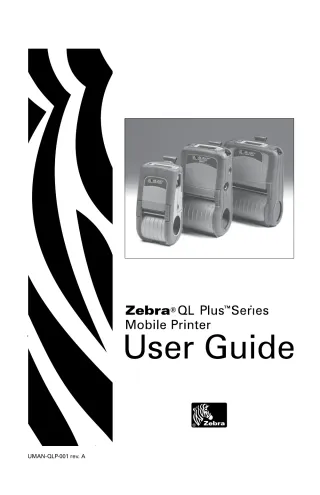
Zebra QL Plus Series Mobile Printer User Guide
Manual86 pagesPDF 4.2 MB
User guide for the Zebra QL Plus series mobile label printers (QL 220 Plus, QL 320 Plus, QL 420 Plus): setup, connections, care and specs.
Filed with · 1 model
Also filed with these models on the old site
Summary
What is in it
User guide for the Zebra QL Plus series of mobile label printers: the QL 220 Plus, QL 320 Plus and QL 420 Plus. It covers unpacking, an overview of each model, installing and charging the battery with the LI72 charger, loading media, the keypad and LCD control panels, printing a configuration label, cable, IR, Bluetooth and WLAN connections, radio regulatory information, accessories (belt clip, kickstand, desk stand, strap), cleaning, troubleshooting and full specifications.
Its parts
- Introduction to the QL Plus Series
- Getting Ready to Print
- Radio Regulatory Information
- Using the Accessories
- Preventive Maintenance
- Troubleshooting
- Specifications
From the manual
Key facts from this manual
Each line names its page in the PDF.
This is the Zebra User Guide for the QL Plus Series mobile printers: the QL 220 Plus, QL 320 Plus and QL 420 Plus. It covers installing and charging the battery, loading media, connecting by cable, infrared, Bluetooth or wireless LAN, using the accessories, cleaning and troubleshooting. Its specifications give print, memory, label, communications and environmental data, with part numbers for interface cables, chargers and cleaning supplies.
- Device
- Rugged mobile label printers (QL 220 Plus, QL 320 Plus, QL 420 Plus) printing on direct thermal media p. 2, 7, 68
- Print density
- 203 dots/inch (8 dots/mm) p. 67
- Memory
- 4 MB flash and 8 MB RAM (standard) p. 67
- Serial port
- RS-232 on an 8-pin circular DIN connector; 9600 to 57.6 Kbps p. 67
- USB
- USB 2.0 Full Speed (12 Mbps) p. 67
- Wireless options
- IrDA 1.1 infrared, Bluetooth 2.4 GHz, 802.11b/g wireless LAN p. 67
- Languages
- CPCL, with EPL and ZPL II emulation standard p. 7
- Battery
- Lithium-Ion, 7.4 VDC (nominal) p. 13, 71
- Operating temperature
- 5° to 122° F (-15° to 50° C); storage -13° to 158° F (-25° to 70° C) p. 71
- Chargers
- LI72 single charger; UCLI72-4 quad (100-240 VAC input); RCLI-AC (100 to 240 VAC) and RCLI-DC (12 to 60 VDC) run/charge units p. 75
- RS-232 cables
- BL11757-000 8-pin DIN to 9-pin DB PC cable (coiled: BL15063-1); BL16555-1 right-angle DIN to 9-pin DB p. 76
- USB cable
- AT17010-1, USB A to USB Mini B p. 76
- Cleaning supplies
- Cleaning Pen 10 pack AN11209-1; Cleaning Kit AT702-1 p. 78
- Print head life
- 1,964,160 in. (50 Km) nominal p. 67
What this manual walks you through
- Installing and charging the battery with the two-wire or three-wire LI72 p. 11, 12, 13, 14
- Printing a configuration label to check the printer p. 28
- Connecting by RS-232C or USB cable, with strain relief p. 29, 30
- Extending battery life p. 51
- Cleaning the QL 320 Plus p. 54
- Troubleshooting from the keypad LEDs and LCD icons p. 58, 59
- Fixing no power, missing print, skipped labels and label jams p. 60, 61
- Label and media requirements p. 68
- RS-232C and USB port pin assignments p. 70, 71
Good to know
- Charge new batteries fully before first use. p. 11
- Do not print while the LI72 charger is plugged into the printer, or the battery may charge unreliably. p. 51
- Turn the printer off before connecting or disconnecting a communications cable. p. 29
- Never expose the battery to direct sunlight or temperatures over 104° F (40° C). p. 51
- A battery the charger reports as an error should not be used any further. p. 13
Questions this manual answers
What battery do QL Plus printers use?
Lithium-Ion battery packs, 7.4 VDC nominal; QL series printers use only Li-ion batteries. p. 13, 71
What cable connects a QL 320 Plus to a PC?
The BL11757-000 8-pin DIN to 9-pin DB cable (coiled version BL15063-1), the BL16555-1 right-angle cable, or the AT17010-1 USB A to Mini B cable. p. 76
How do I print a configuration label on a QL Plus printer?
Turn the printer off and load journal media, hold the Feed button, press and release Power, and let go of Feed when printing starts. p. 28
What programming language do QL Plus printers use?
CPCL, with EPL and ZPL II emulation as a standard feature. p. 7
What does it mean when the yellow error light flashes?
No application is loaded or it is corrupted and must be reloaded; with wireless communications a flashing light is normal while data moves. p. 61
Contents
Chapters and sections
Each line opens the PDF at its page.
The whole text · 14 parts
Read the manual here as text
Its text as extracted from the PDF, unedited, in parts; each page opens the PDF at that page.
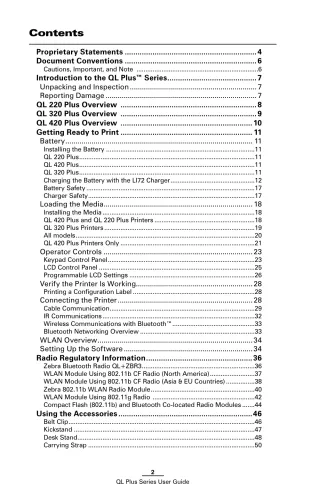
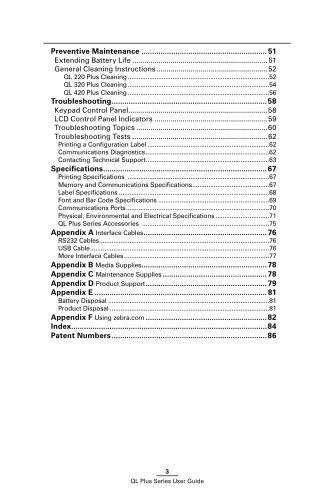
- Contents1-3
- Pages 4 to 64-6
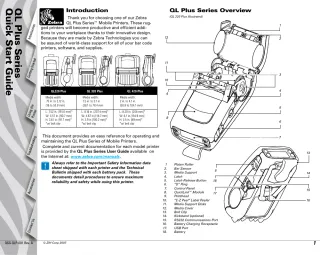
- Introduction to the QL Plus™ Series7-10
- Getting Ready to Print, pages 11 to 1911-19
- Getting Ready to Print, pages 20 to 2820-28
- Getting Ready to Print, pages 29 to 3529-35
- Radio Regulatory Information36-45
- Using the Accessories46-50
- Preventive Maintenance51-57
- Troubleshooting58-66
- Specifications67-75
- Pages 76 to 7876-78
- Pages 79 to 8179-81
- Pages 82 to 8682-86
The file