Manual · Zebra
QL Plus Series Quick Start Guide
Manual12 pagesPDF 2.4 MB
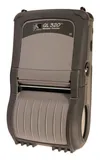
Quick start guide for the Zebra QL Plus Series mobile printers (QL220 Plus, QL 320 Plus, QL 420 Plus).
Filed with · 1 model
Also filed with these models on the old site
Summary
What is in it
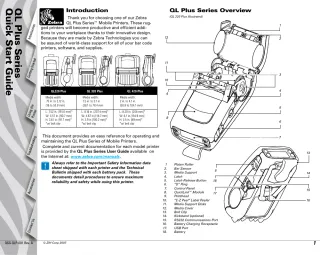
Zebra's quick start guide for the QL Plus Series of rugged mobile label printers: the QL220 Plus, QL 320 Plus and QL 420 Plus. It names the printer parts and gives media widths and sizes for each model, then shows how to install and charge the battery, load media, connect by RS232C or USB cable, infrared or radio, use the standard and LCD control panels, clean the printer, and troubleshoot using the status icons and LEDs.
Its parts
- Introduction
- Getting Started
- Using the Printer
- Troubleshooting
- Accessories
- Contact Us
From the manual · read page by page
Key facts from this manual
Each line names its page in the PDF.
This is the Zebra Quick Start Guide for the QL Plus Series mobile printers: the QL220 Plus, QL 320 Plus and QL 420 Plus. It shows how to install and charge the battery, load media, connect the printer by cable, infrared or radio, clean it and troubleshoot it from the display icons and lights. It also covers the single and quad chargers, belt clip, kickstand, shoulder strap and desk stand.
- Device
- QL Plus Series rugged mobile printers: QL220 Plus, QL 320 Plus, QL 420 Plus p. 1
- Cable interfaces
- RS232C or USB to a terminal or PC p. 4
- Wireless options
- Optional IR module (IrDA) or radio (Bluetooth or 802.11x) to a terminal or WLAN p. 4, 7
- Single charger
- LI72 Single Battery Charger p. 2
- Quad charger
- Charges up to four QL series battery packs at once; stops after six hours p. 10
- PC software
- Label Vista for setting up communications; Zebra Universal Driver for USB p. 4
- Keypad
- Standard: Power, Feed and Function buttons with two LEDs; optional LCD keypad adds Scroll and Select p. 5
- Status lights
- Slow blink means low battery; fast blink with beeper means no application is loaded p. 5
- Accessories
- Belt clip (standard); kickstand (optional), adjustable shoulder strap, desk stand p. 1, 10, 11
- Printhead cleaning
- Supplied cleaning pen, end to end along the print elements p. 6
What this manual walks you through
- Installing and charging the battery p. 2
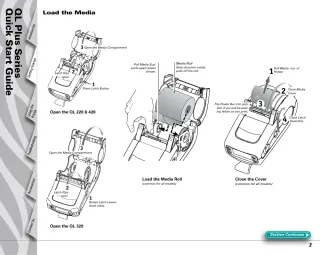
- Loading the media roll p. 3
- Connecting the printer by cable, infrared or radio p. 4
- Using the printer controls p. 5
- Cleaning the printhead, platen and sensors p. 6
- Troubleshooting from the LCD icons or LED states p. 7, 8
- Clearing a label jam p. 9
- Charging batteries in the quad charger p. 10
- Using the belt clip, kickstand, shoulder strap and desk stand p. 10, 11
Good to know
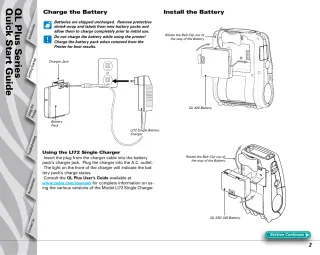
- Batteries ship uncharged: remove the shrink-wrap and labels and charge fully before first use. p. 2
- Do not charge the battery while using the printer. p. 2
- Avoid alcohol on the surface of linerless platens. p. 6
- Never insert sharp or pointed objects into the printer mechanism. p. 6
- The quad charger stops charging a battery after six hours, whatever its charge state. p. 10
Questions this manual answers
What charger does the QL 320 Plus use?
The LI72 Single Charger, or the quad charger that charges up to four QL series battery packs at once. p. 2, 10
Why is the yellow error light flashing on my QL Plus printer?
On units without a wireless option, no application is loaded or it is corrupted and must be reloaded; on wireless units it shows data transmission. p. 8
How do I connect a QL Plus printer to a PC?
Use an RS232C or USB cable; with USB you may need to install the Zebra Universal Driver. p. 4
How do I clear a label jam on a QL Plus printer?
Open the head release latch and media cover, then apply alcohol to the jammed label with the cleaning pen or a cotton swab, never sharp objects. p. 9
What does a slow-blinking light on a QL Plus printer mean?
A slow blink means low battery. p. 5
The whole text · 2 parts
Read the manual here as text
Its text as extracted from the PDF, unedited, in parts; each page opens the PDF at that page.
The file