Manual · Telxon
PTC-1800 Software Development Kit Programming Guide
Manual48 pagesPDF 346 KB
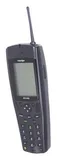
Software development kit programming guide for the PTC-1800 Windows CE hand-held wireless terminal, published by Symbol.
Covers · 1 model
The models it covers
Summary
What is in it
Symbol's SDK programming guide for the PTC-1800 Portable Teletransaction Computer running Windows CE 2.12. It explains setting up Visual Studio for C/C++, MFC and Visual Basic, connecting with ActiveSync (including over the wireless LAN), and programming the display, keyboard and hot keys, serial ports, IrDA, scanner, backlight, vibrator, buzzer and persistent registry, with KernelIoControl details and a Microsoft errata appendix.
Its parts
- Introduction
- Scope
- Getting Ready
- PTC-1800 Programming Overview
- PTC-1800 Programming Details
From the manual · read page by page
Key facts from this manual
Some pages are scans or cannot be read; this says only what the readable text supports. Each line names its page in the PDF.
Software development kit programming guide for the PTC-1800 portable terminal running Windows CE 2.12, published by Symbol. It explains setting up Visual C++ and Visual Basic, connecting to a PC with ActiveSync, and programming the display, keys, serial ports, scanner, backlight, vibrator, buzzer, contrast and saved registry.
- Device
- Hand-held Portable Teletransaction Computer with VoIP telephony, messaging and a laser scanner p. 9
- Processor
- Intel StrongArm RISC at 190 MHz p. 9
- Operating system
- Windows CE 2.12 p. 8
- Display
- 160 x 240 (1/8 VGA) backlit transflective monochrome; a 26-pixel status bar leaves 160 x 214 p. 9, 21
- Ports
- No serial port; COM1: to the scanner decode chip, COM4: raw IR, COM5: IrCOMM p. 17, 24
- PC link
- ActiveSync 3.0 or later; first partnership over IrDA, then wireless LAN; at most two partnerships p. 16, 17, 18
- IrDA dongle used
- Extended Systems Jeteye PN ESI9680B on the desktop PC, default port COM4 p. 17
- Development tools
- Visual Studio 6.0 or later, Windows CE C++ or Visual Basic Toolkit, H/PC Pro SDK, PTC-1800 SDK p. 13, 15
- Scanner input
- Direct through COM1: or by the keyboard wedge, which sends F9 before and F10 after scan data p. 25
- Contrast range
- 0 to 32, set through KernelIoControl p. 37
- Saved registry
- RegCopyFile saves the registry to \harddisk\saved.reg, restored on a cold boot p. 27
- Hot keys
- Phone, Msg and Talk keys reserved; the Data key is free for programs p. 23
- Related manuals
- Administrator's Guide 30585-000-001; Product Reference Guide 30635-000-001; Quick Start Guide 24831-000-002 p. 11
- Guide part number
- 30629-000-002, November 2000 p. 3
What this manual walks you through
- Setting up Visual Studio for C/C++ and MFC programs p. 13, 14
- Setting up Visual Basic programming p. 15
- Creating an ActiveSync partnership over IrDA p. 17, 18
- Creating a guest connection p. 19
- Switching the partnership to wireless LAN p. 20
- Programming the display, keyboard and hot keys p. 21, 22, 23
- Using the serial ports, IrDA and scanner p. 24, 25
- Saving the registry with RegCopyFile p. 27, 28
- Controlling scanner, backlight, vibrator, buzzer and contrast with KernelIoControl p. 29, 32, 34, 35, 36, 37
- Fixing the compiler spawning error for Windows CE 2.12 projects p. 39, 40, 41
Good to know
- The Windows CE image has no MFC DLLs; programs using MFC must include them. p. 14
- The Visual Basic runtime is not included, and the image looks for Visual Basic DLLs in \harddisk. p. 15
- ActiveSync versions before 3.0 are not recommended. p. 16
- Only one partnership can be active at a time. p. 17
- Start the PC Link program quickly, before ActiveSync stops checking COM4. p. 18
Questions this manual answers
What processor does the PTC-1800 use?
An Intel StrongArm RISC processor at 190 MHz. p. 9
Which Windows CE version does the PTC-1800 run?
Windows CE 2.12. p. 8
How do I connect a PTC-1800 to ActiveSync?
It has no serial port, so the first partnership is made over IrDA. After that the link can be switched to wireless LAN. p. 17
What is the PTC-1800 screen resolution?
160 x 240 pixels (1/8 VGA). The status bar uses 26 pixels, leaving 160 x 214 for programs. p. 21
How does scanned data reach a PTC-1800 program?
Either read the scanner through COM1: or use the keyboard wedge, which sends scans as keystrokes framed by F9 and F10. p. 25
Contents
Chapters and sections
Each line opens the PDF at its page.
The whole text · 6 parts
Read the manual here as text
Its text as extracted from the PDF, unedited, in parts; each page opens the PDF at that page.
The file