Manual · Symbol
PDT 6100 Series Quick Reference
Manual26 pagesPDF 473 KB
Quick reference guide for the Symbol PDT 6100 Series hand-held terminal: parts, batteries, charging, keyboard, scanning and communications.
Names · 3 models
The models it names
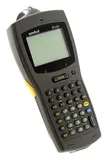 Symbol PDT-6100Portable batch data collection terminal from$695.00136 in stock Symbol PDT-6110900 MHz wireless portable data collection terminal from$795.0020 in stock
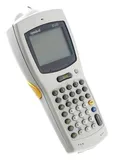 Symbol PDT-6140802.11 (1 Mbps) wireless portable data collection terminal from$795.0048 in stock
Filed with · 1 model
Also filed with these models on the old site
Summary
What is in it
A short quick reference for the Symbol PDT 6100 Series rugged hand-held computer, including the Spectrum One (6110) and Spectrum24 (6140 Series) radio versions. It shows the parts of the terminal, required and optional accessories, installing and charging the NiMH battery in the terminal, cradle or charging cable, connecting an external scanner, power, display, backlight and keyboard use, hot keys, laser scanning, host and radio communications, troubleshooting and regulatory information.
Its parts
- Introduction
- About This Guide
- Other Manuals
- Parts of the PDT 6100
- Required Accessories
- Optional Accessories
- Providing Power
- Charging the Battery
- Connecting an External Scan Engine Cable to the DB9 Connector
- Operating the PDT 6100
- Terminal Hot Keys
- Using the Integrated Laser Scanner
- Running Communications
- Troubleshooting
- Ergonomic Recommendations
From the manual · read page by page
Key facts from this manual
Some pages are scans or cannot be read; this says only what the readable text supports. Each line names its page in the PDF.
Symbol's quick reference guide for the PDT 6100 Series rugged hand-held computer, including the PDT 6110 (Spectrum One radio) and the PDT 6140 Series (Spectrum24 radio). It shows the parts of the terminal, how to install and charge the NiMH battery, how to use the keyboard, reset keys and laser scanner, how to talk to a host PC, and how to fix common problems.
- Device
- Rugged hand-held portable computer with integrated laser scanning p. 3
- Processor and OS
- 8088-compatible architecture, DR-DOS compatible p. 3
- Keyboard
- 22-key, 35-key or 46-key versions; upper case letters only p. 3, 11
- Display
- 8 or 16 lines by 20 characters, with backlight (FUNC + L) p. 3, 10
- Radio
- PDT 6110: Spectrum One RF network; PDT 6140: Spectrum24 RF network; internal antenna p. 3, 15
- Scan options
- SE 900 scan engine, or a DB9 connector for an external scanner p. 3
- Battery
- 1500 mAh NiMH rechargeable pack p. 6
- Charge time
- About 2.5 hours, in the CRD 6100 cradle or on the CCC cable p. 9
- Charging temperature
- 0°C to 40°C (32°F to 104°F) p. 8
- Cradles and cable
- Single-slot or 4-slot CRD 6100 with spare battery slot; Charging and Communications Cable (CCC) with 10-pin RJ41 plug p. 6, 8
- Optional accessories
- UBC 2000 battery charger, RS-232 null modem cable, holster p. 6
- Host connection
- Serial, through the CRD 6100 or the CCC's DB-9 connector to the host's COM port p. 15
- Laser label
- 680 nm laser, 1.0 milliwatt maximum, Class II p. 21
- Related manuals
- PDT 6100 Product Reference Guide p/n 70-33222-xx; CRD 6100 Quick Reference Guide p/n 70-37395-xx p. 4
What this manual walks you through
- Identifying the parts of the terminal p. 4, 5
- Installing a new or recharged battery pack p. 6, 7
- Connecting the charging and communications cable p. 8
- Charging the battery in the cradle and reading the charging LED p. 9
- Adjusting display contrast and backlight p. 10
- Using the keyboard and modifier keys p. 11
- Warm boot, cold boot and command mode key sequences p. 12
- Scanning bar codes with the integrated laser scanner p. 13, 14
- Communicating with a host PC or printer p. 15
- Troubleshooting power, display, scanner and key problems p. 16, 17
Good to know
- Do not use the 3115 Charging and Communications Adapter with the PDT 6100. p. 8
- Command Mode erases the MCL-Code interpreter, programs and data; a cold boot erases everything in RAM. p. 12
- The terminal powers on only with a battery installed or while in a cradle. p. 10
- Do not hold the scan window directly over the bar code; tilt up to 55 degrees to avoid the dead zone. p. 14
- An application can change what the keys do, so the keyboard may not match the guide. p. 11
Questions this manual answers
What battery does the Symbol PDT 6100 use?
A 1500 mAh nickel metal hydride (NiMH) rechargeable battery pack. It recharges in about 2.5 hours. p. 6
How do I cold boot or warm boot a PDT 6100?
Hold the key combination for your keyboard type (22, 35 or 46 key) from the table, press the power key twice, then release the other keys. p. 12
Which radio network does the PDT 6110 or PDT 6140 use?
The PDT 6110 works in a Symbol Spectrum One RF network and the PDT 6140 in a Symbol Spectrum24 RF network. p. 15
Why is the PDT 6100 status LED flashing red?
It flashes red once per second when the radio is out of range or not associated with an access point or base station. p. 16
How do I connect a PDT 6100 to a PC?
Seat it in a CRD 6100 cradle, or plug the CCC cable into its base and the cable's DB-9 connector into the PC's serial port, then start the communications program on both. p. 15
Contents
Chapters and sections
Each line opens the PDF at its page.
- Introduction3
- About This Guide3
- Other Manuals4
- Parts of the PDT 61004
- Parts of the PDT 6100 (cont’d)5
- Required Accessories6
- Optional Accessories6
- Providing Power6
- Charging the Battery8
- Connecting an External Scan Engine Cable to the DB9 Connector10
- Operating the PDT 610010
- Terminal Hot Keys12
- Using the Integrated Laser Scanner13
- Running Communications14
- Troubleshooting16
- Ergonomic Recommendations19
- Regulatory Information19
- DECLARATION OF CONFORMITY23
The whole text · 3 parts
Read the manual here as text
Its text as extracted from the PDF, unedited, in parts; each page opens the PDF at that page.
The file