Manual · PSC
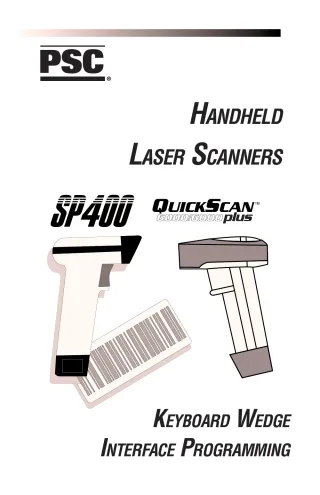
Handheld Laser Scanners Keyboard Wedge Interface Programming (SP400 and QuickScan 6000/6000 Plus)
Manual36 pagesPDF 314 KB
Keyboard wedge interface programming guide for the PSC QuickScan 6000, QuickScan 6000 Plus and SP400 handheld laser scanners.
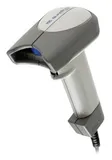
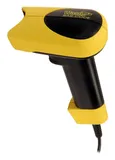
Covers · 3 models
The models it covers
Summary
What is in it
PSC's keyboard wedge interface programming guide for the SP400 and QuickScan 6000/6000 Plus handheld laser scanners. It explains the interface cable, returning to factory settings and entering programming mode, then gives programming bar codes for PC keyboard wedge interface selection, laptop or no-keyboard use, intercharacter delay, caps lock and country mode (QuickScan 6000 Plus only), prefix and suffix characters, label identifiers and symbology options such as Interleaved 2 of 5, Codabar and MSI/Plessey.
From the manual · read page by page
Key facts from this manual
Some pages are scans or cannot be read; this says only what the readable text supports. Each line names its page in the PDF.
PSC's Keyboard Wedge Interface Programming guide (R44-1542 Rev. E, 10/98) for the SP400 and QuickScan 6000/6000 Plus handheld laser scanners. It gives the programming bar codes for choosing the PC keyboard wedge type, laptop mode, delays, prefixes and suffixes, label identifiers, symbologies and check digit and length settings; it is a setup guide, not a user manual with specifications.
- Wedge interfaces
- Types A to F for PC/XT, AT and PS/2 with US or foreign keyboards; G to J (IBM 3xxx 122/102 key, PS/55 5530T, NEC 9801) on the 6000 Plus only p. 8
- Interface cable
- PSC-approved QuickScan 6000/6000 Plus I/F cable, marked with a cable I.D. code on a white label about 1 in. long p. 6
- Symbologies
- UPC/EAN, Code 39, PharmaCode 39, Interleaved 2 of 5, Standard 2 of 5, IATA, Codabar, Code 93, Code 128, MSI/Plessey p. 26, 27
- Label length
- Decodes up to 50 characters; the IBM POS interface is limited to 32 p. 29
- Intercharacter delay
- None (default) or 20 milliseconds p. 11
- Laptop mode
- Laptop/No External Keyboard setting makes the scanner supply the keyboard acknowledge signal p. 10
- Automatic interface
- QuickScan 6000 Plus cables select RS-232 or keyboard wedge automatically when attached p. 6
- Cable release
- Bent paper clip or 0.050 in. hex driver pushed into the CABLE RELEASE opening p. 6
- Label identifiers
- Industry standard prefixes, e.g. UPC-A A, UPC-E E, EAN-8 FF, EAN-13 F, Code 39 *, Code 128 # p. 18
- I 2 of 5 lengths
- Variable length by default; fixed lengths default to 14 and 8; minimum length 04 to 50 p. 29
- Country modes (Plus)
- USA, Belgium, Britain, Denmark, France, Germany, Italy, Norway, Portugal, Spain, Sweden, Switzerland, Japanese 106-Key p. 13
- Related guide
- SP400 Programming Guide R44-1020 and QuickScan 6000/6000 Plus Programming Guide R44-1540 for full settings p. 5
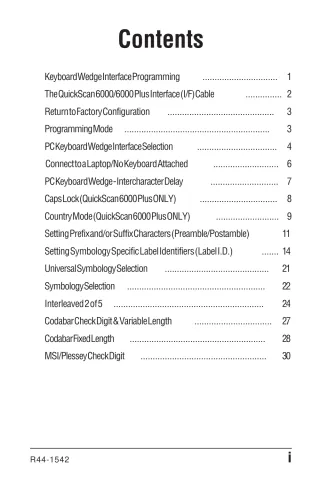
What this manual walks you through
- Disconnecting the interface cable p. 6
- Returning to the factory configuration p. 7
- Entering and leaving Programming Mode p. 7
- Selecting the PC keyboard wedge interface type p. 8
- Using the scanner with a laptop or without a keyboard p. 10
- Setting prefix and suffix characters p. 15, 16, 17
- Setting or disabling symbology label identifiers p. 18, 19, 20, 21, 22, 23, 24
- Enabling and disabling symbologies p. 25, 26, 27
- Check digit and length options for Interleaved 2 of 5, Codabar and MSI/Plessey p. 28, 29, 30, 31, 32, 33, 34
- Looking up hex values in the ASCII chart p. 35
Good to know
- An unapproved cable can damage the scanner. p. 6
- Removing power during Programming Mode returns the scanner to its previous settings. p. 7
- The Return to Factory label wipes all earlier interface changes, so use it only if needed. p. 7
- Code 39 must be on before PharmaCode 39 can be read, and Standard 2 of 5 before IATA. p. 26, 27
- The Enable and Disable All Symbologies codes are scanned without SET and END labels. p. 25
Questions this manual answers
How do I reset a PSC QuickScan 6000 to factory defaults?
Scan the Return to Factory label; it undoes every change made to the interface in earlier programming sessions. p. 7
How do I use a QuickScan 6000 keyboard wedge with a laptop?
Scan the Laptop/No External Keyboard label so the scanner supplies the acknowledge signal; switch back to Keyboard Attached on a PC with a keyboard. p. 10
How do I remove the cable from a QuickScan 6000 scanner?
Push a bent paper clip or 0.050 in. hex driver into the CABLE RELEASE opening, keep the latch pressed and pull the cable free. p. 6
How do I add a prefix or suffix on a QuickScan 6000?
Scan SET, then SET PREFIX or SET SUFFIX, the hex code digits for the character, ONE CHARACTER ONLY for a single character, and END. p. 15, 17
Which keyboard languages does the QuickScan 6000 Plus support?
USA, Belgium, Britain, Denmark, France, Germany, Italy, Norway, Portugal, Spain, Sweden, Switzerland and Japanese 106-Key. p. 13
The whole text · 4 parts
Read the manual here as text
Its text as extracted from the PDF, unedited, in parts; each page opens the PDF at that page.
The file