Manual · PSC
PowerWedge 20 User's Guide
Manual148 pagesPDF 2.1 MB
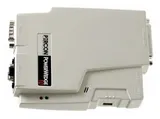
User's guide for the PSC PowerWedge 20 and PowerWedge 20 Dual fixed-station bar code and magnetic stripe decoders.
Names · 2 models
The models it names
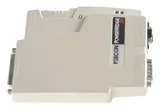 PSC Powerwedge 20Desktop decoder from$175.0066 in stock Datalogic Powerwedge 20Desktop decoder Call for availability
Filed with · 2 models
Also filed with these models on the old site
Summary
What is in it
The user's guide for the PSC PowerWedge 20, a fixed-station decoder that takes input from wands, laser and CCD scanners, magnetic stripe readers and badge readers and sends the data to a host as a keyboard wedge or serial device. It covers the standard and Dual models, installation, programming by menu, batch bar codes, on-screen and serial methods and cloning, serial and magnetic stripe parameters, input editing, the programming bar codes for each symbology, full keyboard support, and connector pinouts.
Its parts
- About the PowerWedge 20
- Installing the PowerWedge 20
- Programming the PowerWedge 20
- Input Editing
- Programming Options
- Programming Bar Codes
- Full Keyboard Support
- Connectors
From the manual
Key facts from this manual
Each line names its page in the PDF.
The PSC PowerWedge 20 User's Guide (R44-2318 Rev. A, 2002) for the PowerWedge 20 fixed-station decoder in its standard (FD-000-20) and Dual (FD-000-22) models. It covers keyboard wedge and serial installation, connecting scanners, magnetic stripe readers and auxiliary serial devices, the programming methods (defaults, Auto-Learn, menu, batch, cloning), input editing and connector pinouts. The PowerWedge 10 is not described.
- Device
- Fixed-station bar code decoder; the standard model works as a keyboard wedge or a serial device p. 7, 8
- Models
- FD-000-20 standard (input 2 for magnetic stripe only); FD-000-22 Dual (both inputs take bar code scanners) p. 8
- Input devices
- Visible and infrared wands, handheld laser scanners, CCD scanners, magnetic stripe readers, I.D. badge readers p. 10
- Magnetic stripe
- Up to three tracks at once on input 2 (two on input 1); supports the California driver's license stripe p. 10, 20
- Auxiliary serial
- RJ-11 (telephone-style) AUX SERIAL jack on both models p. 21
- Symbologies
- Codabar/Ames, Code 11, Code 128, Code 39 (Extended ASCII, MIL-STD-1189), Code 93, EAN-8/13, JAN-8/13, Labelcode 4/5, Matrix 2 of 5, MSI, Standard 2 of 5, UPC-A, UPC-E, extensions p. 9
- Power
- 9-volt power adapter into the power jack in a serial installation p. 18
- Serial defaults
- ASCII, 9600 baud, 8 data bits, no parity, 1 stop bit, Xon/Xoff off p. 18
- Host connector
- 25-pin: pin 21 serial data out, 20 serial data in, 14 and 25 ground, 23 +5V, 24 +12V; keyboard lines on other pins p. 134, 135
- Input connectors
- 9-pin: pin 2 bar code data in, 5 laser trigger in, 7 ground, 9 +5V; magnetic stripe lines on others p. 136, 137
- Cloning cable
- Part number 00-874-25, connected between INPUT 1 on master and slave p. 39
- Laser/input modes
- Normal (default), Autoscan for stand-mounted lasers, Multiscan, Symbol Blinking for the Symbol IntelliStand p. 11
- Default sets
- D0 all off, D1 all on with preambles and postambles, D2 the factory set p. 24
- Serial protocol
- ACK/NAK option with up to ten retries; a nine-beep signal and reset on a communications error p. 46
What this manual walks you through
- Installing as a keyboard wedge, including Macintosh ADB p. 14, 15
- Serial installation, stand-alone or eavesdropping on a terminal line p. 16, 17, 18
- Connecting bar code readers and enabling a second reader on the Dual p. 19
- Connecting a magnetic stripe reader p. 20
- Adding an auxiliary serial device p. 21
- Resetting to a predefined default set p. 24
- Teaching the decoder your bar codes with Auto-Learn p. 25
- Copying the setup to another unit by cloning p. 38, 39
- ACK/NAK serial protocol and host response records p. 46
- Pinouts of the host, input and cloning cable connectors p. 134, 135, 136, 137, 138
Good to know
- Use only the power adapter supplied by the dealer; another adapter can damage the decoder or input device. p. 17
- Cloning works only between units of the same model, and the cloning cable must go to INPUT 1. p. 38
- On the standard model, INPUT 2 is reserved for magnetic stripe input. p. 19
- Auto-Learn does not set terminators or checksums. p. 25
- The interface cable depends on the installation type and the computer or terminal; have the right one first. p. 13
Questions this manual answers
What is the difference between the PowerWedge 20 and the PowerWedge 20 Dual?
On the standard FD-000-20 the second input takes only a magnetic stripe reader; on the Dual FD-000-22 both inputs accept bar code scanners. p. 8
What are the PowerWedge 20 default serial settings?
ASCII data, 9600 baud, 8 data bits, no parity, 1 stop bit, with Xon/Xoff handshaking off. p. 18
How do I copy settings from one PowerWedge 20 to another?
Put the programmed unit in cloning mode, join INPUT 1 on both units with cloning cable 00-874-25, and set the slave's switch to PRGM. p. 38, 39
Can the PowerWedge 20 read magnetic stripe cards?
Yes. Input 2 reads up to three tracks at once and supports the California driver's license stripe. p. 10
What does nine beeps mean on a PowerWedge 20?
In ACK/NAK serial protocol, nine beeps signal a communications error, after which the decoder resets. p. 46
Contents
Chapters and sections
Each line opens the PDF at its page.
- About the PowerWedge 207
- Installing the PowerWedge 2013
- Programming the PowerWedge 2023
- Input Editing51
- Programming Options66
- Programming Bar Codes80
17 more lines, from page 100 on
The whole text · 15 parts
Read the manual here as text
Its text as extracted from the PDF, unedited, in parts; each page opens the PDF at that page.
- Pages 1 to 61-6
- About the PowerWedge 207-12
- Installing the PowerWedge 2013-22
- Programming the PowerWedge 20, pages 23 to 3223-32
- Programming the PowerWedge 20, pages 33 to 4233-42
- Programming the PowerWedge 20, pages 43 to 5043-50
- Input Editing51-65
- Programming Options66-79
- Programming Bar Codes, pages 80 to 8980-89
- Programming Bar Codes, pages 90 to 9990-99
- Programming Bar Codes, pages 100 to 109100-109
- Programming Bar Codes, pages 110 to 117110-117
- Full Keyboard Support, pages 118 to 125118-125
- Full Keyboard Support, pages 126 to 133126-133
- Connectors134-148
The file