Manual · Intermec
TE 2000 3270 Terminal Emulation Programmer's Guide
Manual240 pagesPDF 4.2 MB
Programmer's guide to Intermec TE 2000 3270 terminal emulation on Intermec terminals, including the 6400 computer.
Covers · 1 model
The models it covers
Summary
What is in it
Intermec's programmer's guide for the TE 2000 3270 terminal emulation application. It explains network protocol options, starting and configuring the application, and the 3270 keys on each supported terminal (the 2415, 2425, 2435A, 2455, 248X, 6400, 59XX, 17XX and 11XX). Later sections cover the terminal emulation menus, customizing the configuration, data stream commands and extended commands, with appendixes on bar code scanning, bar code symbologies, conversion tables and the terminal font set.
Its parts
- Before You Begin
- Getting Started
- Using Terminal Emulation Applications
- Using the Terminal's Keyboard
- Using the Terminal Emulation Menus
- Customizing Your Configuration
- Data Stream Commands
- Extended Commands
From the manual
Key facts from this manual
Each line names its page in the PDF.
This is the programmer's guide for Intermec TE 2000 3270 terminal emulation, version 6.30 or greater. It covers the 2415, 2425, 2435A, 2455, 248X, 6400, 5020, 5055, 59XX, 17XX and 11XX terminals, including the keyboards and menus of the 6400 Computer. It explains how to set up, use and customize the emulator, its data stream and extended commands, and the bar codes it reads.
- Software
- TE 2000 3270 terminal emulation, version 6.30 or greater p. 21
- 6400 keyboards
- 6400: 51-key or 41-key; the 41-key has no alphabetic keys in its primary plane p. 38, 39
- 6400 TE menus
- 6400: press [Yellow] shift, then [Blue] shift to open the Main Menu p. 110
- 6400 file transfer
- 6400: serial connection to a PC with INTERLNK and INTERSVR, part of MS-DOS p. 156
- 6400 user's guide
- PEN*KEY Model 6400 User's Guide, P/N 961-047-098 p. 15
- Network options
- UDP Plus, TCP/IP or WTP on the Enterprise Wireless LAN system p. 17
- Host keys
- Emulates the IBM 3278 SNA keys and the AID keys: Clear, F1 to F24, PA1 to PA3 p. 23, 24
- Configuration file
- CONFIG.DAT p. 109, 156
- Auto-login script
- ASCII text file named AUTOLOG.SCR p. 113
- Extended commands
- Transmit and receive on the RS-232 port, set parameters (supported on the 6400), return version, tone and scan p. 175
- RS-232 send limit
- #F data must be under 1840 bytes after =yy compression and end with # p. 175
- Bar codes read
- UPC and EAN with or without add-ons, Codabar, Code 11, Code 39, Code 93, Code 128, Interleaved 2 of 5, Standard 2 of 5, Plessey, MSI p. 210
- Terminals covered
- 2415, 2425, 2435A, 2455, 248X, 6400, 5020, 5055, 59XX, 17XX, 11XX p. 13, 20
What this manual walks you through
- Setting up the terminal and network before starting terminal emulation p. 17
- Starting the TE 2000 application p. 18
- Using the 3278 SNA keys and AID keys p. 23, 24
- Entering 3270 keys on the 6400's 51-key and 41-key keyboards p. 38, 39, 40
- Opening the TE configuration menus on the 6400 p. 110
- Restarting terminal emulation p. 109
- Writing an auto-login script p. 113
- Customizing parameters, menu text and national characters p. 113
- Downloading files to a 6400 with INTERLNK p. 156
- Sending data to RS-232 devices with extended commands p. 175
Good to know
- Keep the 6400 on charge during any setup, reprogramming or reflashing. p. 156
- Make sure the 6400 has a fully charged battery pack before setting parameters. p. 110
- TE 2000 does not support SST (Spread Spectrum Transmission) or regular UHF radios. p. 21
- Restarting the TE application clears the auto-login information. p. 109
- Auto-login script commands are case-sensitive. p. 113
Questions this manual answers
How do I open the terminal emulation menus on an Intermec 6400?
Press the [Yellow] shift key, then the [Blue] shift key to open the Main Menu. p. 110
How do I type letters on a 6400 with the 41-key keyboard?
Use standard mode, or press [BLUE] [GOLD] to engage alpha lock mode, which moves the lowercase letters to the primary plane. Press [BLUE] [GOLD] again to unlock it. p. 38
How do I copy files to a 6400 running 3270 terminal emulation?
Connect a PC and the 6400 through their serial ports, with INTERLNK on the PC and INTERSVR on the 6400. This also lets you edit files such as CONFIG.DAT. p. 156
Which bar codes does TE 2000 3270 terminal emulation decode?
Eleven symbologies: UPC and EAN with or without add-ons, Codabar, Code 11, Code 39, Code 93, Code 128, Interleaved 2 of 5, Standard 2 of 5, Plessey and MSI. p. 210
How do I restart the 3270 TE application?
Scan the Reset Firmware bar code or use the Cold Start option in the TE configuration Main Menu. Both restart the application in a new session. p. 109
Contents
Chapters and sections
Each line opens the PDF at its page.
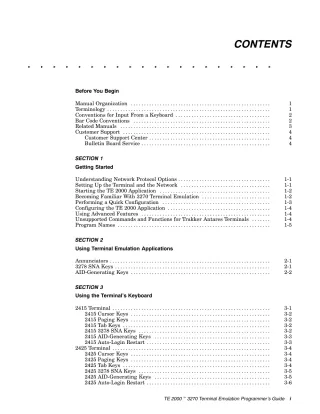
- Title1
- Before You Begin13
- Section 1: Getting Started17
- Understanding Network Protocol Options17
- Setting Up the Terminal and the Network17
- Starting the TE 2000 Application18
- Becoming Familiar With 3270 Terminal Emulation18
- Performing a Quick Configuration19
- Configuring the TE 2000 Application20
- Using Advanced Features20
- Unsupported Commands and Functions for Trakker Antares Terminals20
- Program Names21
- Section 2: Using Terminal Emulation Applications23
- Section 3: Using the Terminal's Keyboard25
- Section 4: Using the Terminal Emulation Menus55
57 more lines, from page 110 on
The whole text · 28 parts
Read the manual here as text
Its text as extracted from the PDF, unedited, in parts; each page opens the PDF at that page.
- Pages 1 to 61-6
- Pages 7 to 127-12
- Before You Begin13-16
- Section 1: Getting Started17-22
- Pages 23 to 3023-30
- Pages 31 to 3831-38
- Pages 39 to 4639-46
- Pages 47 to 5447-54
- Section 4: Using the Terminal Emulation Menus, pages 55 to 6455-64
- Section 4: Using the Terminal Emulation Menus, pages 65 to 7465-74
- Section 4: Using the Terminal Emulation Menus, pages 75 to 8475-84
- Section 4: Using the Terminal Emulation Menus, pages 85 to 9485-94
- Section 4: Using the Terminal Emulation Menus, pages 95 to 10495-104
- Section 4: Using the Terminal Emulation Menus, pages 105 to 112105-112
- Section 5: Customizing Your Configuration, pages 113 to 122113-122
- Section 5: Customizing Your Configuration, pages 123 to 132123-132
- Section 5: Customizing Your Configuration, pages 133 to 142133-142
- Section 5: Customizing Your Configuration, pages 143 to 152143-152
- Section 5: Customizing Your Configuration, pages 153 to 160153-160
- Section 6: Data Stream Commands161-174
- Section 7: Extended Commands, pages 175 to 182175-182
- Section 7: Extended Commands, pages 183 to 190183-190
- Section 7: Extended Commands, pages 191 to 196191-196
- Appendix A: Bar Code Scanning197-208
- Appendix B: Bar Code Symbologies209-216
- Appendix C: Conversion Tables217-220
- Appendix D: Terminal Font Set Table221-228
- Pages 229 to 240229-240
The file