Manual · Intermec
TE 2000 Installation Instructions
Manual6 pagesPDF 352 KB
Installation instructions for TE 2000 terminal emulation on Intermec Trakker Antares 2400 family terminals, including the 2435A.
Covers · 1 model
The models it covers
Summary
What is in it
Short installation instructions for TE 2000 terminal emulation on Intermec Trakker Antares terminals (2415, 2425, 2435A, 2455, 2475 and 248X). They explain when the firmware must be upgraded, which network and radio settings to note first, how to download TE 2000 from a PC with the TE2SETUP program, how to set the communication parameters for 2.4 GHz OpenAir, 802.11 DS or Ethernet networks, save the configuration, and set the TE 2000 data stream and other options.
From the manual · read page by page
Key facts from this manual
Each line names its page in the PDF.
Intermec TE 2000 Installation Instructions (P/N 962-055-004 REV G, October 2003) for putting TE 2000 terminal emulation on Trakker Antares terminals. It covers the 2415, 2425, 2435A, 2455, 2475 and 248X terminals as printed. It shows how to check and upgrade the firmware, load TE 2000 from a PC, and set the network and emulation parameters.
- What it is
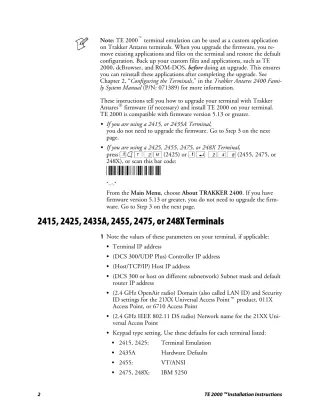
- Steps to install TE 2000 terminal emulation as a custom application on Trakker Antares terminals p. 2
- Firmware needed
- Version 5.13 or greater; the 2415 and 2435A need no firmware upgrade p. 2
- Installer program
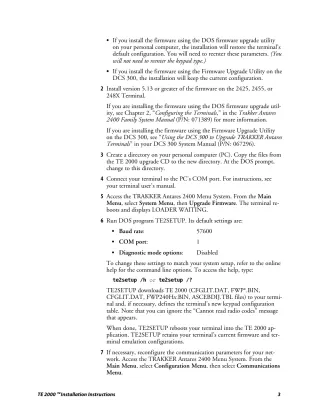
- DOS program TE2SETUP on a PC, defaults 57600 baud and COM port 1 p. 3
- Files loaded
- CFGLIT.DAT, FWP*.BIN, FWP240Hx.BIN and ASCEBDIJ.TBL, plus a new keypad table if needed p. 3
- Default data stream
- VT/ANSI for Terminal Emulation Version 6.0 or greater p. 5
- Network Activate
- 2.4 GHz RF or 802.11 DS on the 2415, 2425, 2435A, 2455, 2475, 2485 and 2486; default Disabled p. 4
- Radio matching
- OpenAir Domain and Security ID must match the access point; 802.11 Network Name must match the 21XX UAP p. 4
- Firmware upgrade tools
- DOS firmware upgrade utility (restores default configuration) or the DCS 300 Firmware Upgrade Utility (keeps it) p. 3
- Extended commands
- Off by default; enable under Protocol Opts if the host sends extended commands p. 5
- Related manuals
- Trakker Antares 2400 Family System Manual P/N 071389; DCS 300 System Manual P/N 067296 p. 2, 3
What this manual walks you through
- Checking the terminal's firmware version p. 2
- Noting network and radio settings before an upgrade p. 2
- Upgrading firmware to version 5.13 or greater p. 3
- Loading TE 2000 from a PC with TE2SETUP p. 3
- Setting network and radio communication parameters p. 3, 4
- Saving the configuration to flash and starting TE 2000 p. 4, 5
- Choosing the terminal emulation data stream p. 5
- Keeping the scanner enabled in 5250 or 3270 emulation p. 5
Good to know
- Upgrading firmware removes existing applications and files; back up TE 2000, dcBrowser and ROM-DOS first. p. 2
- Installing firmware with the DOS upgrade utility restores defaults, so network parameters must be entered again. p. 3
- The "Cannot read radio codes" message during TE2SETUP can be ignored. p. 3
- Scanning is disabled while the terminal emulation configuration menus are open. p. 5
Questions this manual answers
What firmware does TE 2000 need on a Trakker Antares terminal?
Firmware version 5.13 or greater. The 2415 and 2435A do not need a firmware upgrade. p. 2
How do I install TE 2000 on a 2435A?
Copy the TE 2000 files to a PC directory, connect the terminal to the PC COM port, choose Upgrade Firmware on the terminal, then run TE2SETUP. p. 3
Will upgrading firmware erase TE 2000?
Yes. A firmware upgrade removes existing applications and files and restores the default configuration, so back them up first. p. 2
What baud rate does TE2SETUP use?
57600 baud on COM port 1 by default; command line options change it. p. 3
The whole text · 1 part
Read the manual here as text
Its text as extracted from the PDF, unedited, in parts; each page opens the PDF at that page.
The file