Manual · ID Automation
IDAutomation SC7 USB 2D Scanner Programming Manual
Manual137 pagesPDF 2.8 MB
Programming manual for the IDAutomation SC7 USB 2D barcode scanner, with setup steps, specifications and programming barcodes.
Covers · 1 model
The models it covers
Summary
What is in it
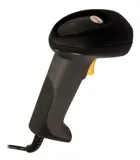
The programming manual for the IDAutomation SC7 USB 2D barcode scanner. It covers USB installation, the 2D print quality assessment (PQA) feature, default settings and specifications, then the programming barcodes for interface selection (RS-232, USB HID, USB Virtual COM), scan modes and indication, enabling and setting options for each 1D, 2D and postal symbology, prefix and suffix and data formatting, OCR programming and templates, and charts for resetting the scanner to defaults.
Its parts
- Introduction
- System Control
- Code Option
- String Format
From the manual
Key facts from this manual
Some pages are scans or cannot be read; this says only what the readable text supports. Each line names its page in the PDF.
The 2010 programming manual for the IDAutomation SC7, a USB 2D barcode imager. It gives the scanner's specifications and shows how to set it up on a PC, pick its interface, and change its settings by scanning programming barcodes from the manual.
- Device
- Handheld 2D barcode imager with trigger; reads barcodes 3 to 8 inches away p. 5
- Interfaces
- RS232 serial, USB virtual COM and USB HID (PC or Mac); factory default USB Virtual COM p. 16
- Image sensor
- 752 x 480 CMOS; 626 nm red LED light, 526 nm green LED aimer p. 12
- Depth of field
- 1D: 37 ~ 175 mm (Code 39, 10 mils, PCS 90%); 2D: 62 ~ 137 mm (QR code) p. 12
- Minimum resolution
- 1D: 0.127 mm (5 mils); 2D: 0.21 mm (8 mils) p. 12
- Input voltage
- 3.5 ~ 5.5 VDC p. 13
- Cable
- Straight 2.0 m cable with RJ-45 phone jack connector p. 13
- Scan angles
- Pitch ±40°, skew ±40°, 360° rotation; motion tolerance 4 inches/sec p. 12
- Size
- Length 165.1 mm; handle 32 mm wide, 54.7 mm deep; head 72.8 mm wide, 82.5 mm deep p. 12
- Weight
- 146 g p. 12
- Operating temperature
- 0℃ to 50℃ (32℉ to 122℉); storage -20℃ to 60℃ (-4℉ to 140℉) p. 13
- RS-232 default
- 115200 bps, 8 data bits, no parity, 1 stop bit; 300 to 115200 bps selectable p. 17
- Indicator
- Blue LED and beeper with 3 volumes and 3 frequencies, or no beep p. 12
What this manual walks you through
- Connecting the scanner to a PC by USB and turning on keyboard emulation p. 5
- Checking barcode print quality with the PQA feature p. 9
- Programming options by scanning barcodes from the manual p. 15
- Choosing the RS-232, USB HID or USB Virtual COM interface p. 16
- Setting RS-232 baud rate, data format and handshaking p. 17, 18, 19, 20
- Trigger modes, read time-out and low power mode p. 22, 23
- Restoring default settings and using the test menu p. 126
- Changing the interface by Interface ID number p. 129
- Symbology identifier codes (AIM ID and Code ID) p. 130, 131
Good to know
- Programming barcodes are scanned from the PDF on screen at 200% or more magnification. p. 5
- Tilt the scanner relative to the barcode to avoid direct reflections that impair reading. p. 5
- USB Virtual COM on a PC needs a driver from the CD-ROM. p. 21
- Auto-sense mode relies on room light and may not work well when it is too dim. p. 23
- For PQA grading, hold the scanner directly over the barcode at about 5 or 6 inches; angles can lower the grade. p. 9
Questions this manual answers
How do I make the SC7 type into my PC like a keyboard?
Connect the USB cable, then scan the USB HID (PC) or USB HID (MAC) barcode in the manual. p. 5
What are the SC7 default RS-232 settings?
115200 bps with 8 data bits, no parity and 1 stop bit. p. 17
How far away can the SC7 read a barcode?
The manual says 3 to 8 inches; the spec table gives 37 to 175 mm for 10 mil Code 39 and 62 to 137 mm for QR code. p. 5, 12
What voltage does the SC7 run on?
An input voltage of 3.5 to 5.5 VDC. p. 13
How do I reset the SC7 to its defaults?
Scan the Standard Product Default Settings barcode in the Utilities section. p. 126
Contents
Chapters and sections
Each line opens the PDF at its page.
34 more lines, from page 75 on
- GS1 DataBar Omnidirectional75
- String Format94
- Prefix/Suffix94
- Function Code Transmit97
- Intercharacter, Interfunction, and Intermessage Delays97
- Data Formatting100
- Data Format Editor Commands103
- OCR Programming108
- OCR Templates112
- OCR Template Codes125
- Utilities126
- Test Chart of Common Barcodes128
- Product Code ID130
- ASCII Code Table132
- OCR Programming Chart134
- Program Chart135
- Reset Scanner to Default Settings136
- Enable USB Keyboard Emulation (PC)136
The whole text · 16 parts
Read the manual here as text
Its text as extracted from the PDF, unedited, in parts; each page opens the PDF at that page.
- Pages 1 to 41-4
- Introduction, pages 5 to 135-13
- Introduction, pages 14 to 2114-21
- System Control, pages 22 to 2922-29
- System Control, pages 30 to 3730-37
- System Control, pages 38 to 4538-45
- Code Option, pages 46 to 5546-55
- Code Option, pages 56 to 6556-65
- Code Option, pages 66 to 7566-75
- Code Option, pages 76 to 8576-85
- Code Option, pages 86 to 9386-93
- String Format, pages 94 to 10294-102
- String Format, pages 103 to 111103-111
- String Format, pages 112 to 120112-120
- String Format, pages 121 to 129121-129
- String Format, pages 130 to 137130-137
The file