Manual · Datalogic
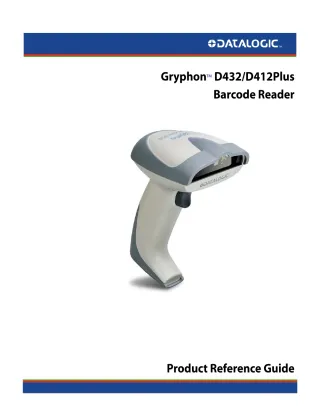
Gryphon D432/D412Plus Barcode Reader Product Reference Guide
Manual160 pagesPDF 3.3 MB
Product reference guide for the Datalogic Gryphon D432 and D412Plus hand-held barcode readers: setup, configuration codes and specifications.
Covers · 1 model
The models it covers
Summary
What is in it
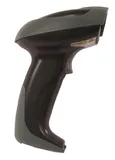
The product reference guide for the Datalogic Gryphon D432/D412Plus family of hand-held imaging barcode readers. It explains the aiming system, normal operation, image capture and autoscanning, then initial setup for RS-232, keyboard wedge and USB interfaces. Most of the guide is configuration by reading code symbols, including default settings and advanced data formatting. It closes with test codes, maintenance, technical features, host configuration strings, a code identifier table and hex tables.
Its parts
- Introduction
- Using the Gryphon D432/412Plus
- Initial Setup
- Configuration Using Code Symbols
- References
- Test Code Symbols
- Maintenance
- Technical Features
From the manual
Key facts from this manual
Some pages are scans or cannot be read; this says only what the readable text supports. Each line names its page in the PDF.
The Product Reference Guide for the Datalogic Gryphon D432/D412Plus hand-held barcode reader family, which covers both the D432Plus and the D412Plus. It walks through interface setup for RS-232, wedge, USB and IBM ports, aiming and reading, image capture, autoscanning and data formatting, and gives maintenance advice and technical features.
- Device
- Hand-held omni-directional reader with a 752 x 480 2D CMOS sensor; decodes 1D, 2D and postal codes and captures images p. 13, 121
- Interfaces
- RS-232, keyboard emulation AT IBM, USB COM emulation, USB keyboard emulation, IBM USB, USB Bulk, USB Generic HID p. 121
- Voltage, D432Plus
- D432Plus: 4.75 to 5.25 V p. 121
- Current, D432Plus
- D432Plus: 245 mA typical at 5V; 330 mA peak at 4.75V p. 121
- Size and weight
- 179 x 81 x 98 mm (7.04 x 3.18 x 3.85 inches); 198 g (6.9 oz.) without cable p. 121
- Symbologies
- Interleaved 2 of 5, Code 39, Code 32, Code 128, EAN 128, Code93, UPC/EAN/JAN, Codabar, GS1 DataBar; Aztec, PDF417, Micro PDF417, Macro PDF417, Maxicode, DataMatrix (ECC200), QR, Micro QR, Composite; POSTNET, PLANET and other postal codes p. 121
- Default interface
- RS-232, set at the factory p. 21
- Image capture
- 752 x 480 pixels; JPEG (default, 256 gray levels) or TIFF (2, 16 or 256 gray levels); sent by XMODEM_1K over RS-232 p. 17, 121
- USB hosts
- Windows 98 and later, Mac OS 8.0 and later, IBM POS for Windows, 4690 Operating System p. 22
- Drop
- IEC 68-2-32 Test ED, 1.8 m on concrete p. 121
- Reading angles
- Skew ±40°, pitch ±35°, rotation 360° p. 122, 123
- Firmware
- Flash memory, upgradable as new symbologies or decoding algorithms become available p. 13
- D412Plus IBM ports
- D412Plus: IBM PORT 9B and IBM PORT 5B interfaces, only on D412 + models p. 25
- Power, D412Plus
- D412Plus: 4.75 to 24V; 340 mA typical at 5V; 90 mA typical at 14V p. 121
What this manual walks you through
- Setting up the RS-232 interface p. 21
- Setting up the Wedge (IBM AT) interface p. 22
- First USB start-up: drivers and bus power p. 22, 23
- Selecting a USB interface: COM, keyboard, Bulk or Generic HID p. 24
- Selecting IBM PORT 9B, PORT 5B or IBM USB p. 25
- Aiming and reading codes p. 15, 16
- Capturing images p. 17
- Autoscanning in normal and pattern modes p. 18
- Formatting output data and concatenating codes p. 18, 19
- Configuring by barcodes, the Aladdin program or host configuration strings p. 14
Good to know
- Do not open the case; it may damage the electronic components inside. p. 119
- The reader is not waterproof; do not submerge it. p. 119
- Clean the window with water or a mild detergent and a soft cloth; no abrasive cleaners or solvents. p. 119
- Image capture is not available with the Wedge or USB Keyboard emulation interfaces, with autoscanning, or with the software trigger. p. 17
- The manual states the reader is a Class 1 LED product for its illuminator and a Class 2 laser product for its aiming system. p. 7
Questions this manual answers
What voltage does the Gryphon D432 need?
The D432Plus runs on 4.75 to 5.25 V; the D412Plus accepts 4.75 to 24V. p. 121
Why does the green LED keep blinking when I plug the Gryphon D432 into USB?
The host may not supply enough power; disconnect, connect an external power supply to the cable, reconnect and close the dialog box. p. 23
What image formats does the Gryphon D432 capture?
TIFF or JPEG (the default), at 752 x 480 pixels. p. 17
Which interface is the Gryphon D432 set to out of the box?
RS-232 is the factory default interface. p. 21
How do I clean the Gryphon D432 window?
Use water or a mild detergent solution with a soft cloth or tissue, and never solvents or abrasive cleaners. p. 119
Contents
Chapters and sections
Each line opens the PDF at its page.
The whole text · 20 parts
Read the manual here as text
Its text as extracted from the PDF, unedited, in parts; each page opens the PDF at that page.
- Pages 1 to 41-4
- Pages 5 to 125-12
- Pages 13 to 2013-20
- Initial Setup21-26
- Configuration Using Code Symbols, pages 27 to 3627-36
- Configuration Using Code Symbols, pages 37 to 4637-46
- Configuration Using Code Symbols, pages 47 to 5647-56
- Configuration Using Code Symbols, pages 57 to 6657-66
- Configuration Using Code Symbols, pages 67 to 7667-76
- Configuration Using Code Symbols, pages 77 to 8677-86
- Configuration Using Code Symbols, pages 87 to 9687-96
- Configuration Using Code Symbols, pages 97 to 10697-106
- Configuration Using Code Symbols, pages 107 to 114107-114
- Pages 115 to 118115-118
- Pages 119 to 124119-124
- Appendix A, pages 125 to 133125-133
- Appendix A, pages 134 to 142134-142
- Appendix B143-146
- Appendix C147-150
- Appendix D151-160
The file