Manual · Worth
WDP Manual
Manual67 pagesPDF 546 KB
Manual for Worth Data WDP readers: the P22 decoder and the LI50, LZ310 and LZ410 integrated readers, USB and keyboard wedge.
Covers · 2 models
The models it covers
Summary
What is in it
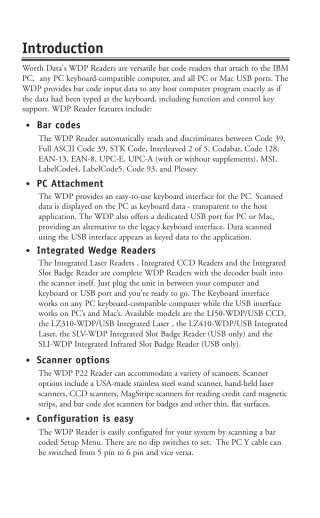
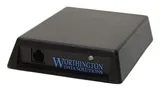
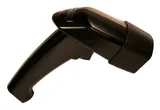
The manual for Worth Data's WDP bar code readers, which send scanned data to a PC or Mac as if typed at the keyboard. It covers the P22 decoder box (for wands, lasers, CCD, slot and magstripe scanners) and the integrated LI50 CCD, LZ310 and LZ410 laser and SLV and SLI slot badge readers. Chapters explain USB and keyboard wedge installation, configuring the reader by scanning the Setup Menu, scanners and scanning technique, function key support and accumulate mode, and troubleshooting. Appendices give symbology specifications and the P22 board diagram.
Its parts
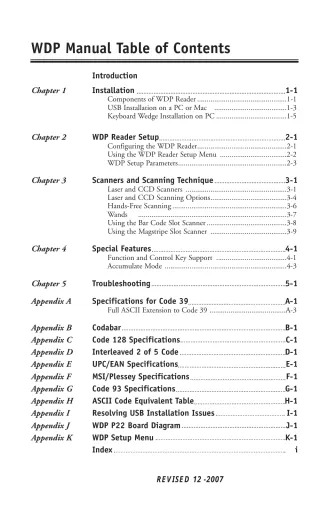
- Introduction
- Installation
- WDP Reader Setup
- Scanners and Scanning Technique
- Special Features
- Troubleshooting
From the manual
Key facts from this manual
Each line names its page in the PDF.
User manual (revised 12-2007) for Worth Data's WDP bar code readers: the P22 decoder box with its wand, laser, CCD, slot and magstripe scanners, plus the integrated LI50-WDP/USB CCD, LZ310-WDP/USB and LZ410-WDP/USB lasers and the SLV-WDP and SLI-WDP slot badge readers. It covers USB and keyboard wedge installation, setup by scanning a bar code menu, scanning technique, troubleshooting and the bar code specifications.
- Device
- WDP bar code readers for PC keyboard ports and PC or Mac USB ports; scanned data arrives as if typed p. 2
- P22 ports
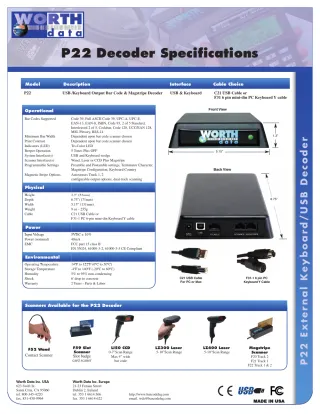
- P22: Scanner, MagStripe, Y cable, USB and power ports on the decoder box p. 6, 8, 29
- LI50 CCD range
- LI50: .5" to 7.5" depending on bar code length; bar codes up to 4.5" long; 44 scans per second p. 22
- P22 cables
- P22: C21 USB cable or F31/1 keyboard Y cable p. 3, 4
- LI50 cables
- LI50-WDP: C41 keyboard Y cable; LI50-USB: C40 USB cable p. 3, 4
- Bar codes
- Code 39, Full ASCII Code 39, STK Code, Interleaved 2 of 5, Codabar, Code 128, EAN-13, EAN-8, UPC-E, UPC-A, MSI, LabelCode4, LabelCode5, Code 93, Plessey p. 2
- USB systems
- Windows 98SE/ME/2000/XP/Vista or Mac, with no extra drivers p. 5
- Power adapters
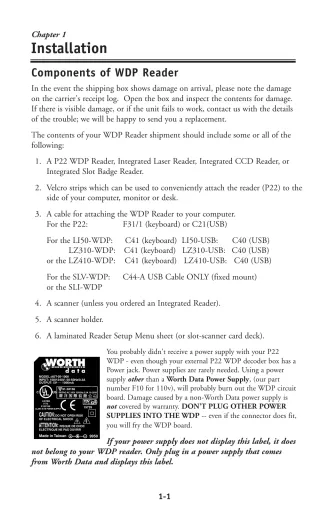
- P22 only, for low-power keyboard ports: 5-volt adapter F10 (110V), F11 (220V), F14 (UK 220V), F13 (Australia 240V) p. 37
- P22 wand
- P22: F62 medium-high resolution bar code wand when ordered with a wand p. 27
- Laser scanners
- LZ300 (for P22): 0" to 12", 36 scans per second, Symbol 1200 scan engine; LZ400 (for P22): 0" to 17" p. 22, 23
- Magstripe
- P22 only: MagStripe slot scanner options for tracks 1, 2, 3 and combinations; the reader autosenses it p. 29
- Setup
- Configured by scanning a bar coded Setup Menu; no dip switches p. 2
- P22 switch S1
- P22: board switch S1 selects Laser or Wand; set it to Wand for an older wand on USB p. 57
- Stands
- S11 or S21 stand for hands-free laser or CCD scanning p. 21
What this manual walks you through
- Installing the P22 or an integrated reader on a USB port p. 5, 6
- Installing as a keyboard wedge with the Y cable p. 7, 8
- Checking the default settings and resetting to them p. 9
- Scanning with a CCD scanner p. 22
- Scanning with a laser scanner p. 23
- Scanning with a wand p. 27
- Reading badges and cards with the bar code slot scanner p. 28
- Reading credit cards with the MagStripe slot scanner p. 29
- Troubleshooting lockups, 301 keyboard errors, USB power and poor reads p. 35, 36, 37
- Opening the P22 and changing the wand switch p. 57
Good to know
- Use only a Worth Data power supply; the manual says others will probably damage the reader even if the connector fits. p. 37
- When cabling a keyboard wedge, keep the computer off and do not plug into the mouse port. p. 8
- If a USB reader starts up and then turns off, the USB port lacks power; try a port on the computer itself or a powered hub. p. 35
- With a wand, a UPC code with a supplement must be scanned from left to right. p. 27
- An infrared wand needs bar codes printed with infrared-quality ink. p. 37
Questions this manual answers
What cable connects the Worth P22 to USB?
The C21 USB cable. Its small square end goes into the P22's USB port, next to the power jack. p. 6
How far away can the Worth LI50 CCD read a bar code?
From .5" to 7.5", depending on the length of the bar code; the longest readable bar code is 4.5". p. 22
Why does my WDP reader turn off after starting up on USB?
The USB port does not supply enough power. Try a USB port on the computer itself rather than the keyboard, or a powered USB hub. p. 35
Which power adapter fits the P22 decoder?
Only a Worth Data 5-volt adapter: F10 for 110V, F11 for 220V, F14 for UK 220V or F13 for Australia 240V. p. 37
How do I reset a Worth WDP reader to its default settings?
Scan the Start Setup, Reset and End Setup bar codes on the WDP Reader Setup Menu. p. 9
Contents
Chapters and sections
Each line opens the PDF at its page.
The whole text · 7 parts
Read the manual here as text
Its text as extracted from the PDF, unedited, in parts; each page opens the PDF at that page.
The file