Manual · Vicon
VN-855 and VN-855-C, VN-855DN and VN-855DN-C, VN-855WDR and VN-855WDR-C IP Cameras (ViconNet Ver 3)
Manual37 pagesPDF 1.0 MB
Installation and setup manual for the Vicon I-Onyx VN-855, VN-855DN and VN-855WDR IP cameras running ViconNet version 3.
Covers · 1 model
The models it covers
Summary
What is in it
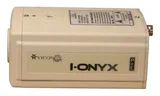
The manual for the Vicon I-Onyx VN-855 family of IP cameras: the high-resolution VN-855, the day/night VN-855DN and the wide dynamic range VN-855WDR. It gives safeguards and precautions, the packing list, the connectors and DIP switch controls, the on-screen menu of the VN-855WDR, ViconNet network configuration, shipping instructions, coaxial, twisted-pair and network cable recommendations, technical information and the warranty.
Its parts
- Important Safeguards
- Precautions
- Connectors and Controls
- OSD Menu for VN-855WDR
- ViconNet Configuration
- Shipping Instructions
- Coaxial Cable Recommendations
- Twisted-Pair Cable
- Network Cable
- Technical Information
- Vicon Standard Equipment Warranty
From the manual
Key facts from this manual
Each line names its page in the PDF.
Installation and operation manual (XX181-02-00, Rev 1107) for the Vicon I-Onyx VN-855 and VN-855-C, VN-855DN and VN-855DN-C, and VN-855WDR and VN-855WDR-C IP cameras running ViconNet version 3. It explains the connectors and switches, backfocusing, the VN-855WDR on-screen menu, network setup with VNSetup and ViconNet, and cable recommendations.
- Device type
- IP camera that streams digital video over a ViconNet (Version 3) network, up to 30 fps p. 8
- Network
- RJ-45 Ethernet, 10Base-T/100Base-T, with PoE; PoE needs a PoE device such as the NETSWITCHPOE-24 p. 10
- Power
- PoE, or 24 VAC from a UL Listed Class 2 transformer; supply of at least 9 W when not using PoE p. 8, 13
- Video output
- 1.0 V p-p/75 ohm composite on a BNC connector p. 10
- Alarm and audio
- Terminal block with 1 alarm input and 1 audio (microphone) input; alarm output is open-drain, up to 5.5 V, 24 mA at 3.3 V p. 10
- Operating environment
- 14 F to 122 F (-10 C to +50 C), humidity below 85% p. 8
- Lens control
- Connector for DC drive autoiris lenses with an ALC level potentiometer; ELC mode allows fixed or manual iris lenses p. 11, 12, 13
- Mode switches
- ELC/ALC, flickerless, BLC (VN-855WDR: WDR), AGC and AGC MAX (VN-855DN: day/night) p. 10, 11, 12
- Users
- Up to 10 concurrent viewers per device; the camera supports the first 20 Groups and first 100 Users p. 22
- Default addresses
- IP address 10.10.10.1; Nucleus IP address 1.1.1.1 p. 22
- Setup software
- VNSetup and ViconNet version 3 software on the included CD p. 22
- Packing list
- DC drive iris lens connector plug, dust protective cap, power connector, 6-pin alarm/mic connector; VN-855WDR also 2 ferrite clamps p. 8
- Network cable
- CAT5, CAT5e or CAT6, up to 328 ft (100 m); Cat5e or higher for runs over 300 ft p. 33
- VN-855WDR menu settings
- VN-855WDR: shutter in 9 levels from 1/100 to 1/50,000 sec; white balance ATW1 (2500K~7500K), ATW2, AWC or Manual p. 17, 18
What this manual walks you through
- Setting the ELC/ALC, flickerless, BLC, AGC and day/night switches p. 10, 11, 12
- Backfocusing fixed-focal-length and zoom lenses p. 13, 14
- Using the VN-855WDR on-screen menu p. 14, 15, 16, 17, 18
- Planning a ViconNet network for the camera p. 21
- Recording the MAC address before installation p. 23
- Changing network settings and upgrading firmware with VNSetup p. 24, 25, 26, 27
- Configuring the camera from a ViconNet workstation p. 28, 29
- Choosing coaxial, twisted-pair and network cable p. 31, 32, 33
- Returning a unit to the factory p. 30
Good to know
- Do not use EE/ELC mode when an autoiris lens is installed; in bright sun use an autoiris lens. p. 11
- On the VN-855WDR, the PTZ driver used for menu setup must be disabled once configuration is done. p. 14
- VN-855WDR menu changes take effect only after PRIORITY in the SPECIAL menu is set to REMOTE. p. 15
- To install firmware, the PC and camera must be on the same IP network. p. 24
- With 24 VAC power, use only a UL Listed Class 2 power transformer. p. 8
Questions this manual answers
What is the default IP address of the Vicon VN-855?
10.10.10.1; on first startup it tries to reach a Nucleus at the default address 1.1.1.1. p. 22
Does the VN-855 need a PoE switch?
PoE comes over the Ethernet port and needs a PoE device such as the NETSWITCHPOE-24; otherwise power it from 24 VAC. p. 10
How many people can watch a VN-855 at once?
With ViconNet version 3, no more than 10 concurrent users can view video from the same device. p. 22
What do the LEDs on the VN-855 mean?
On the RJ-45 jack, green shows a network connection and amber shows network activity; the blue STATUS LED blinks when the camera IP board is live. p. 10
How do I restore factory defaults on the VN-855?
In VNSetup, the Advanced TAB offers Net defaults to return the initial network settings and Factory defaults to return the initial configuration. p. 27
Contents
Chapters and sections
Each line opens the PDF at its page.
The whole text · 6 parts
Read the manual here as text
Its text as extracted from the PDF, unedited, in parts; each page opens the PDF at that page.
The file